How to Extract Images From a PDF in Original Quality
Screenshots and copy-paste shrink the pictures in a PDF. Here is how to get every image out exactly as it is stored, with the page it is on, and what to do when some seem to be missing.
The best way to extract images from a PDF without losing quality is to take out the image files stored inside it, rather than screenshotting or copying what you see on screen. A PDF keeps every photo, scan and logo as a separate image, so our free PDF image extractor can hand those files straight back to you: JPEG photos byte for byte, everything else as lossless PNG, each one labelled with the page it appears on.
It sounds like a small difference, but it decides whether you end up with the 1800-pixel photo the designer placed in the brochure or a blurry 600-pixel copy of it.
Why screenshots and copy-paste give you worse pictures
When a PDF reader shows a page, it draws each picture at whatever size the layout gives it. On a laptop or a phone, a photo stored at 4,000 pixels wide might be drawn a few hundred pixels across. A screenshot captures exactly that, then saves it as a brand new image, often compressed again. Copying a picture out of a PDF reader can work, but depending on the reader you may get the displayed version rather than the stored one, and you still have to do it one picture at a time.
There's a second reason. A PDF places each image on the page a bit like a sticker, and the page can show only part of it. In the sample brochure used below, a beach photo appears on page 2 as a wide strip, yet the file holds the full portrait photo, 1200 by 1600 pixels. Taking the image out gives you the whole thing, not just the visible slice.
How to extract every image from a PDF
- Open the PDF Image Extractor. It works in any browser, phones included, and you don't need an account to check your own file.
- Drop your PDF into the box, or choose it from your files. If the PDF is online, you can paste its link instead.
- Wait a few seconds while the tool reads the file and takes the pictures out. A long brochure or a big scan can take a little longer.
- The images appear in a grid, each with its format, size, pixel dimensions and page number. Click one to see it larger, use Download under a picture to save it, or Download all (ZIP) to get them all at once.
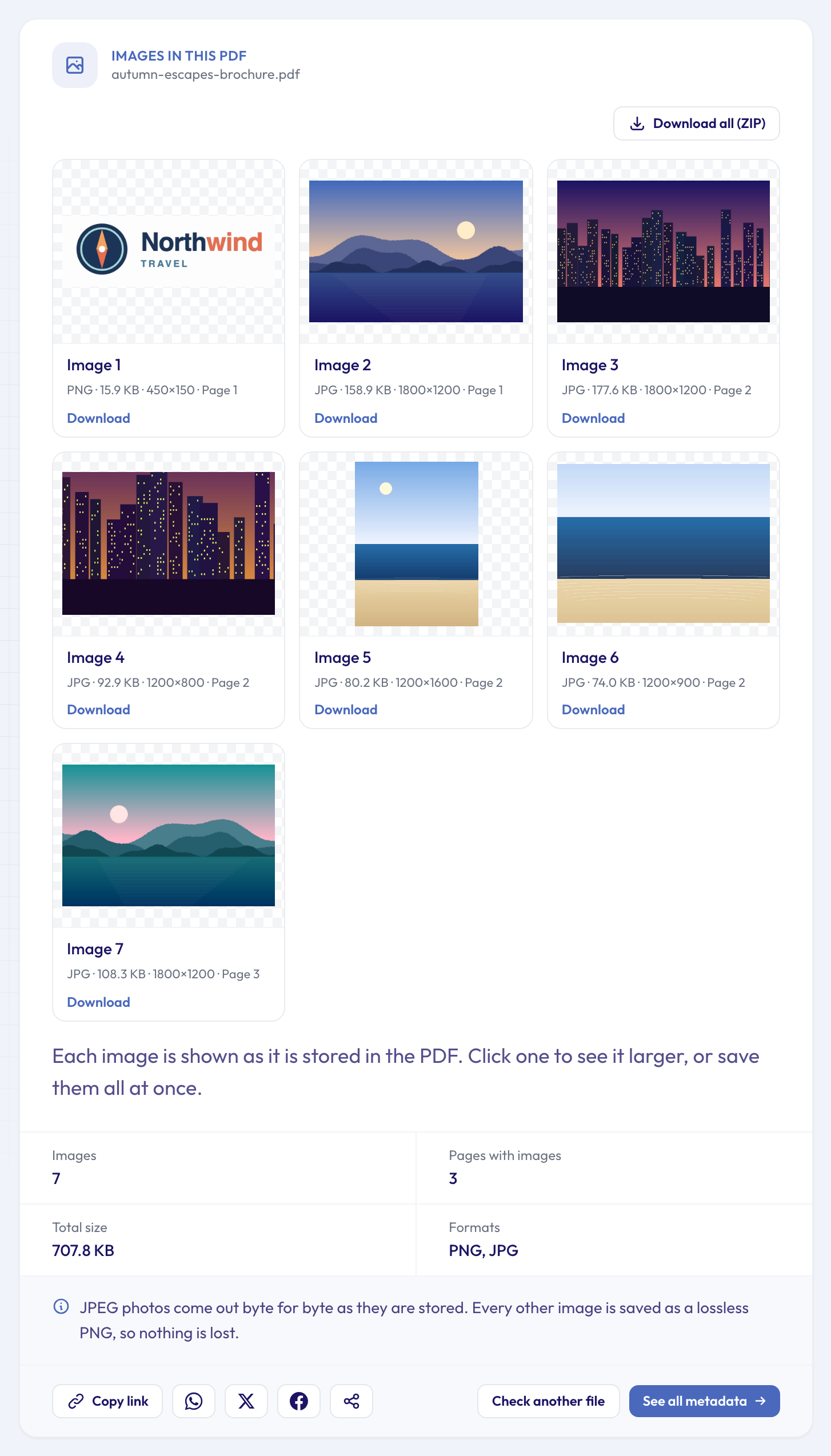 Seven images from a three-page brochure. The logo printed on every page comes out once, and the tall beach photo comes out whole, although page 2 only shows a strip of it.
The summary under the grid counts the images, the pages that hold them, their total size and their formats, so you know at a glance what the document contains.
What you get back, and why it can look different
JPEG photos come out exactly as they are stored. Most photos in PDFs are JPEGs, and the tool copies their bytes without decoding or re-compressing them, so there's no quality loss at all.
Everything else becomes PNG. Scans, screenshots, flat graphics and less common formats such as JPEG 2000 or the black-and-white JBIG2 used by many scanners are saved as PNG, which is lossless and opens anywhere.
The page number is the first page that uses the image. A logo repeated on every page is stored once and listed once, which is why the brochure's logo appears a single time, on page 1.
The size is what the file holds. If the PDF was saved with a "reduce file size" or "optimise for web" option, its images were usually shrunk at that point. Extraction can't bring back detail that's no longer in the file.
Transparent pictures can lose their transparency. A PDF keeps the see-through parts of an image, such as the edges of a cut-out logo, in a separate mask. Masks are left out, so a transparent logo can come out on a solid background, often black. The picture itself is all there.
Scanned PDFs give you one image per page. A scan is usually a single picture per page, so you get each page as an image at the resolution it was scanned at. That's handy when you need a page of an old scan as a picture.
When the tool finds no images (or fewer than you expected)
Not everything that looks like a picture is one. Charts, diagrams, icons and text that the PDF draws itself with lines and shapes, known as vector graphics, aren't image files, so there's nothing to take out. The bar chart on page 3 of the sample brochure is a good example: it's sharp at any zoom, but it isn't in the list. To get a chart like that as a picture, export the page as an image from your PDF reader, or zoom in before you take a screenshot.
A few other things are left out on purpose: tiny images such as dots and lines, the transparency masks mentioned above, and repeats of the same image.
Two more cases:
- Password-protected PDFs. A PDF that only blocks printing or copying opens fine. One that asks for a password before it opens can't be read, so remove the password first.
- PDFs that carry files rather than pictures. If a PDF has no images but holds attachments, the result says so. The PDF Attachment Extractor lists those files and lets you save them.
Before you reuse the pictures
Because JPEG photos come out byte for byte, they keep whatever hidden EXIF details they carried when they were placed in the PDF. A photo taken on a phone can still hold the camera model, the date and sometimes the place it was taken. If you plan to repost a picture, it's worth a quick check with the photo location check, and our guide on whether a photo reveals your location explains what to look for. To share a clean copy, run it through the metadata remover.
And of course, being able to extract an image doesn't give you the right to reuse it. Check who owns the pictures before you publish them anywhere.
Who can see the images?
You can, straight away, in the browser you uploaded from. The result also gets its own link: if you share it, other people have to sign in (it's free) to open the images, and result pages never appear in search engines. The PDF you upload is sent over an encrypted connection and deleted automatically after about 24 hours, while the images taken out of it stay with the results page so you can come back to them. To remove them, open the full results, choose Report, then Permanently delete this page.
 The tool accepts ordinary PDFs, PDF/A archives and scanned PDFs.
Other files, other questions
Pictures live inside other documents too, and they come out the same way:
- Slides: the PowerPoint image extractor gives you every picture with its slide number.
- Reports and letters: the Word image extractor saves the pictures from a .docx at their full original size.
- The rest of the PDF: the PDF page counter tells you how many pages a file has, and the PDF author finder shows who made it and with which app.
For every detail stored in the PDF itself, open it in the full metadata viewer, which also lists the files inside the document. And if you want the bigger picture of what these one-question tools can do, the round-up of free online metadata tools covers them all.
Questions and answers
Can I extract images from a PDF on my phone?
Yes. The tool runs in the browser, so on iPhone or Android you tap the box, pick the PDF from Files or your downloads, and save the pictures you want. The ZIP download is handy when there are many, since it keeps them together.
Why is the extracted image bigger than the one on the page?
Because the page shows the image scaled down, cropped, or both. The file keeps the original the PDF was made with, so the extracted copy is often larger and can show parts the page hides.
Can I turn the pages of a normal (not scanned) PDF into images?
Not with this tool: it takes out the pictures stored in the file, not pictures of whole pages. A scanned PDF is the exception, since each page already is an image. For a digital PDF, use your PDF reader's export or save-as-image option.
What happens with very large PDFs?
The tool takes out as many images as it can keep. If a document holds more than that, the result tells you and shows the first ones, so you know the list isn't complete.
Get the images out of your PDF
Screenshots are fine for a quick look, but for anything you'll print, publish or reuse, you want the original. Extract the images from your PDF and get every picture in its stored quality, with the page it came from, in a few seconds.