50 Free Tools That Answer One Question About Any File
A guided tour of the 50 free single-question tools on ExifTools.com, grouped by what you want to know: your camera, where and when, AI and edits, images, video and audio, documents and the files hidden inside them.
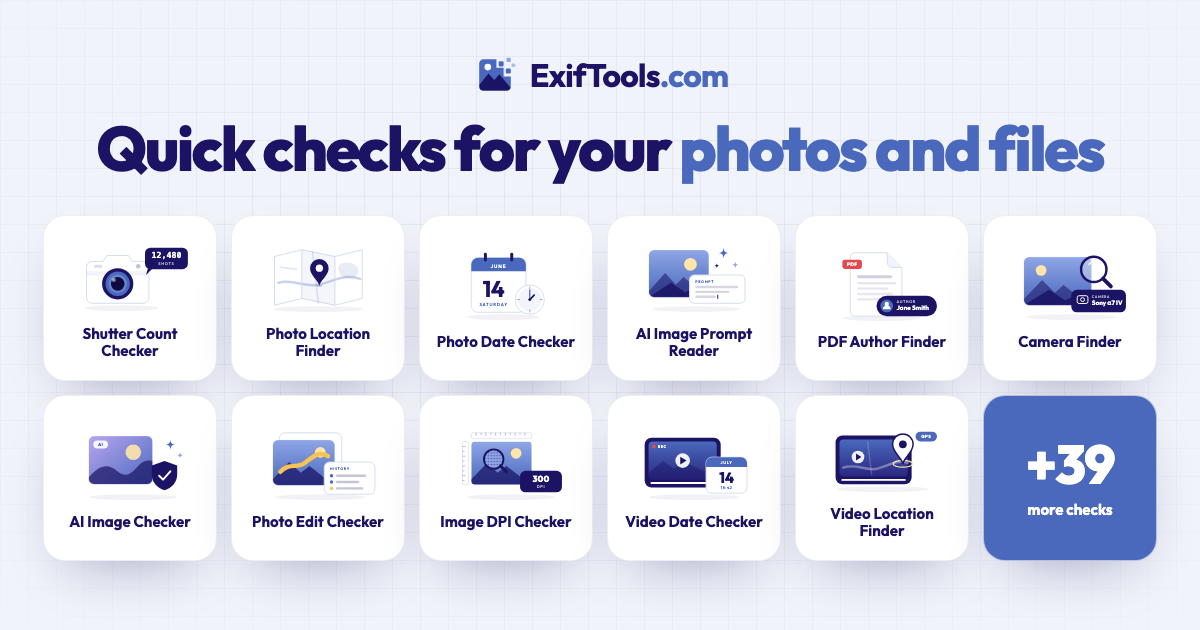
Most files know more about themselves than they show. A photo can carry the camera's shutter count, the place it was taken and a hidden thumbnail; a PDF can name its author and the app that made it; a video records its codec, frame rate and sometimes its GPS position. ExifTools.com now has 50 free tools that each answer one of those questions: drop in a file, and the answer appears in a few seconds.
This guide walks through all of them, grouped by what you actually want to know. Bookmark it, or go straight to the full list of free tools.
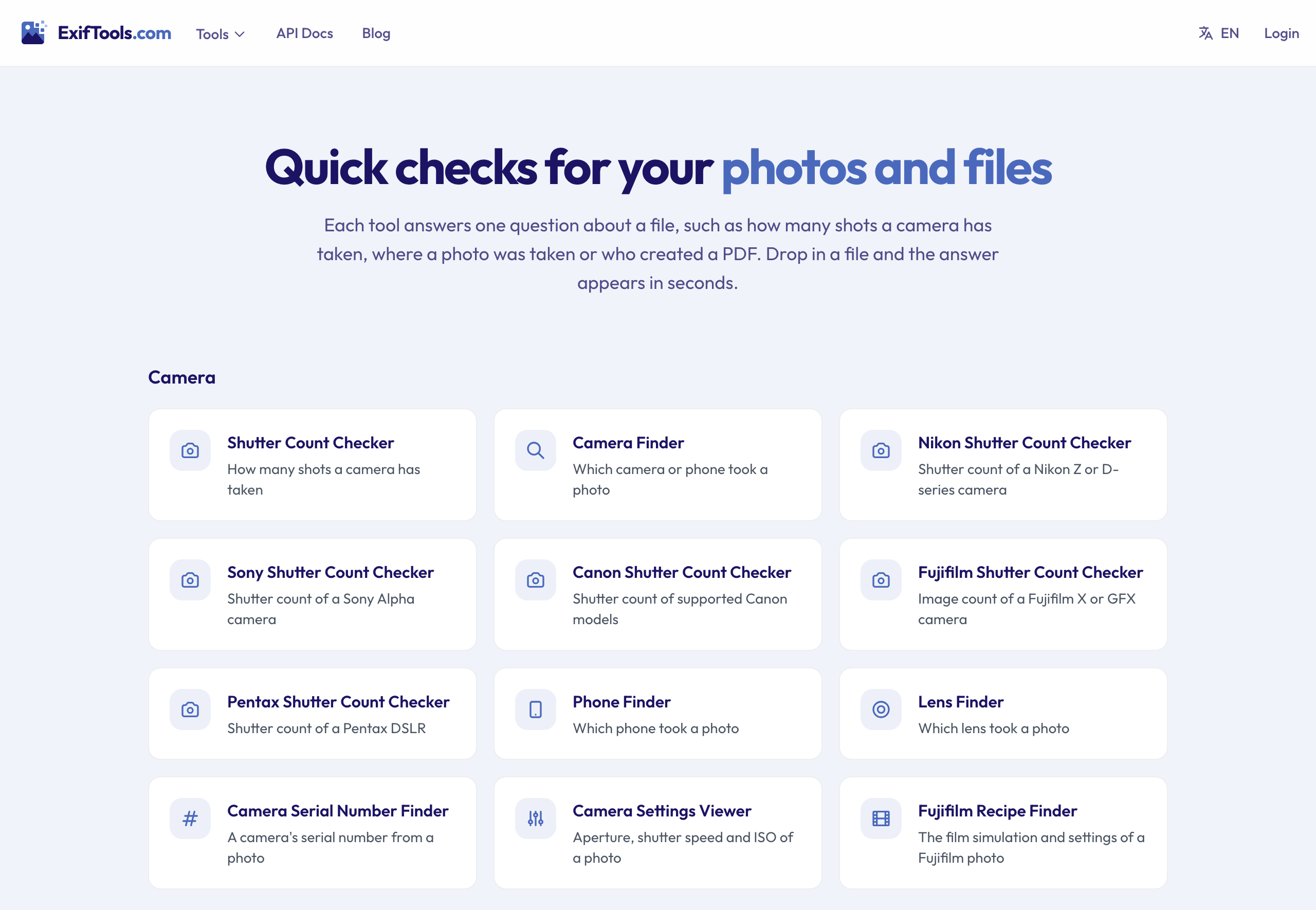 The tools page groups every check by the question it answers.
How the single-question tools work
Every tool works the same way:
- Open the tool for your question and drop in your file (or tap to choose one on a phone).
- The file is sent over an encrypted connection and read on our servers. This usually takes a few seconds.
- You get one clear answer on a result card, with a short explanation, the details that back it up, and a link you can share.
It's free, and you don't need an account to check your own file. Uploaded files are deleted automatically after about 24 hours; the result page with the extracted details stays reachable by its link, which is what makes it shareable. If you want every detail at once rather than one answer, the metadata viewer shows every field a file contains. And if you're new to all of this, our guide to what EXIF data is explains where these details come from.
Camera and gear
For photographers, buyers and sellers of used cameras, and anyone curious about how a picture was made. These tools read the details a camera writes into each photo, including the maker's own private section (the "MakerNotes").
- Shutter Count Checker: how many photos a camera had taken when the picture was shot, for Nikon, Sony, Pentax and some Canon and Fujifilm models.
- Nikon shutter count: the same check for Nikon Z mirrorless cameras and D-series DSLRs, from an unedited JPEG or NEF.
- Sony shutter count: the shot count of a Sony Alpha, from an unedited JPEG or ARW.
- Canon shutter count: the count for the Canon models that save it in their photos, such as the EOS-1D series and some EOS R bodies; for other models it tells you straight away.
- Fujifilm shutter count: the image count that Fujifilm X and GFX cameras save in their photos.
- Pentax shutter count: the shutter count of a Pentax DSLR, from a JPEG, PEF or DNG.
- Camera Finder: which camera or phone took a photo, with the lens and the settings used.
- Phone Finder: which phone took a photo and which of its cameras was used: main, ultra-wide, telephoto or selfie.
- Lens Finder: which lens took the photo, the focal length and aperture used, and the lens's full range.
- Camera Serial Number Finder: the camera body's serial number saved in a photo, and the lens serial when there is one.
- Camera Settings Viewer: aperture, shutter speed, ISO, focal length, exposure mode, metering, flash and white balance.
- Fujifilm Recipe Finder: the film simulation and in-camera settings behind a Fujifilm photo, ready to copy into your own camera.
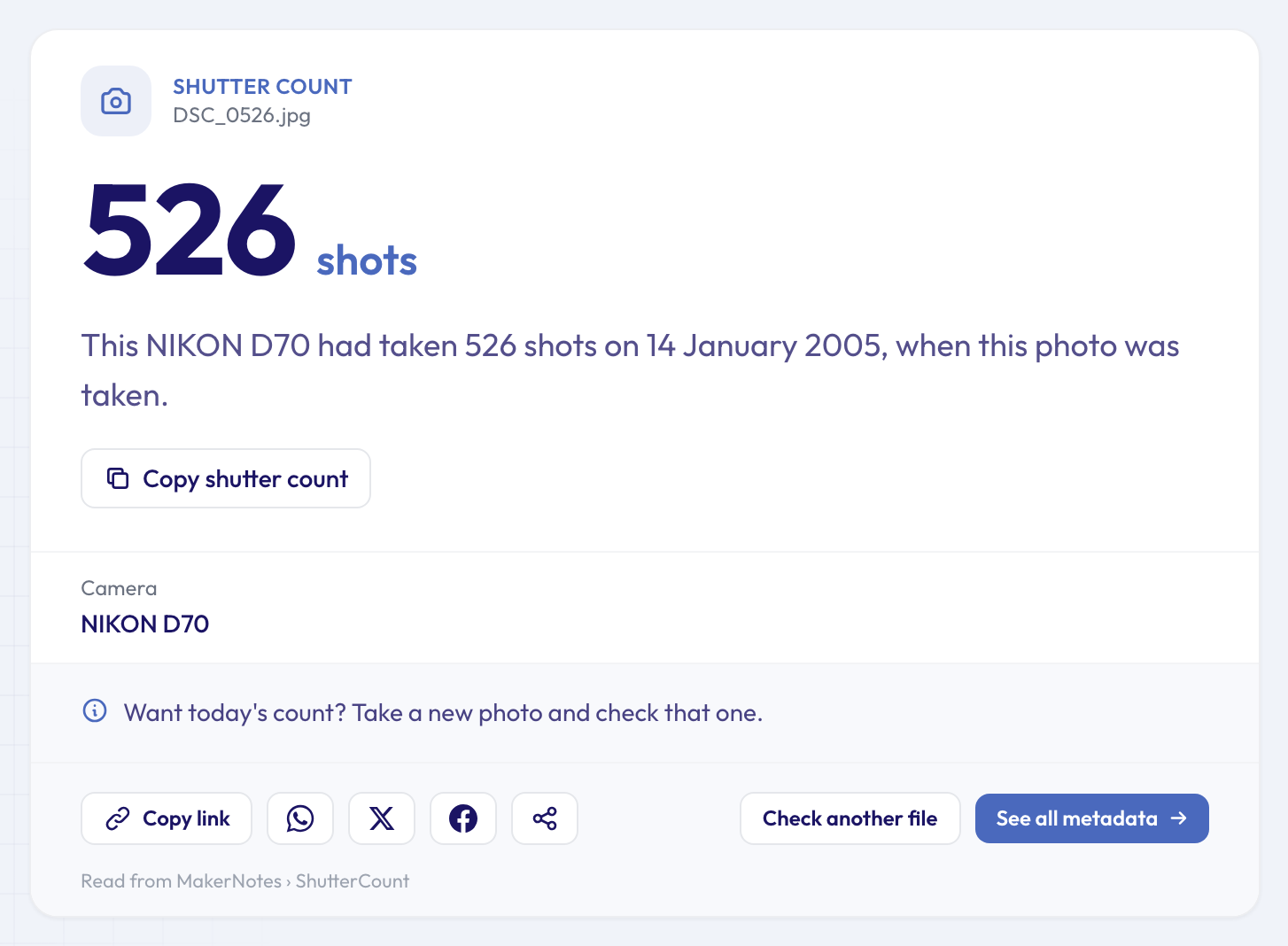 One unedited photo is enough: this Nikon D70 had taken 526 shots when the picture was made.
A tip that applies to the whole camera group: use the original file straight from the camera or phone. Social networks, messaging apps and many editors rewrite photos and drop the camera's private section, which is where shutter counts and serial numbers live.
Where and when
For checking a photo before you post it, sorting old pictures, or finding out when and where something was really shot.
- Photo Location Finder: where a photo was taken, shown on a map with the address and exact coordinates, when the phone or camera saved its GPS position.
- GPS Coordinates Finder: the same position in the format you need: decimal degrees, degrees-minutes-seconds, decimal minutes or a Plus Code.
- Photo Location Privacy Check: whether a photo gives away where you are, through GPS, place names or other details, before you share it.
- Photo Date Checker: the date and time the camera recorded when the photo was taken, not the date the file was copied or downloaded.
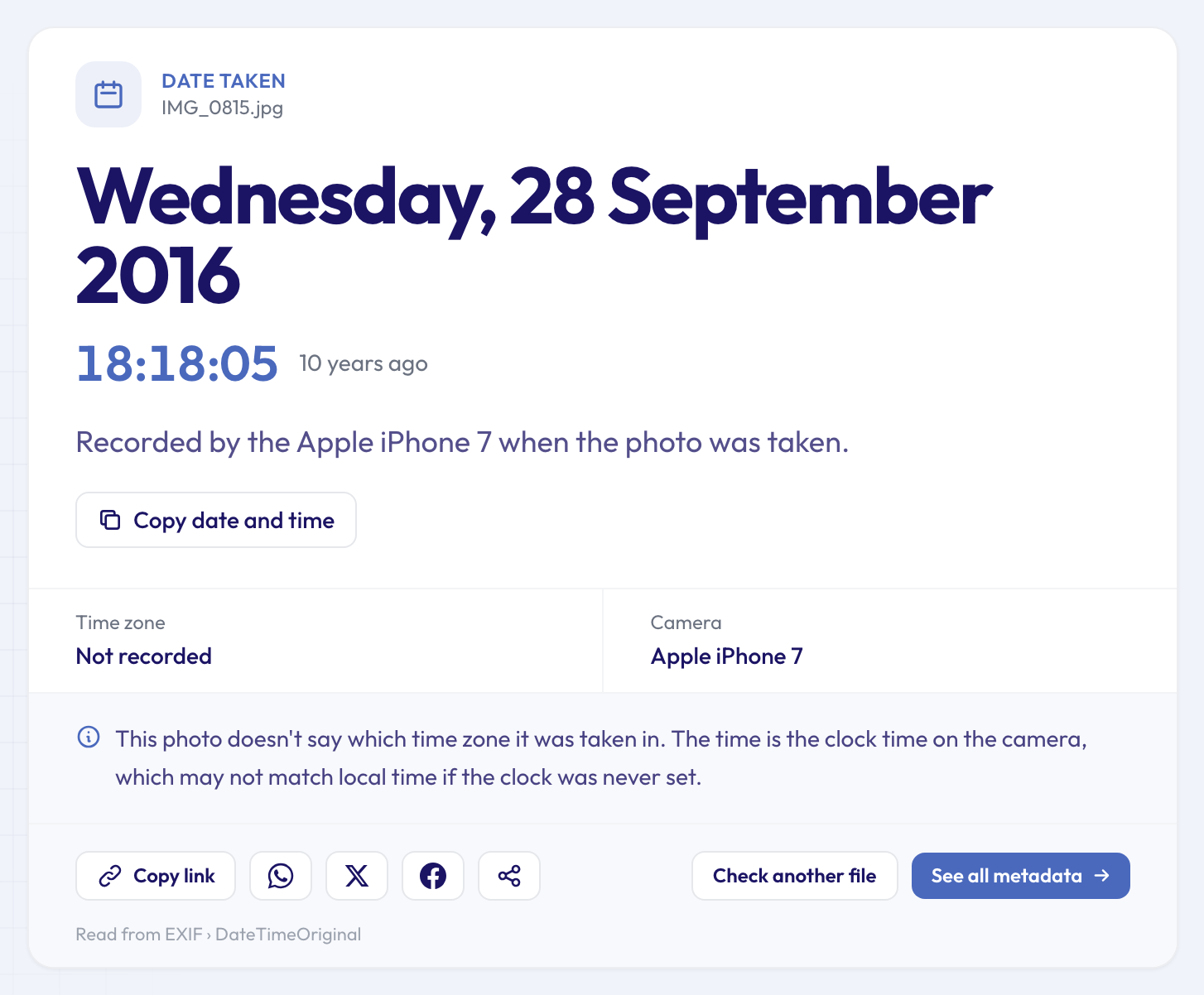 The date comes from the phone itself. The card also says when the time zone wasn't recorded.
AI, edits and authenticity
For journalists, moderators, teachers and anyone wondering whether a picture is what it claims to be. These tools read labels and traces; they don't analyse pixels, so a missing label is not proof of anything.
- AI Image Checker: whether an image carries the labels AI tools leave behind, such as saved prompts, Content Credentials, the "made with AI" tag and generator names.
- AI Image Prompt Reader: the prompt, negative prompt, model and settings that Stable Diffusion, ComfyUI, NovelAI, InvokeAI and other generators save in their images.
- ComfyUI Workflow Extractor: the full workflow inside a ComfyUI image, with its node count, model and prompt, downloadable as a workflow.json.
- Content Credentials Checker: whether a file's C2PA signature holds, who signed it, whether the file changed since, and whether a camera or AI made it. Works on photos, video, audio and PDFs.
- Photo Edit Checker: the traces editing leaves in a photo, like an app's name, an edit history, a save long after the shot, or missing camera details.
- Photo Software Finder: which app last saved a photo, from Photoshop and Lightroom to Snapseed or the camera itself, with the edit history when the app kept one.
Image details: print, colour, thumbnails and credits
For designers, print shops, photographers and anyone preparing artwork.
- Image DPI Checker: the DPI saved in an image, the print size at that DPI, the size at photo-quality 300 DPI, and whether the file contradicts itself.
- CMYK or RGB Checker: whether an image is CMYK (for print) or RGB (for screens), read from the file's structure, with its profile and bit depth.
- Color Profile Checker: which colour profile an image uses, such as sRGB, Display P3, Adobe RGB or a CMYK print profile, and what that means online and in print.
- Hidden Thumbnail Viewer: the small previews saved inside a photo (and the larger ones in RAW files), including whether one still shows the picture before it was cropped.
- Photographer Finder: the photographer's name and copyright notice saved in a photo, with the credit line and website when there is one.
Video and audio
For checking clips before editing or uploading, and for getting artwork out of music files.
- Video Date Checker: when a video was recorded, as saved by the phone or camera, not when it was copied or uploaded.
- Video Location Finder: where a video was filmed, on a map, when the device saved its GPS position.
- Video Phone Finder: which phone or camera recorded a video, which of its cameras was used, and its software version.
- Video Codec Checker: whether a video is H.264, HEVC (H.265), AV1, VP9 or ProRes, and what that means for playback, editing and file size.
- Video Frame Rate Checker: the exact frame rate, from 24 to 120 fps, and what it means: film look, TV standard, smooth motion or slow motion.
- HDR Video Checker: whether a video is Dolby Vision, HDR10, HLG or standard SDR, from the colour information in the file.
- Album Art Extractor: the cover art stored inside an MP3, M4A or FLAC file, at its full size.
Documents: PDF, Word, Excel and PowerPoint
For office workers, teachers, lawyers and anyone who receives files from other people. Documents carry names and dates that their authors often don't know about.
- PDF Author Finder: the author name saved in a PDF, with the app that made it and when it was created and last changed.
- PDF Date Checker: when a PDF was created and when it was last changed.
- PDF Edit Checker: signs a PDF was changed after it was made, such as an editing app, an edit history or a much later save date.
- PDF Software Finder: which app made a PDF, from Word and Google Docs to a browser's "Save as PDF", a scanner or an online converter.
- PDF Version Checker: the PDF version (1.4, 1.7, 2.0…) and the standards it claims, such as PDF/A or tagged PDF.
- PDF Page Counter: how many pages a PDF has, without opening it.
- Document Author Finder: the author saved in a Word, Excel or PowerPoint file, who saved it last, and the company and app recorded alongside.
- Word Editing Time Checker: the total editing time and revision count Word records, and what those numbers can and can't tell you.
- Document Date Checker: when an Office file was really created and last saved, from the dates inside it rather than the ones on your computer.
Files inside documents
Documents are often containers. These tools list what's packed inside and let you save each item at its original quality.
- PDF Image Extractor: every picture inside a PDF, page by page; JPEG photos come out exactly as stored.
- PDF Attachment Extractor: the files attached to a PDF, such as spreadsheets, invoice XML, images or whole folders.
- Word Image Extractor: every picture in a .docx file at full size, without copying and pasting.
- PowerPoint Image Extractor: every picture in a presentation, with the slide it's on.
- PowerPoint Video Extractor: the videos, music and recorded narration saved in a presentation, with the slide each plays on.
- Excel Image Extractor: the product photos, logos and screenshots saved in a workbook.
Any file: what is it really?
- File Type Checker: what a file really is from its contents, not its name, so you can spot a ".jpg" that's really a WebP or HEIC, or a ".pdf" that isn't a PDF.
When one answer isn't enough
The single-question tools are for quick, clear answers. Three other parts of the site pick up where they stop:
- The full metadata viewer shows every field a file contains, grouped and searchable. Every result card has a "See all metadata" link to it.
- The metadata remover gives you back a clean copy of a photo or document without location, camera details, names or hidden thumbnails. Our step-by-step guide on how to remove EXIF data from photos walks through it.
- The API is for developers who need the same data for many files at once; this example of stripping metadata from AI images in a pipeline shows what that looks like.
Questions and answers
Which tool should I start with if I don't know what my file contains?
Start with the metadata viewer. It lists everything, and under the results it suggests the single-question tools that have an answer for that file. From there, each tool gives you the plain-language version of one detail.
Why does a tool say "Not found in this file"?
Because the file doesn't contain that detail. Many apps and social networks remove metadata when they re-save a file, and some cameras never record certain things. The card explains the usual reasons for each tool, so you know whether trying the original file would help.
Do the tools change my file?
No. They only read it. To get a copy without the hidden details, use the metadata remover instead.
Can I share a result with someone?
Yes. Each result card has a link you can copy or share. The page shows the extracted answer; the uploaded file itself is deleted automatically after about 24 hours.
Do they work on a phone?
Yes. Open any tool in your phone's browser and tap the drop zone to pick a photo, video or document.
Pick your question
Whatever you want to know about a file, there's probably a tool that answers it in seconds. Browse all 50 free tools, pick the question that matches yours, and drop in your file.