How to Find When a Photo Was Really Taken
The date your computer shows for a photo is usually when the file arrived, not when the picture was taken. Here's how to read the real date and time zone saved by the camera, tell it apart from the "last changed" date, and know how far to trust it.
The real date of a photo is the one the camera saved inside the file at the moment you pressed the shutter, not the "date created" or "date modified" your computer shows. Drop the photo into our Photo Date Checker and it reads that original date and time, with the time zone when the camera recorded one, and tells you if the file was changed afterwards.
It's a common puzzle. You download a batch of photos from an email and they all claim to be from today. A photo library sorts a holiday into the wrong week. A relative asks when an old picture was taken, or you need to know whether a photo someone sent is from this year or five years ago. The answer is usually sitting inside the file.
Why your computer shows the wrong date
Your computer and phone keep their own dates for every file: when it was created on that device and when it was last changed there. Copy a photo from a memory card, save it from an email or sync it from the cloud, and those dates describe the copy, so they say "today".
The camera's date is different. It's written into the photo's EXIF data when the picture is taken, and it stays the same when the file is copied, renamed or emailed. That's the one to look for.
How to find the date a photo was taken
- Use the original file if you can: straight from the camera or phone, or sent as a file rather than through an app that re-saves it.
- Open the Photo Date Checker and drop the photo in. It reads JPEG, HEIC, PNG and RAW files.
- Read the result. The date and time come first, followed by the time zone, the camera and any later change to the file.
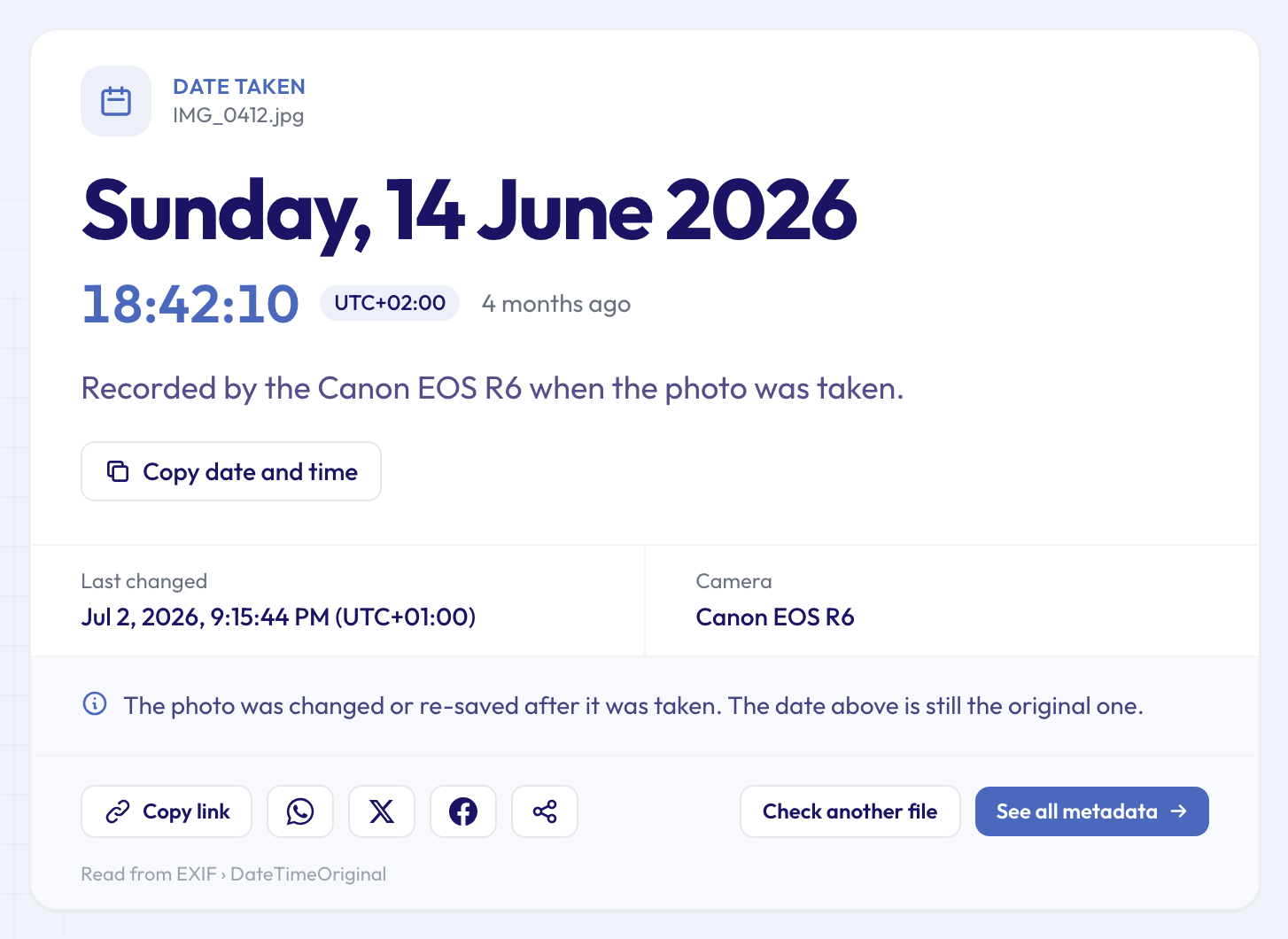 The date taken, with its time zone, and a separate "Last changed" date from when the photo was edited.
In this example, the photo was taken on Sunday 14 June 2026 at 18:42:10, in a time zone two hours ahead of UTC. The "Last changed" box shows it was saved again on 2 July, at 21:15:44 in a UTC+01:00 time zone, and the note confirms the photo was changed after it was taken. The date at the top is still the original one.
The dates inside a photo, and which one is real
A single photo can hold several dates. Here are the ones from the same file, as the full metadata viewer lists them:
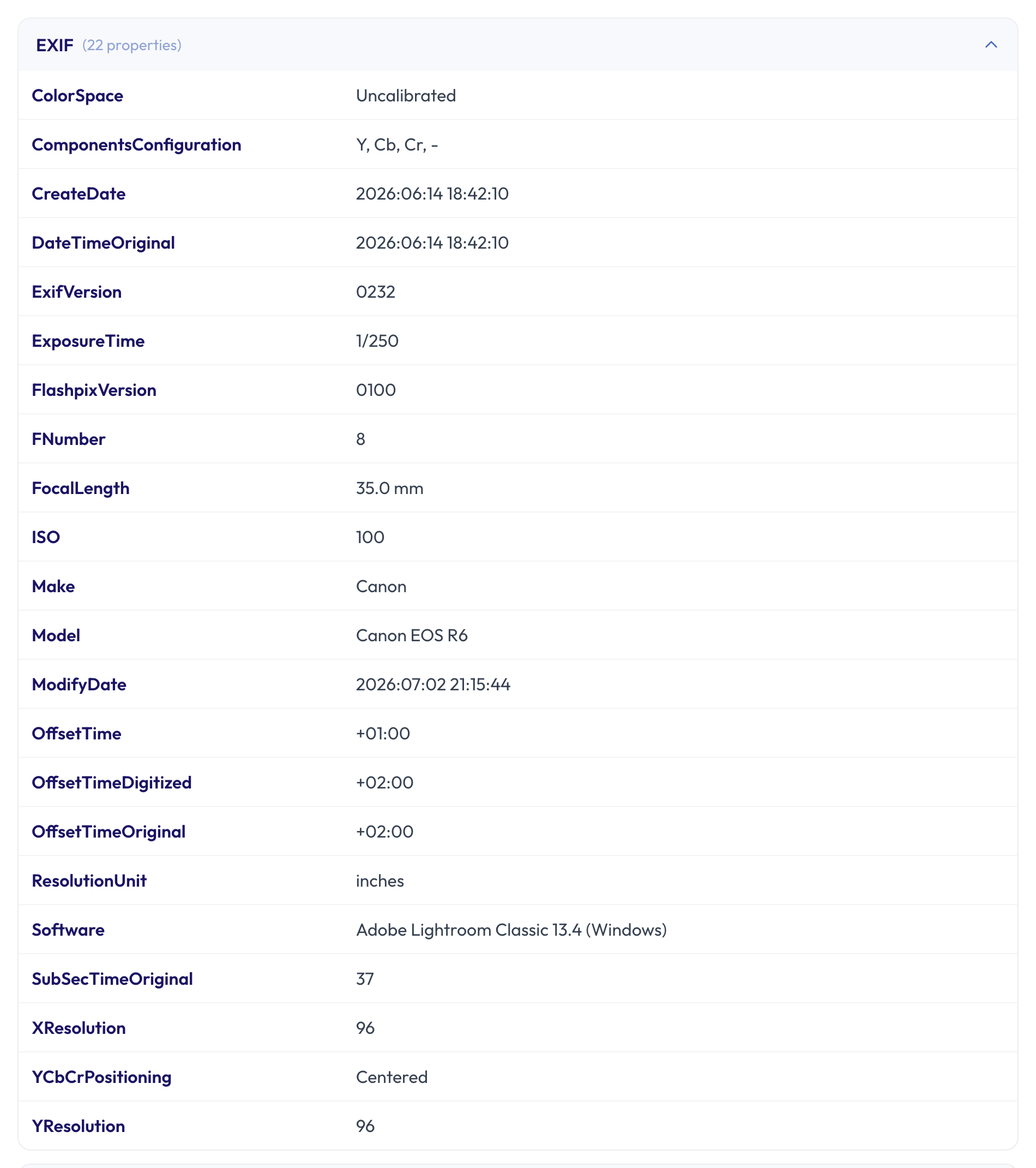 DateTimeOriginal is the moment of the shot; ModifyDate is the last time software saved the file.
- DateTimeOriginal is when the shutter fired. This is the "date taken", and the one the Photo Date Checker shows first.
- CreateDate is when the image was turned into digital data. For a digital camera it matches the date taken. For a scanned print or film negative, it's usually the day of the scan.
- ModifyDate is the last time a program saved the file. Here it's 2 July, and the Software field next to it names Adobe Lightroom Classic.
- OffsetTimeOriginal and OffsetTime are the time zones for those dates. They were added to the EXIF standard in 2016, so recent phones and cameras save them and older ones don't. In this file the photo was taken at UTC+02:00 and edited at UTC+01:00, which is what you'd see if someone shot a summer photo in central Europe and edited it at home in the UK.
- SubSecTimeOriginal adds fractions of a second, handy for putting a burst of shots in order.
Phones that save a location often add a GPS date and time as well, recorded in UTC. You'll find it in the full metadata viewer next to the coordinates.
When there's no time zone
Older cameras save only the time on their clock, with no time zone:
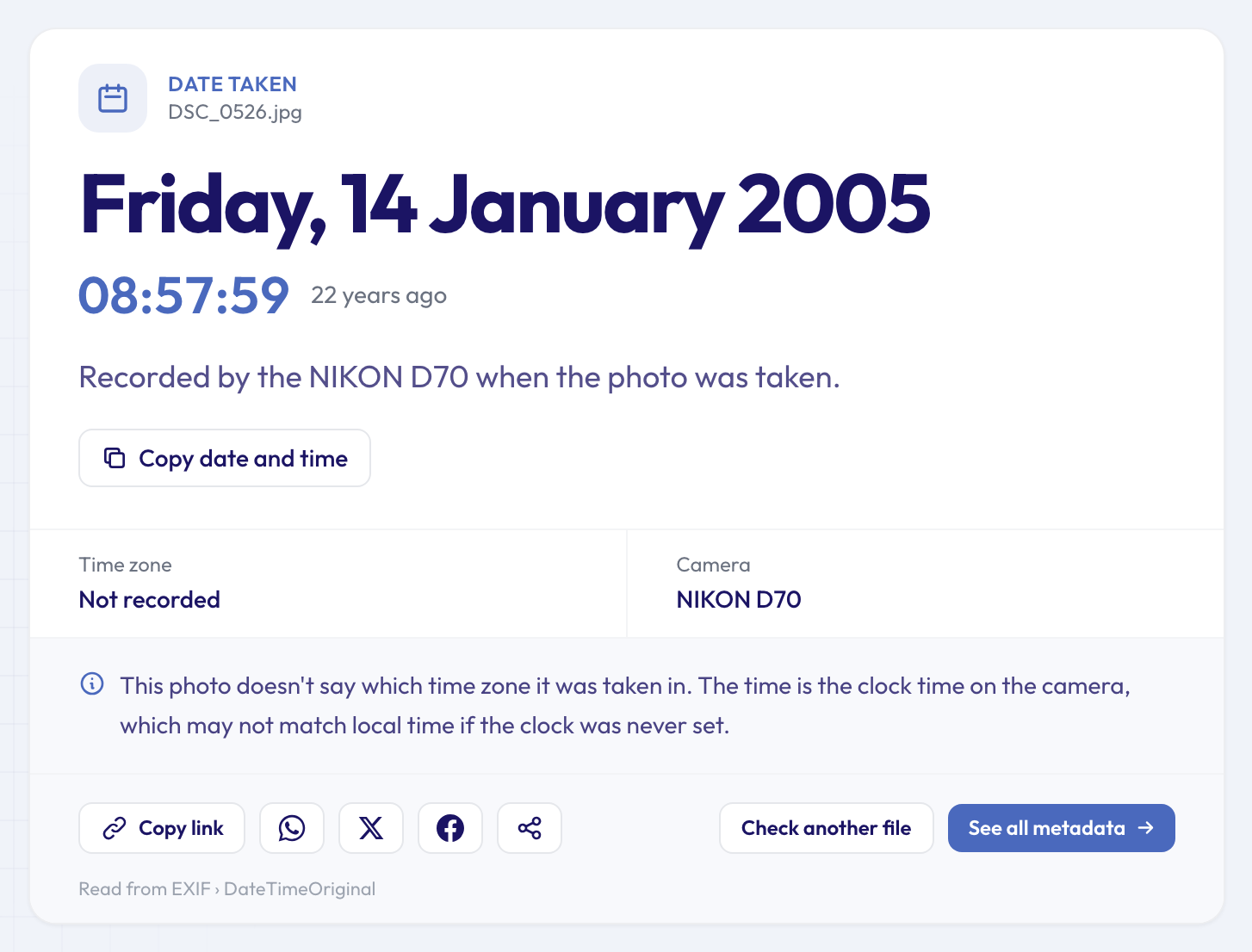 A 2005 photo from a Nikon D70: the date and time are there, but the camera didn't record which time zone they belong to.
The date is usually right, but read the hour with care. A camera clock that was never set, one left on home time during a trip, or one nobody moved forward for summer time can be an hour or more out. If the photo has a GPS time, which is always in UTC, comparing the two tells you how far the camera's clock was off.
How far can you trust the date taken?
Treat it as a strong clue rather than proof:
- The camera writes whatever its clock says. A wrong clock means a wrong date, sometimes by years.
- Dates can be edited. Photo managers let you shift dates, often to fix exactly the clock problems above, and editing software can change them too. The Photo Edit Checker looks for the traces editing apps leave behind, such as a save long after the shot.
- Some photos have no date at all. Screenshots, images made by apps and photos that went through a social network or a messaging app often come without one, because many of these services re-save the photo without the camera's details. When that happens, the date your computer shows is only when the file arrived.
Related tools
Videos keep their own recording date; the Video Date Checker reads it and explains why a video's time can look a few hours off. The Photo Location Finder answers the next question, where the photo was taken; our guide on how to find where a photo was taken walks through it. For Word, Excel and PowerPoint files, the Document Date Checker reads the created and last-saved dates stored inside them.
One more thing: the date and time are personal details too. A photo posted from a trip tells people when you were away, and a run of photos can reveal a routine. If you'd rather not share them, the Metadata Remover gives you a copy without the dates, the location and the other hidden details. Our guide to photos that reveal where you live shows how to check the location before you share.
FAQ
Why do my downloaded photos all show today's date?
Because the date you're looking at belongs to the downloaded copy. Your computer records when the file arrived. The date the photo was taken is stored inside it, and the Photo Date Checker reads that one instead.
Does editing or cropping a photo change the date taken?
Usually not. Most editors keep DateTimeOriginal and update ModifyDate, which is how the checker can show both. Some apps, though, save a new file without the original details, and then the date taken is gone.
How do I find out when a scanned photo was taken?
The file only knows when it was scanned. The original date isn't there unless someone typed it into the photo's details. Look at the print itself: dates on the back, a processing stamp, or what's in the picture.
Can I see when a photo from a group chat was taken?
Often not. Many messaging apps and social networks remove the camera's date when they pass a photo on. Ask the person who took it to send the original file, for example as a document or by email.
Check your photo's real date
Before you trust the date in a file list, check when the photo was really taken: drop in the file and see the date, the time, the time zone and whether it was changed afterwards.