How to Find Where a Photo Was Taken (Using Its GPS Data)
If a phone or camera saved its GPS position, a photo can show you exactly where it was taken, on a map, with the address and coordinates. Here's how to read it, how far to trust it, and what to do when there's no location at all.
If the phone or camera saved its GPS position, the photo itself can tell you where it was taken. Drop the original file into our Photo Location Finder and the spot appears on a map, with the nearest address and the exact coordinates. If location was turned off, or the data was removed when the photo was shared, the file has nothing to show, and the only clues left are in the picture.
People look this up for all sorts of reasons: finding the beach from a holiday ten years ago, sorting a box of old camera photos, working out where a family picture was taken, or checking the details of a photo someone sent you. The method is the same each time, and it takes a few seconds.
How to find where a photo was taken
- Get the original file. The location lives inside the file, so you need the photo as it came from the phone or camera: copied from the camera's card, sent as a file or by email, or exported as the unmodified original. A screenshot of the photo won't work.
- Open the Photo Location Finder and drop the photo onto it, or choose it from your phone's gallery.
- Read the result. If there's a GPS position, you get the place, a map and the details below it.
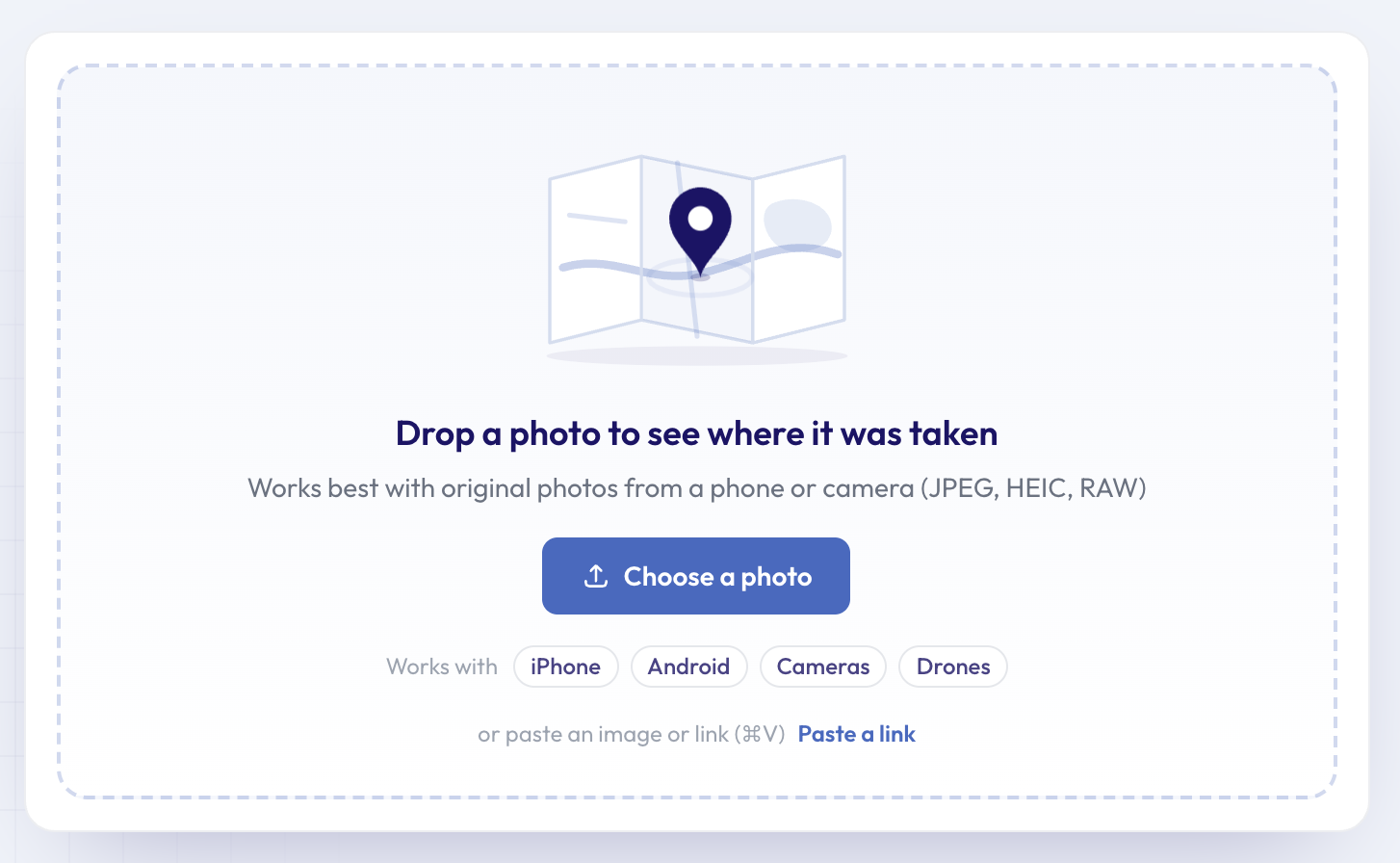 The Photo Location Finder works with JPEG, HEIC and RAW photos from phones, cameras and drones.
Reading the result
Here's the result for an example photo from a Google Pixel 8, tagged with a spot on Brighton beach, right next to the Palace Pier:
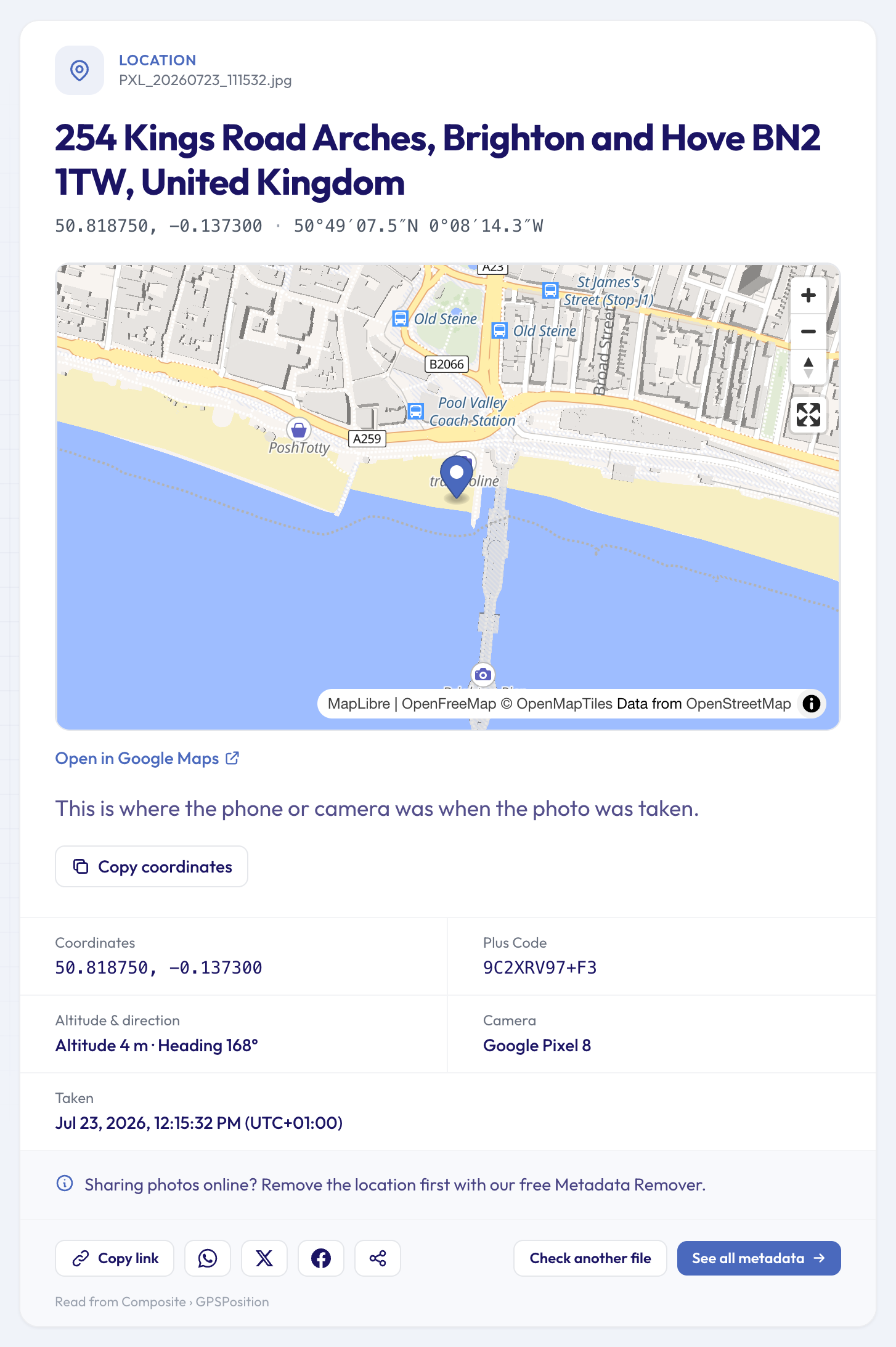 The pin shows where the phone was. The address above it is simply the nearest postal address to that point.
What each part tells you:
- The address at the top is the nearest address to the coordinates, worked out after the fact. It isn't stored in the photo. In our example the pin sits on the beach, and the closest address happens to be one of the seafront arches. Trust the pin over the street name.
- The coordinates, in decimal degrees and in degrees, minutes and seconds. "Copy coordinates" puts them on your clipboard, ready to paste into any map app.
- The map, with a link to open the same spot in Google Maps.
- The Plus Code, a short code that works like an address anywhere, even where there are no street names.
- Altitude and direction, when the phone saved them. A heading of 168° means the camera pointed roughly south, out to sea. Some phones also save how accurate the position was, shown as "±5 m".
- The camera and the time, so you know which device took it and when.
Where the location comes from
When location is allowed for the camera, a phone writes its GPS position into the photo's EXIF data at the moment you take the picture, along with the date and the device. Many cameras do the same, either with built-in GPS or by borrowing the position from your phone through the maker's app, and most drones do. If you're new to EXIF, our explainer on what EXIF data is covers the basics.
Two things are worth keeping in mind:
- It's where the camera was, not what it was pointing at. A photo of a mountain taken from the valley floor shows the valley. The direction, when it's there, tells you which way to look.
- It's measured, not perfect. Outdoors with a clear sky, phones are usually within a few metres. Indoors, between tall buildings or right after the phone was switched on, the position can be off by tens of metres. And anyone with editing software can change the coordinates, so treat them as strong evidence rather than proof.
When the result says "Partly found"
Some photos have no GPS position but do have a place name written into their details, usually by a photographer captioning their work or by a photo app:
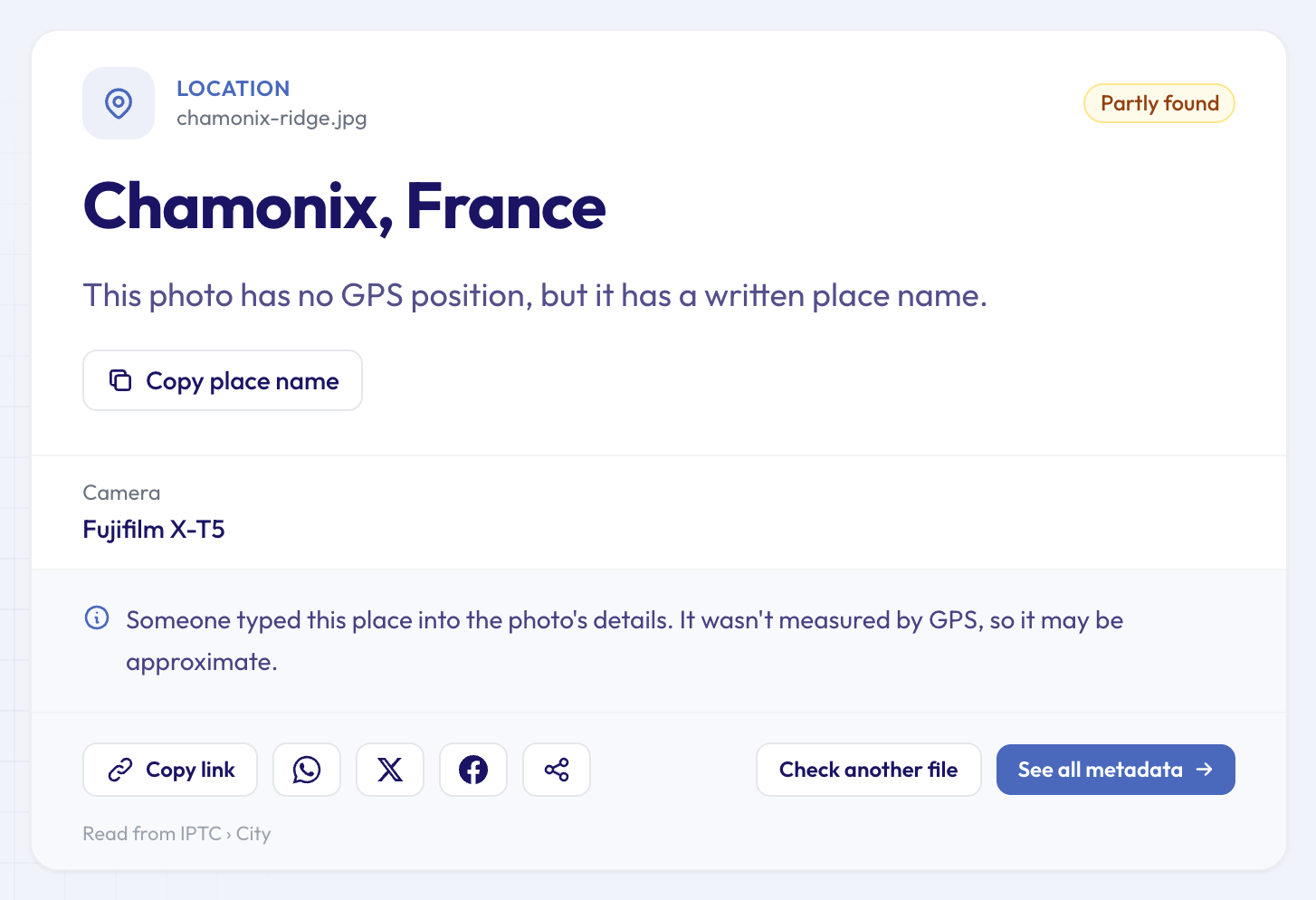 A written place name: useful, but typed in by someone rather than measured, so it may only be approximate.
A place name like "Chamonix, France" tells you the town, not the spot, and it's only as accurate as the person who typed it.
When no location is found
A "no location" result usually has one of these causes:
- Location was off for the camera when the photo was taken. Many people turn it off on purpose, and many cameras have no GPS at all.
- The photo was shared through a service that strips it. Many big social networks and messaging apps remove the position from the copy they pass on, so a photo saved from a post or a chat often has nothing left.
- It's not the original. Screenshots don't carry the position of the place shown, and some editing apps drop it when they export. When we recognise the app that last saved the photo, the result names it.
If it's a photo someone sent you, ask them for the original file. If it's one of yours, look for the original in your phone's gallery or your camera's card. Otherwise, the picture itself is all you have: signs, shop names, landmarks and the language on posters can narrow it down, but the file can't help.
Related tools
For the raw numbers in every format, from decimal degrees to a Plus Code, use the GPS coordinates finder. To see when the picture was taken as well as where, the Photo Date Checker reads the original date and time zone. Videos work much the same way: the Video Location Finder shows where a clip from an iPhone, Android phone, GoPro or drone was recorded. And if you've ever wondered what your own photos give away, the location privacy check and our guide to whether your photo reveals where you live explain what to look for before you share. To see every field in the file, open it in the full metadata viewer. For the other questions a file can answer, see our tour of all 50 free tools.
FAQ
Can I find where a photo was taken if it has no GPS data?
Not from the file. Without coordinates or a written place name, there's nothing inside it to read. What's left is the picture: landmarks, street signs, shop fronts, the shape of the coastline or the language on a sign.
Does the location show where the photographer was, or where the subject was?
Where the phone or camera was. If you photograph a castle from across a lake, the pin lands on your side of the lake.
Why does the address not match the place in the photo?
The address is the nearest postal address to the coordinates, looked up afterwards. On a beach, in a park or out in the hills, the nearest address can be a building some distance away. Go by the pin on the map.
Can I check where a whole folder of photos was taken?
The Photo Location Finder checks one photo at a time. For large batches, developers can read the same data through our API.
Find out where your photo was taken
Have a photo and a question about where it came from? Open the Photo Location Finder, drop in the original file, and see the spot on the map in a few seconds. If it's your own photo and you'd rather keep the place to yourself, the Metadata Remover gives you a clean copy to share.