Midterms 2026: How to Check a Political Image Before Sharing
AI-made images and videos are part of the 2026 US midterm campaigns, and the "AI generated" notices on them can be tiny or gone after a re-post. Here's how to check an image's file for AI labels, its real date and signs of editing before you share it, and why no label proves nothing.
The US midterm elections are on Tuesday 3 November, and AI-made images and videos are part of the campaigns. By early October, Al Jazeera reported more than 164 AI-based ads this election season, citing the nonpartisan Wesleyan Media Project. Some carry an "AI generated" notice, but it can be easy to miss: in March, CNN described an 85-second Senate campaign ad built around an AI-made version of a candidate, whose "AI GENERATED" disclosure was small, mostly faint text in a bottom corner of the screen.
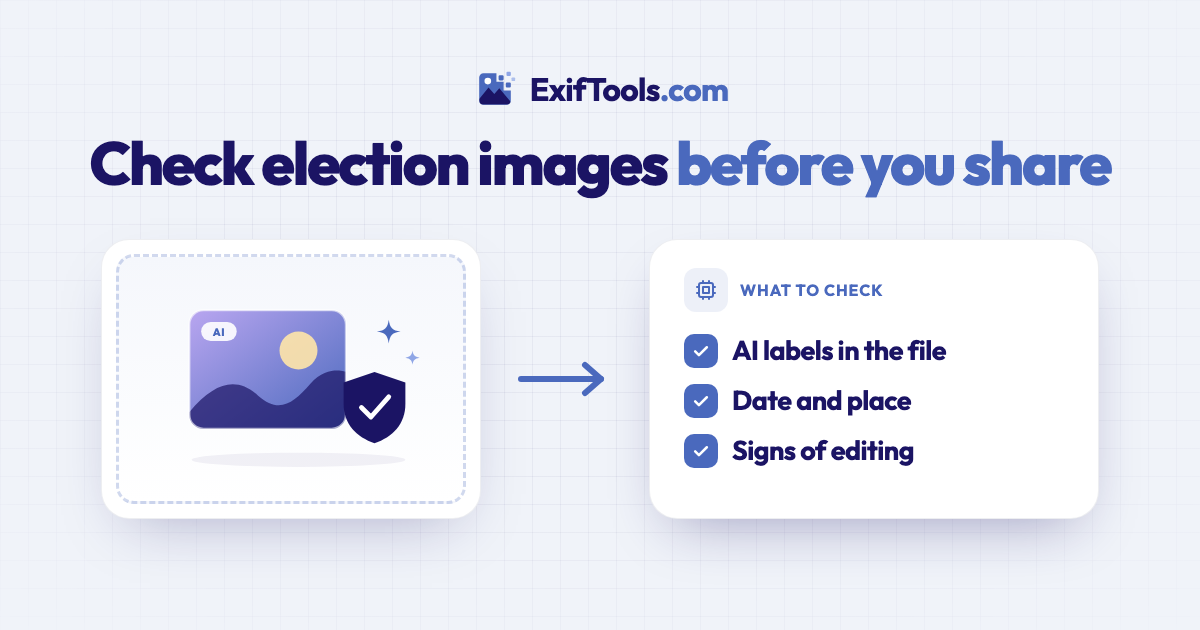
In the last week before a vote, pictures travel fast through screenshots, re-posts and group chats, and each hop can strip the labels that said how an image was made. The original file often still carries them, though, and a free AI image checker reads them in seconds. Here's what changed this year, how to check an image yourself, and what a check can't tell you.
What changed this year
Rules for the ads. There's no federal law on AI in political ads, but 31 states have passed their own, most of them asking for AI-made ads to be labelled, according to the Al Jazeera report. Many state laws apply only to campaigns, not to people who share posts, Reuters noted in March. Details vary by state, and this isn't legal advice.
Labels inside the files. On 16 March, Senator Mark Warner wrote to 17 AI and tech companies, urging them among other steps to embed Content Credentials, metadata and visible watermarks in AI-made media and to require partners to keep those markers intact (MeriTalk). On 19 May, OpenAI said that images made with ChatGPT, Codex and its API carry Content Credentials and are also getting Google's SynthID watermark. The same day, Google said it was bringing SynthID checks to Search, with Chrome to follow, and Content Credentials checks to both in the coming months.
The catch. These are two different kinds of label. Some live in the file's details: signed Content Credentials (C2PA), the industry's IPTC "digital source type" tag, a saved prompt or a generator's name. Others, like SynthID, are hidden in the pixels. Our tools read the first kind and can't see the second. And the first kind is easy to lose: a screenshot, an upload to most social networks or a forward in a messaging app usually drops it. So "no label found" is never proof that an image is real.
How to check an image before you share it
- Get the original file. If an image matters, look for it where it was first published: the campaign's own website or press page, the photographer, or the news outlet that ran it. Download the file rather than screenshotting it, and if a friend sent it, ask where it came from.
- Check it for AI labels. Drop the file into the AI image checker. It looks for Content Credentials, the IPTC tag, saved prompts and generator names, and lists each one it finds, strongest first.
Here's an image made with Adobe Firefly, checked as it was downloaded:
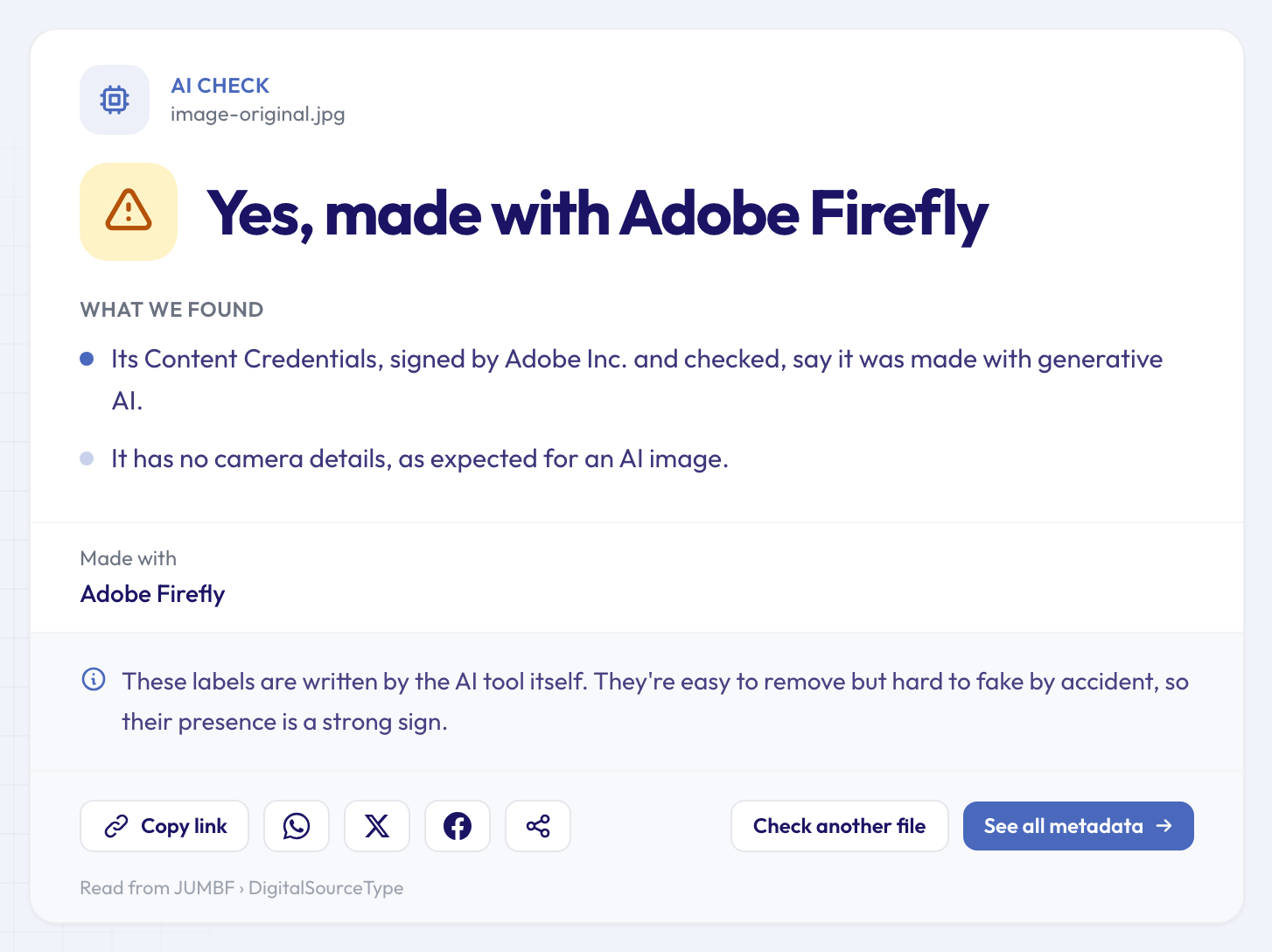 The signed record names Adobe as the signer and says the image was made with generative AI.
And here's the same picture after a screenshot, the way it often reaches a group chat:
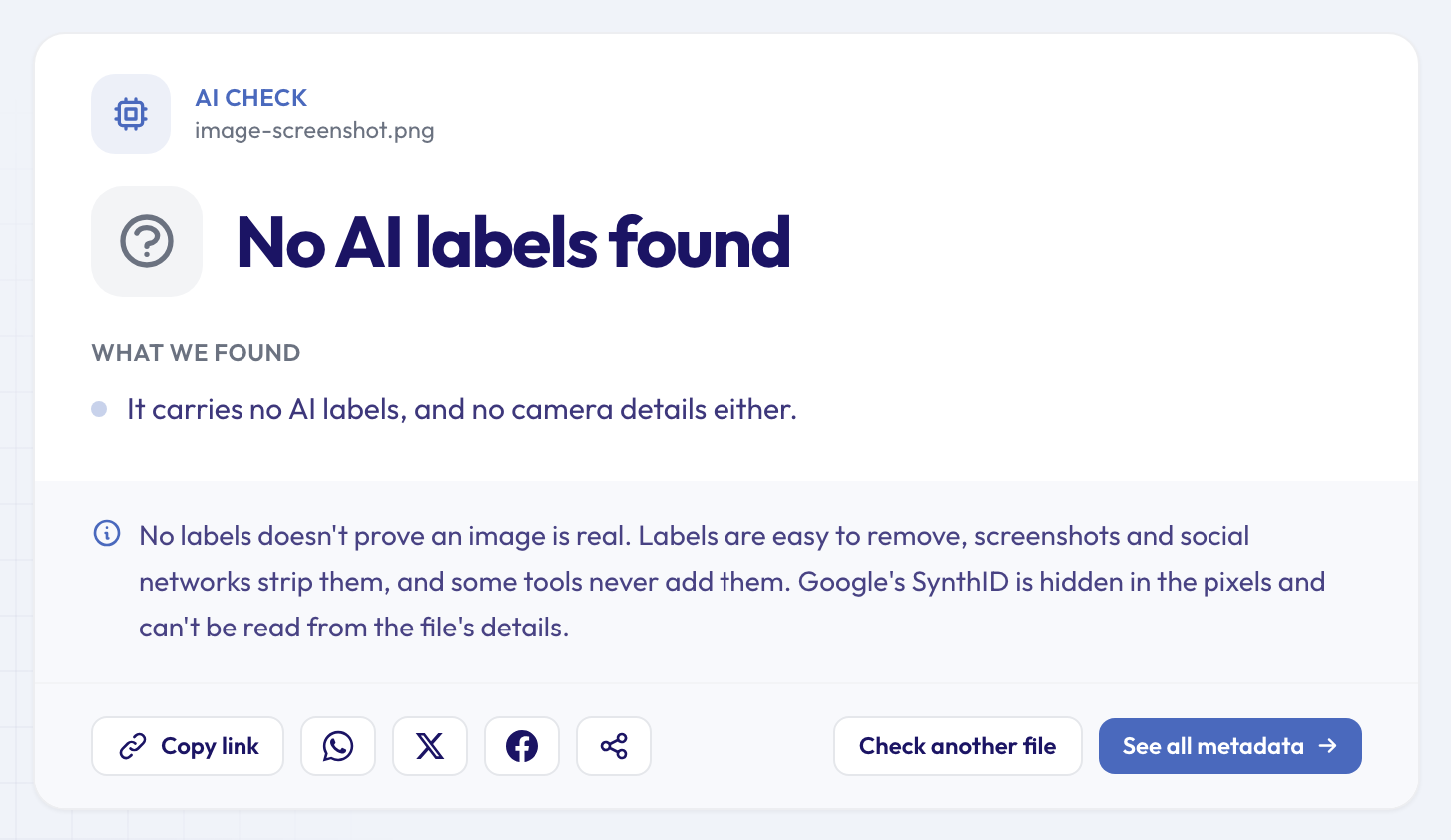 Same pixels, no labels. A screenshot keeps the picture and drops everything the file said about itself.
- Check the date and place against the claim. An old photo with a new caption needs no AI at all. The photo date checker reads the date and time the camera or phone saved when the picture was taken, and the photo location finder shows where it was taken, if a GPS position was saved. For a video file, the video date checker reads when it was recorded. Treat a date as a strong hint, not proof: a camera writes whatever its clock says.
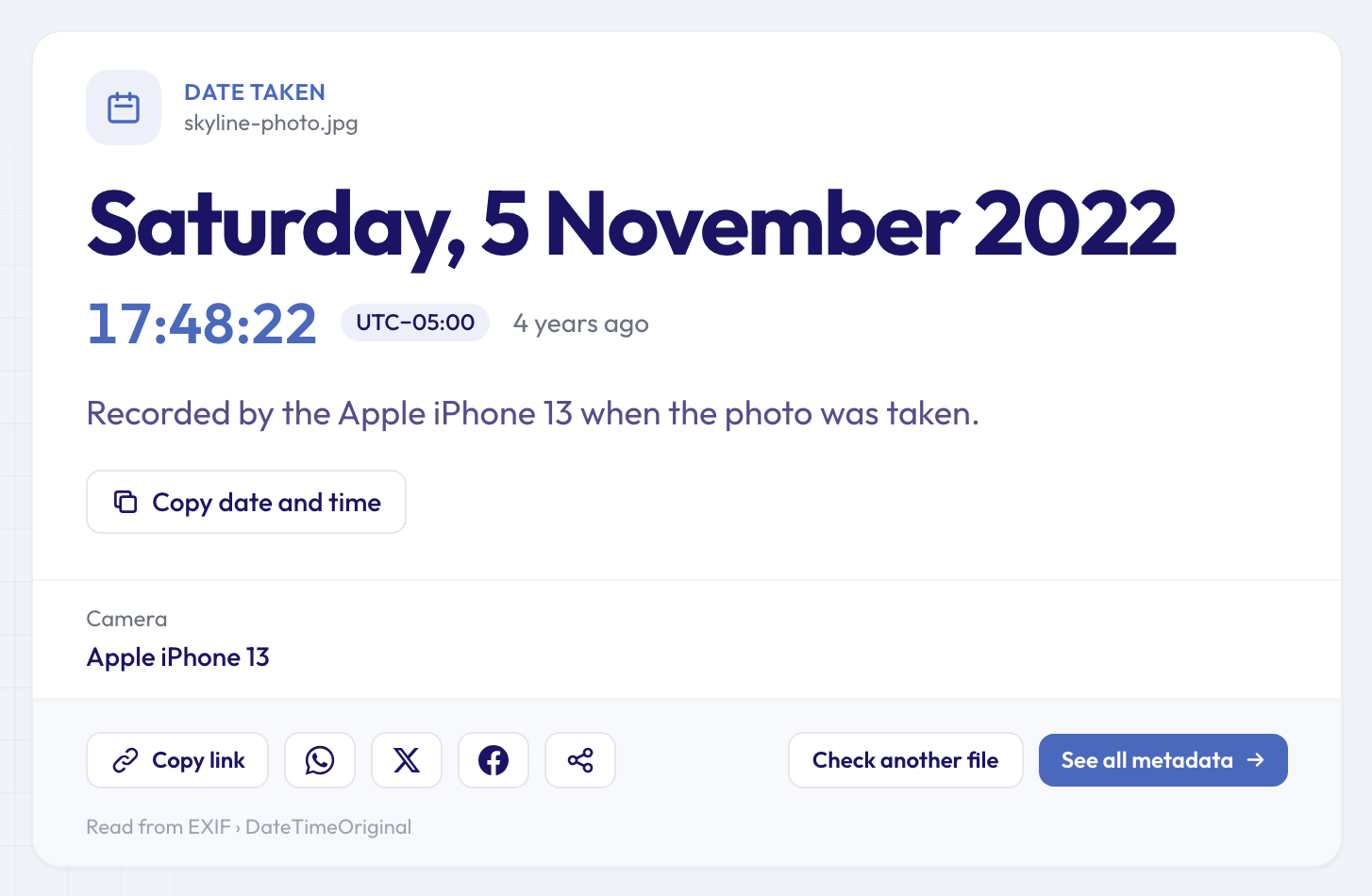 If this picture were going round as "taken this week", its own file would say otherwise.
- Look for signs of editing. The photo edit checker lists the traces editing apps leave: the app's name, an edit history, a save long after the shot. The photo software finder names the app that last saved the file.
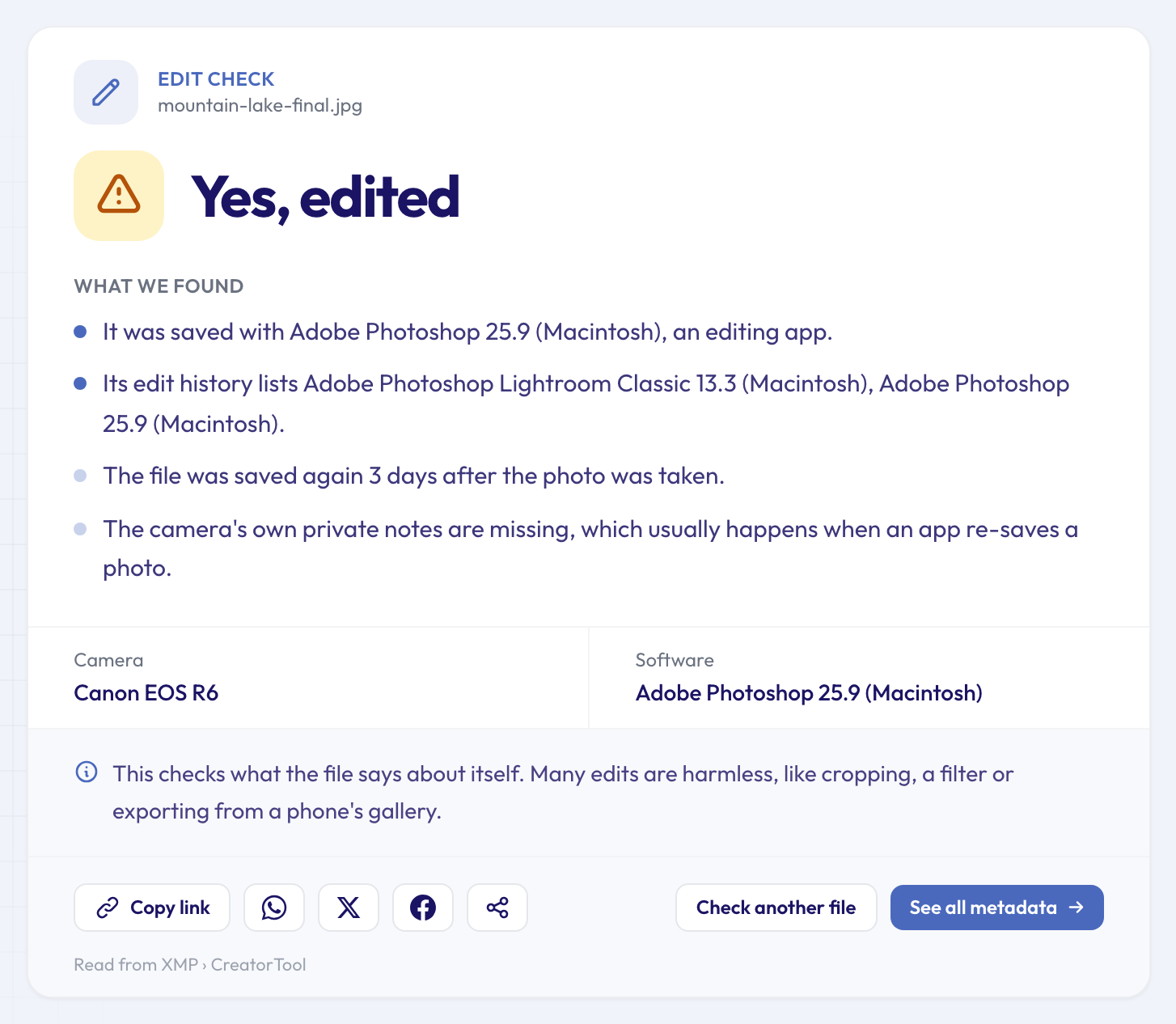 Edited doesn't mean fake: most edits are crops and colour fixes. It does mean this isn't the camera's original file.
- Step outside the file. Who posted it first? Does a reverse image search turn up an older or larger copy? Has the campaign, the photographer or a news outlet confirmed it? The file tells you what it says about itself; the context tells you whether to believe it.
What a check can't tell you
- It reads the file, not the picture. Our tools don't analyse pixels, so they can't see SynthID or any other watermark hidden in the image itself.
- Labels can be removed, and some can be faked. Anyone can strip a label in seconds, and an IPTC tag or a software name can be typed in by hand. Signed Content Credentials are harder to fake: the Content Credentials checker shows who signed them and whether the file changed after signing.
- A real photo can still mislead. Camera details and credentials say how a file was made, not whether the caption on it is true.
If labels are new to you, our guide on how to tell if an image is AI-generated explains what each kind is worth, and what EXIF data is covers the dates and camera details photos carry.
Questions people ask
Does "No AI labels found" mean an image is real?
No. It means the file you checked carries no label. The image may never have had one, or it lost it on the way to you. Look at the line under the verdict: if the file still has the details of the camera that took it, that points towards a real photo. If it has nothing at all, as with most screenshots, the file simply can't tell you either way.
Can I check a political video the same way?
Partly. The AI image checker is for still images. For a video file, the video date checker reads when it was recorded, and the Content Credentials checker reads signed credentials in MP4 and MOV files when they're there. Clips saved from social networks have usually lost both, so go back to the source.
What happens to the files I upload?
They're sent over an encrypted connection, read on our servers and deleted automatically after about 24 hours. The results page stays reachable by its link, so you can send what you found to the person who shared the image.
Check before you share
Before you re-post that picture, find the best copy you can and drop it into the free AI image checker. It takes a few seconds, there's nothing to install, and you'll see what the file says about how it was made, and what it can't say. And if you post your own photos from a campaign event, check whether your photo reveals your location first; the metadata remover gives you a clean copy.