Hidden Photo Thumbnails: Why Cropping Isn't Enough
Many photos carry a small copy of themselves inside the file. When an app crops or retouches the picture but keeps that old thumbnail, the part you cut out can still be there. Here's how to check, and how to get rid of it.
Most photos straight from a camera, and many from phones and apps, contain a second, much smaller copy of the picture: the EXIF thumbnail, often around 160 × 120 pixels. If an app crops or retouches the photo but leaves that thumbnail untouched, the miniature still shows the original picture, including whatever you cropped out. You can see it in a few seconds with our hidden thumbnail viewer.
It's one of the oldest metadata leaks there is, and it catches people because nothing on screen gives it away: the photo looks cropped in every app, while the file still carries the old version.
Why a photo carries a second picture
Decoding a full-size photo takes time. To show previews quickly, cameras and many apps save a small ready-made JPEG inside each photo, next to details like the camera model and the date. Gallery screens, file browsers and the camera's own playback can show that instead of decoding the whole image.
The problem is what happens after editing. Some apps update the main picture when you crop or retouch it but leave the stored thumbnail as it was. Nothing looks wrong, because most apps make their own preview from the main image. But the old thumbnail travels with the file wherever you send it.
RAW files go further. Besides the small thumbnail, they usually hold a larger preview and often a full-size JPEG, so the camera can show the shot without processing the raw data. Some JPEGs carry extra images too, saved alongside the main one.
How to check a photo for a hidden thumbnail
- Open the Hidden Thumbnail Viewer.
- Drop in the photo you plan to share, ideally the exact file you'll send, after all your edits.
- Look at what it finds. Every image saved inside the file is listed, smallest first, with its size in pixels and where it was stored.
- Compare each one with your photo. If a preview is marked Different shape, look closely: it may come from before a crop.
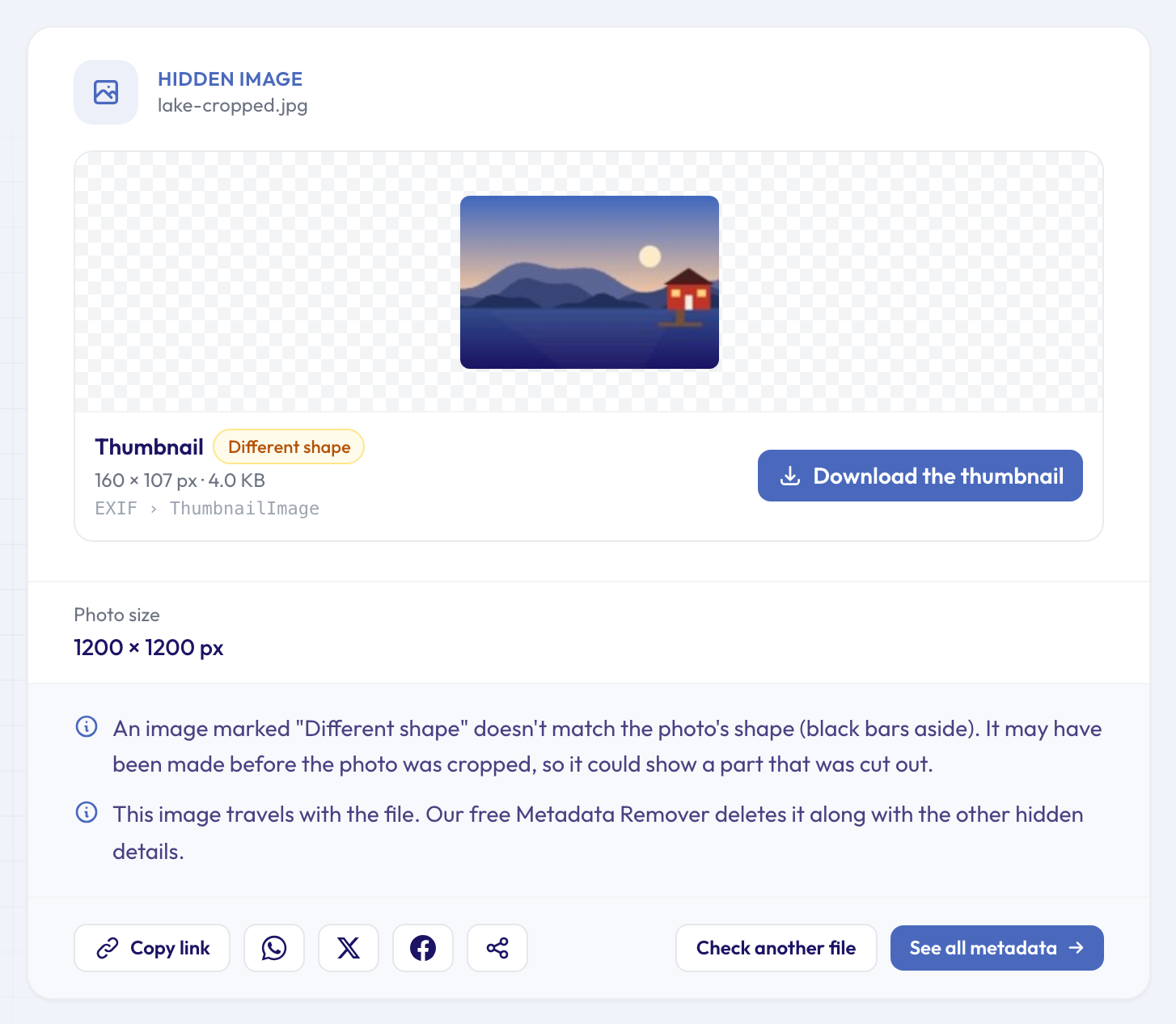 The published photo is a 1200 × 1200 square without the cabin. The thumbnail inside the file still shows the full scene, cabin included.
In our example, a lakeside photo was cropped to a square to leave out a red cabin on the right. The square is what anyone opening the file sees. But the 160 × 107 thumbnail stored in the same file was never updated, so the cabin, the jetty and the rest of the original frame are still there. A cabin is harmless; a face, a car's number plate, a name badge or a letter on a desk would not be.
When you check your own photo, the images appear straight away and each one can be downloaded. On a shared result link, pictures saved inside files are only shown to signed-in visitors (signing up is free), because an embedded image could show anything.
What the "Different shape" warning means, and what it can't catch
The tool compares the shape of each preview with the shape of the photo. Cameras usually squeeze a 3:2 photo into a standard 4:3 thumbnail with black bars, so those bars are ignored; the photo is also allowed to be turned the other way round. When the shapes still don't match, the preview was very likely made from a different frame, and a crop is the usual reason.
Two honest limits:
- A crop that keeps the same shape isn't flagged. Cut a 3:2 photo down to a smaller 3:2 area and the stale thumbnail has the same proportions as the new photo. Only your eyes will spot the difference.
- Retouching isn't detected at all. If you blurred a face or painted out a sign without changing the frame, a stale thumbnail can still show the original, with no warning. Look at it.
So treat the warning as a pointer, not as the whole check. The thumbnail is small, but at 160 pixels wide a face, a car or a large sign can still be recognisable.
Where the thumbnail lives in the file
In a JPEG, the thumbnail sits in the EXIF data, in its own little section after the main camera details. The full metadata viewer shows it as ThumbnailImage, with its length and position in the file:
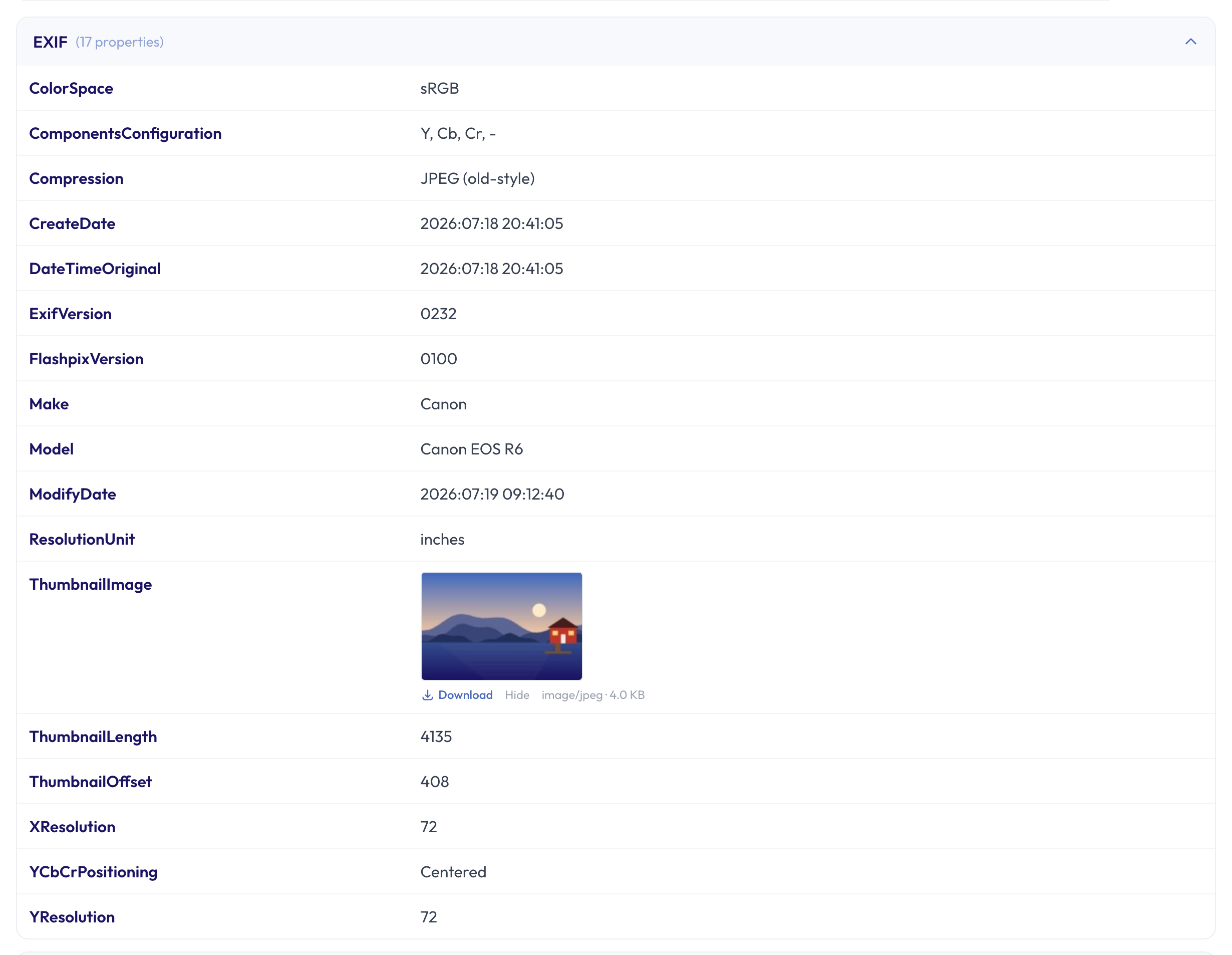 In the full list of metadata, the thumbnail sits right next to the camera model and dates.
The EXIF block of a JPEG has to fit in a single 64 KB segment, which is why the classic thumbnail is always small. RAW previews and full-size JPEGs aren't bound by that and can be several megabytes. JPEGs saved by Photoshop can carry a second thumbnail in Photoshop's own section, and some cameras store extra images in yet another part of the file. The viewer looks in all of these places and labels what it finds: thumbnail, preview, full-size JPEG or extra image.
Which files usually have nothing to show? PNGs and screenshots don't carry one, and many apps and social networks drop the thumbnail when they re-save a photo.
A stale thumbnail is also a sign of editing
A thumbnail that doesn't match the photo tells you something else: the file was changed after it left the camera. The same photo in the Photo Edit Checker is marked "Possibly edited", because it was saved again 12 hours after it was taken and the camera's own private notes are missing. Our guide to finding when a photo was really taken explains the difference between the date taken and the last save.
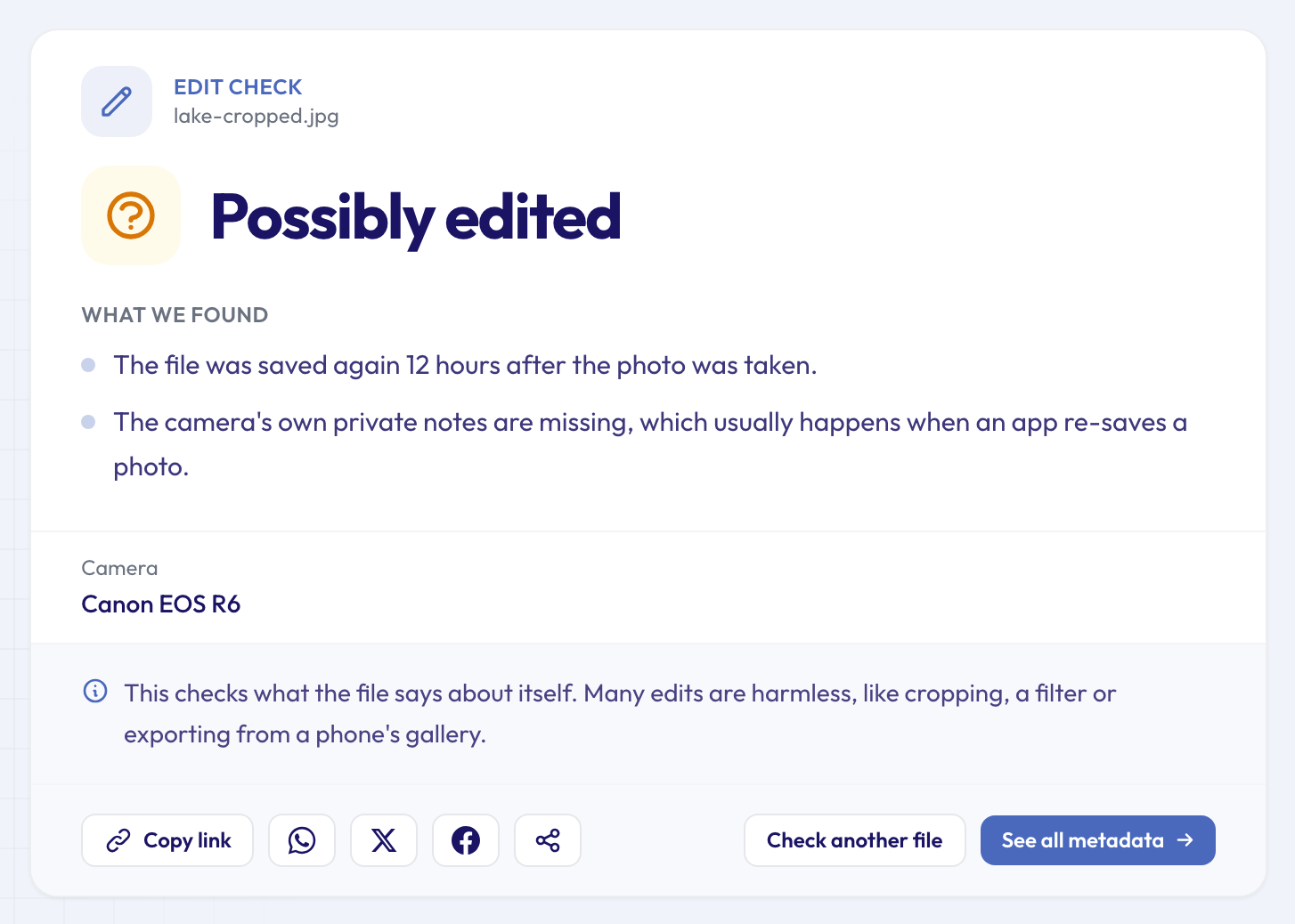 The edit checker spots the re-save; the thumbnail shows what the photo looked like before it.
If you're checking a photo someone else sent you, those clues fit together. The Photo Software Finder tells you which app saved the file last, and the thumbnail may show what the picture looked like before that app touched it.
How to share a cropped photo safely
- Check the final file, not the original. Drop it into the thumbnail viewer after all your edits.
- If a preview shows more than you meant to share, run the photo through the metadata remover. It deletes the thumbnail and previews along with the other hidden details, and gives you back a clean copy. Our guide on removing EXIF data from photos covers the other ways to do it.
- Check location at the same time. A photo that keeps its old thumbnail often keeps its GPS position too. The Photo Location Privacy Check tells you whether it gives away where it was taken; our guide to whether a photo reveals where you live explains why that matters.
Don't count on the website or app you upload to doing this for you. Some platforms strip metadata from photos, others keep the file exactly as you sent it, and photos sent as files or documents by email or messaging usually arrive untouched.
Questions and answers
Does every photo have a hidden thumbnail?
No. Photos straight from most cameras do, and so do many phone photos and files saved by desktop editors. Screenshots, PNG images and photos that have passed through a social network or a messaging app often don't. The only way to know for a given file is to look.
Can the hidden image be bigger than a thumbnail?
Yes, in RAW files. Besides the small thumbnail, a RAW file usually holds a larger preview and often a full-size JPEG of the whole shot. If you crop a RAW photo in an editor and share the RAW file itself, those previews may still show the full frame.
I blurred a face before sharing. Is the face still in the file?
It can be, if the app that did the blurring kept the old thumbnail. Because blurring doesn't change the shape of the photo, no warning appears, so open the thumbnail and look. Exporting a new copy and checking it, or using the metadata remover, settles it.
Does removing the thumbnail damage the photo?
No. The main picture is left as it is. Galleries and file browsers simply make their own preview from the full image, which they mostly do already.
Can a thumbnail prove a photo was cropped?
It's a strong clue, not proof. A preview with a different shape usually means the frame changed after the preview was made, but some cameras and apps write previews in their own sizes. Treat it as one piece of evidence alongside the edit history and dates.
Check the photo before you share it
Cropping changes what people see, not always what the file contains. Before you post or send a cropped photo, take ten seconds to see the hidden thumbnail in your photo, and if it shows more than you meant to share, clean it up with the metadata remover. For a tour of the other quick checks, see our guide to all the free single-question tools.