How to Get the Depth Map Out of a Portrait Mode Photo
Portrait mode photos from iPhones, Pixels and Samsung phones often keep a hidden depth map: a picture of how far away everything was. Here's how to see it, save it, and what else it reveals.
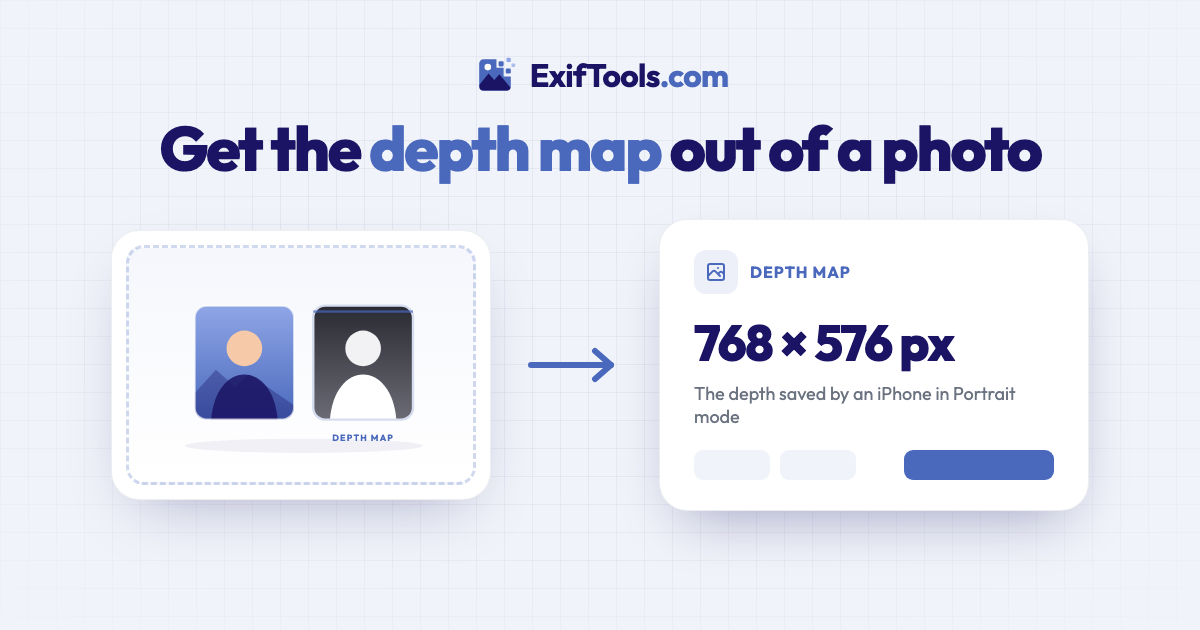
Many portrait mode photos carry a second, hidden picture inside them: a depth map, a greyscale image in which every pixel says how far that part of the scene was from the camera. The phone uses it to blur the background, and then usually keeps it in the file. To see it, drop the original photo into the Depth Map Extractor. If the photo has one, the depth map appears in a few seconds, ready to download as a PNG. If it doesn't, the tool says so.
People want depth maps for all kinds of things: to turn a photo into a 3D or parallax effect, to feed an editing or AI tool that takes a depth input, to re-blur a portrait differently, or just to see how their phone "saw" the scene. And sometimes the reason is privacy: it's worth knowing what else a photo carries before you share it.
How to get the depth map out of a photo
- Use the original file. Copy it from your phone by cable, AirDrop, email "actual size" or a cloud link to the original. Photos sent through messaging apps or posted on social media are re-saved, and the depth map is almost always lost along the way.
- Open the Depth Map Extractor in any browser, on a computer or a phone, and drop the photo in, or tap to choose it. JPEG and HEIC both work. No sign-up is needed.
- Look at the depth map. It appears in greyscale, near things light and far things dark. Switch to the heat-map view to tell distances apart more easily, and click the map to see it full screen.
- Read the facts. The card says where the depth came from (an iPhone, a Pixel or a Samsung phone, for example), its size in pixels, and, when the phone saved them, the nearest and farthest distances.
- Download it. The download button under the map saves it exactly as the phone stored it, as a PNG or JPEG. If the photo also holds a portrait matte (the cut-out of the person), the photo before the blur or a confidence map, they appear beside the map, each with its own download button.
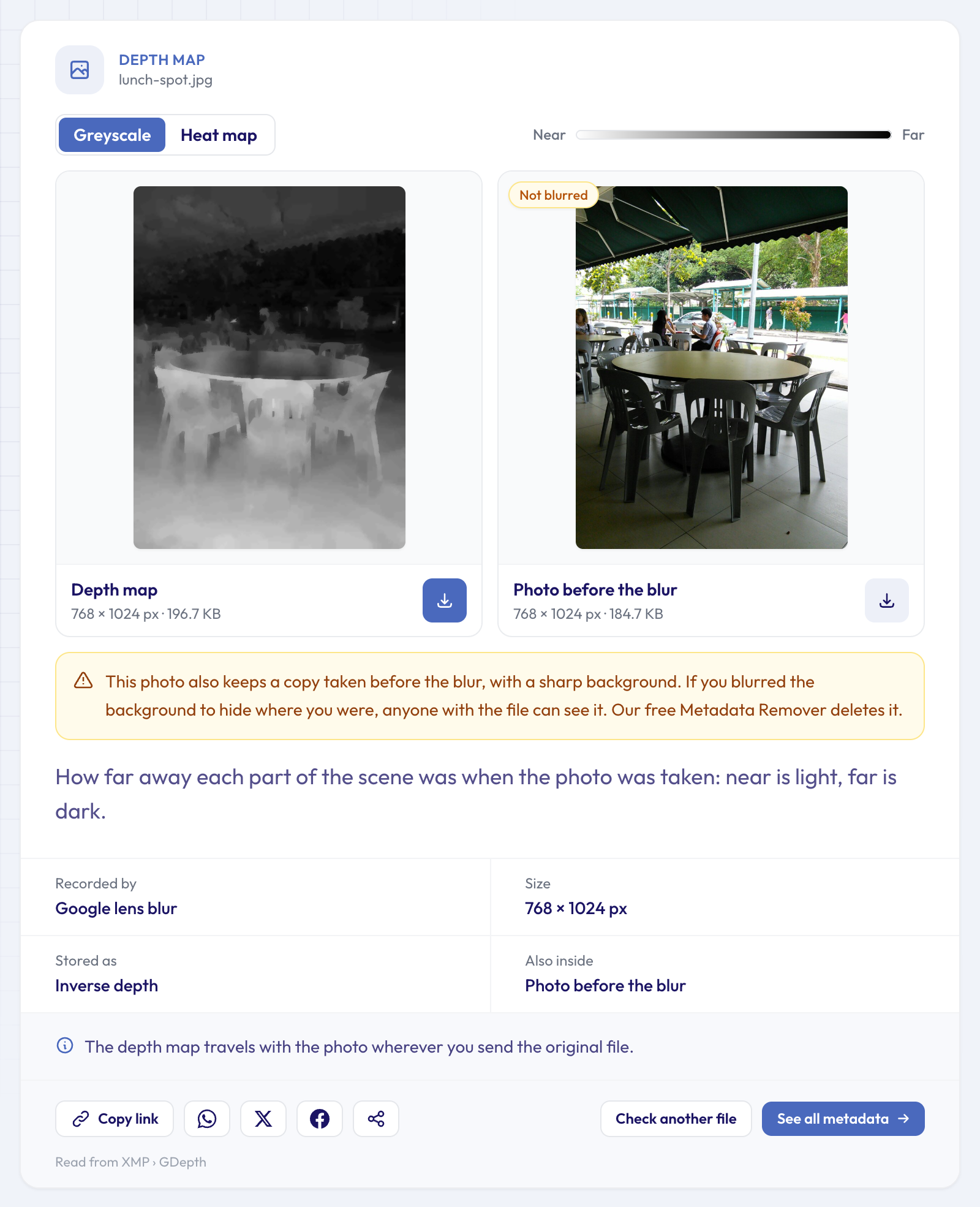 The depth map hidden in a lens-blur photo, next to the sharp original the phone kept as well.
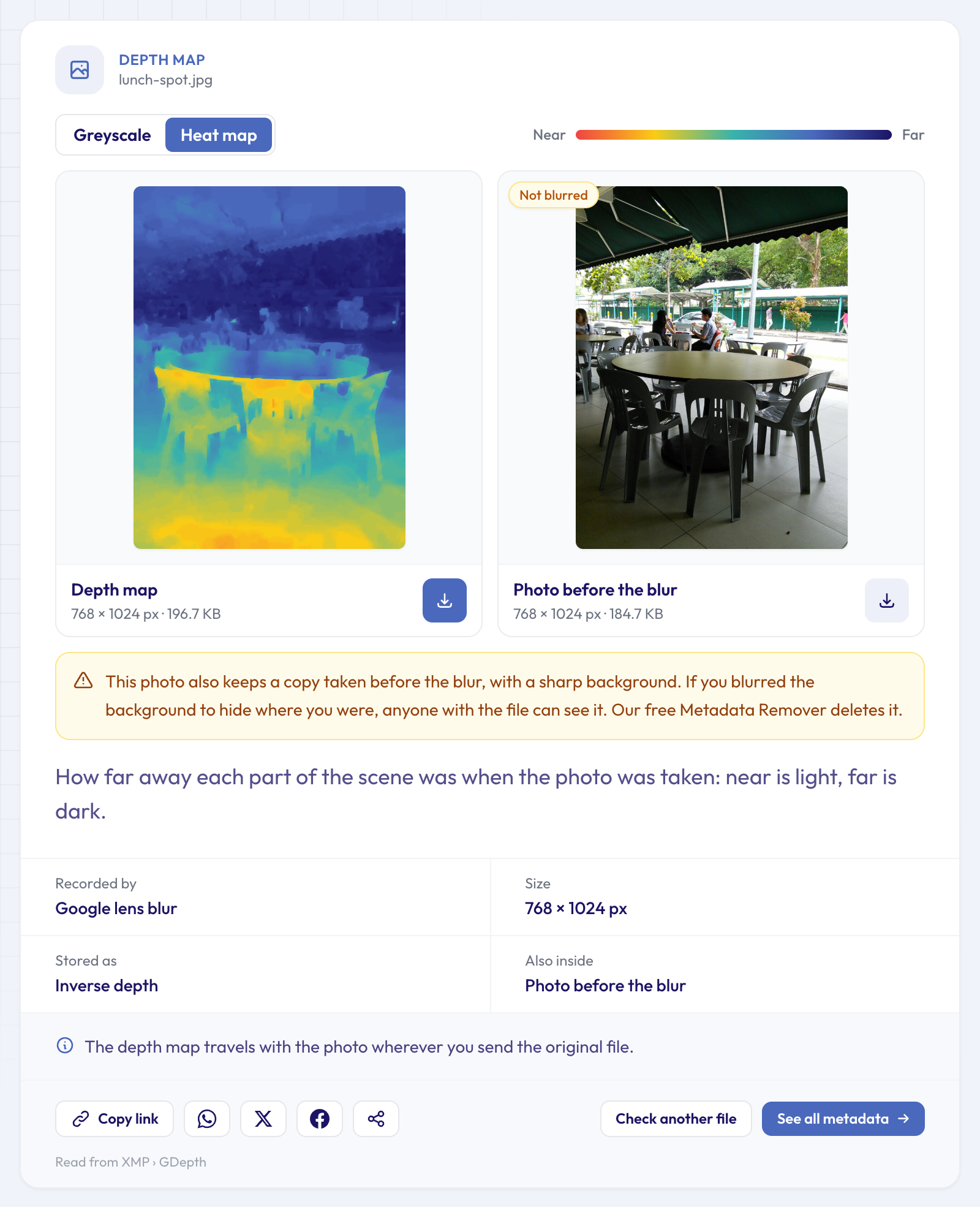 The heat-map view makes the gap between the table and the street behind it easy to see.
The photo travels over an encrypted connection, is read on our servers and is deleted automatically after about 24 hours.
Which photos have a depth map
A phone only records depth when it has a reason to, usually a blurred background. Here's where you're most likely to find one:
- iPhone. Photos taken in Portrait mode keep their depth, which is why you can change the blur or turn it off afterwards in the Photos app. On iPhone 15 and later, the camera also saves depth on ordinary photos when it spots a person or a pet, so you can turn them into portraits later. These are HEIC files, so make sure you share the original, not a converted JPEG.
- Google Pixel and many Android phones. Portrait photos usually carry the depth map inside the JPEG, sometimes with a "confidence map" that tells how sure the phone was about each pixel. Older Google Camera "lens blur" photos stored their depth in the same way.
- Samsung. Photos taken in Live focus (Portrait) mode can keep a depth map, so the blur can be adjusted later in the Gallery app.
- Other phones. Some store the depth map as an extra image after the main one. The tool checks those too.
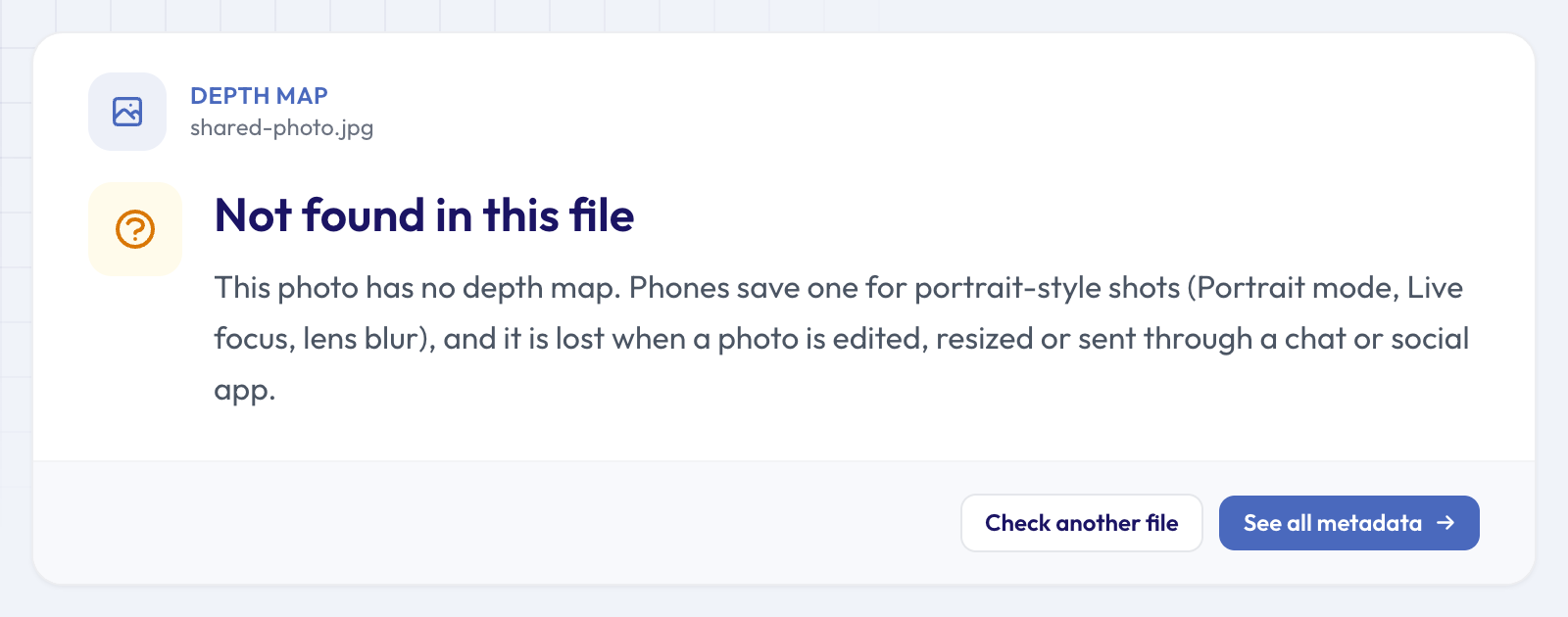 No depth here: an ordinary photo, or one that lost its extras when it was shared.
If the tool finds nothing, the usual reasons are that the photo wasn't taken in a portrait-style mode, the phone doesn't keep depth, or the file was resized, edited or sent through an app that kept only the picture itself. The Phone Finder tells you which phone a photo came from, which helps work out whether it could have depth at all.
What a depth map shows, and what it doesn't
A depth map isn't a photo. It's a rough sketch of the scene's shape: the outline of a person, the edge of a table, the wall behind them. It's usually smaller than the photo, often well under a megapixel, and blurry around fine detail such as hair. Phones estimate depth from two cameras, from a depth sensor or with software, so the map is a good guess, not a measurement.
Some phones store "depth", where the value grows with distance. Others, including iPhones, often store disparity, which is its inverse: nearby things have high values and far things have low ones. The card tells you which one you have, which matters if you feed the file into another program. In the greyscale view near is always light, whichever kind the phone saved.
What else a portrait photo can carry
The depth map isn't the only extra inside a portrait photo, and one of them is worth knowing about before you share the file:
- The original before the blur. Google's lens blur and some other portrait photos keep a full copy of the photo as it was taken, with a sharp background, so the blur can be changed later. If you blurred the background to hide where you are, anyone with the original file can see it again. The tool tells you when a photo holds one.
- A portrait matte. iPhones save a cut-out of the person, used for lighting effects.
- A small preview. Most photos also carry a thumbnail of themselves, which can even show a version from before a crop. Our post on hidden thumbnails in your photos explains it.
All of this sits next to the usual details: the date, the phone and often the GPS position. Our guide to whether your photo reveals where you live shows how to check that part. If you'd rather share just the picture, the Metadata Remover makes a copy without the hidden extras.
Frequently asked questions
Can I make a depth map for a photo that doesn't have one?
Not with this tool: it shows what the phone saved, it doesn't invent depth. Some apps can estimate a depth map from any picture with AI, but that's a guess drawn afterwards, not what the camera recorded.
Why is the depth map smaller than my photo?
Phones work out depth at a lower resolution to save time and space, then scale it up when they apply the blur. A depth map of 640 × 480 or 768 × 576 pixels next to a 12-megapixel photo is normal.
Does a depth map prove a photo wasn't faked?
No. It tells you the phone recorded depth when the photo was taken, which a lot of editing and AI-generated images don't have. But files can be edited, so treat it as one clue among others. Our guides on whether a photo was edited and whether an image is AI-generated cover the rest.
Will a screenshot or a WhatsApp photo still have its depth map?
No. A screenshot is a new picture, and messaging and social apps re-save photos without the extras. Use the original file from the phone or from a cloud backup of the originals.
See the depth inside your photo
Have a portrait mode shot from your phone? Extract the depth map from your photo with the free Depth Map Extractor: drop in the original JPEG or HEIC and see, in a few seconds, how far away everything in it was.