How to Tell if a Photo Was Edited: Clues in Its Metadata
Editing apps leave traces in a photo's file: their name, a history of saves, dates that don't line up, missing camera notes and an old thumbnail. Here's how to find each clue, how much each one is worth, and what metadata can't tell you.
You can often tell if a photo was edited by reading the traces editing apps leave in its file: the app's name, a history of every save, a "last changed" date long after the shot, missing camera notes and a hidden thumbnail that no longer matches. A free photo edit checker looks for the main ones at once and lists each one it finds. It reads the file's records, not its pixels, so it tells you what the file admits to, which is often a lot.
Why check? A seller's "untouched" product photo, a picture offered as evidence, an image submitted to a contest with a "no editing" rule, a viral photo that looks a little too perfect. In each case the question isn't really "is this fake?" but "is this the camera's original file?", and that's a question the file can often answer.
The clues editing leaves in a file
Every app that saves a photo can write to its hidden details. Editing apps tend to sign their work, and re-saving disturbs things the camera wrote. These are the clues worth knowing, roughly from strongest to weakest:
- The app's name. Photoshop, Lightroom, Snapseed, GIMP, Capture One, Affinity, Canva and others write their name and version into the file's Software or Creator Tool field. So do some social and messaging apps when they re-save a photo.
- An edit history. Adobe apps keep a log in the file: each save, which app and version made it, and when. It can reveal a whole workflow, such as a Lightroom export followed by two Photoshop saves.
- Photoshop's own data blocks. Photoshop adds a section of its own to files it saves, which can remain even when its name is missing elsewhere.
- A save long after the shot. Cameras normally write the capture date and the "last changed" date at the same moment. A last-changed date hours or days later means something saved the file again.
- Missing camera notes. Most cameras store private "maker notes" in every photo. Many apps drop them when they re-save, so a camera photo without them has probably been through an app.
- A thumbnail that doesn't match. Photos carry a small preview image inside them. Some apps crop or edit the main picture without updating that preview, so it can still show the scene before the change. The edit checker doesn't look at it, but the hidden thumbnail viewer shows it, as you'll see below.
- Content Credentials. A growing number of apps record edits in signed Content Credentials, listing actions such as "Cropped" or "Colour adjusted". The Content Credentials checker reads them, and flags a copy changed after signing.
How to check a photo
- Use the file exactly as you received it. Download the original rather than saving it from a chat or taking a screenshot, which wipe most of the clues.
- Drop it into the photo edit checker. JPEG, HEIC, PNG and RAW files all work.
- Read the verdict and the list below it. Strong traces are marked with a dark dot, hints with a light one.
Here's a landscape photo that went through Lightroom and then Photoshop:
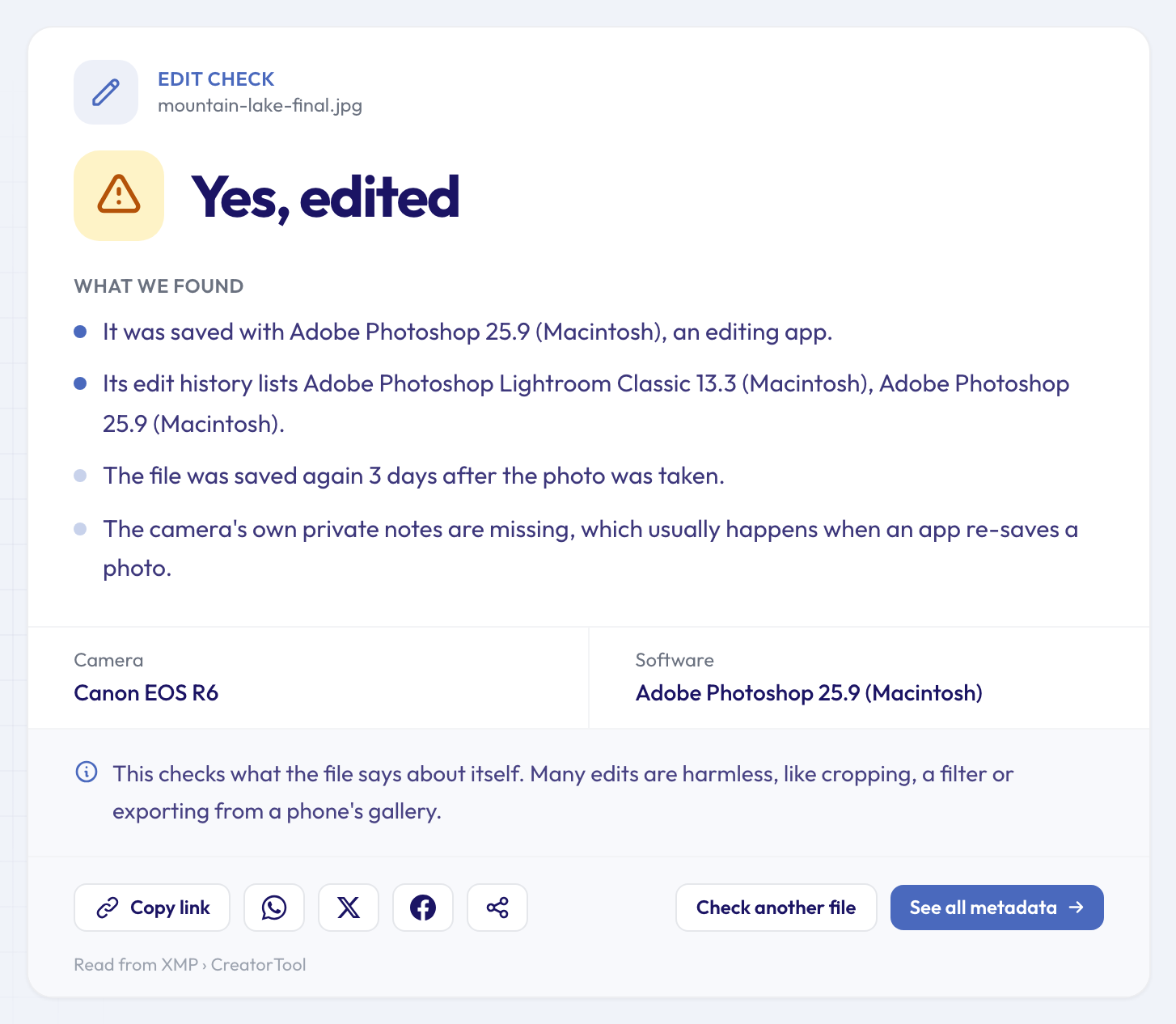 Two strong traces and two hints. Any one of the strong ones is enough for "Yes, edited".
And here's a city photo where the clues are fainter. No app signed it, but the file was saved again 13 hours after it was taken and the camera's private notes are gone:
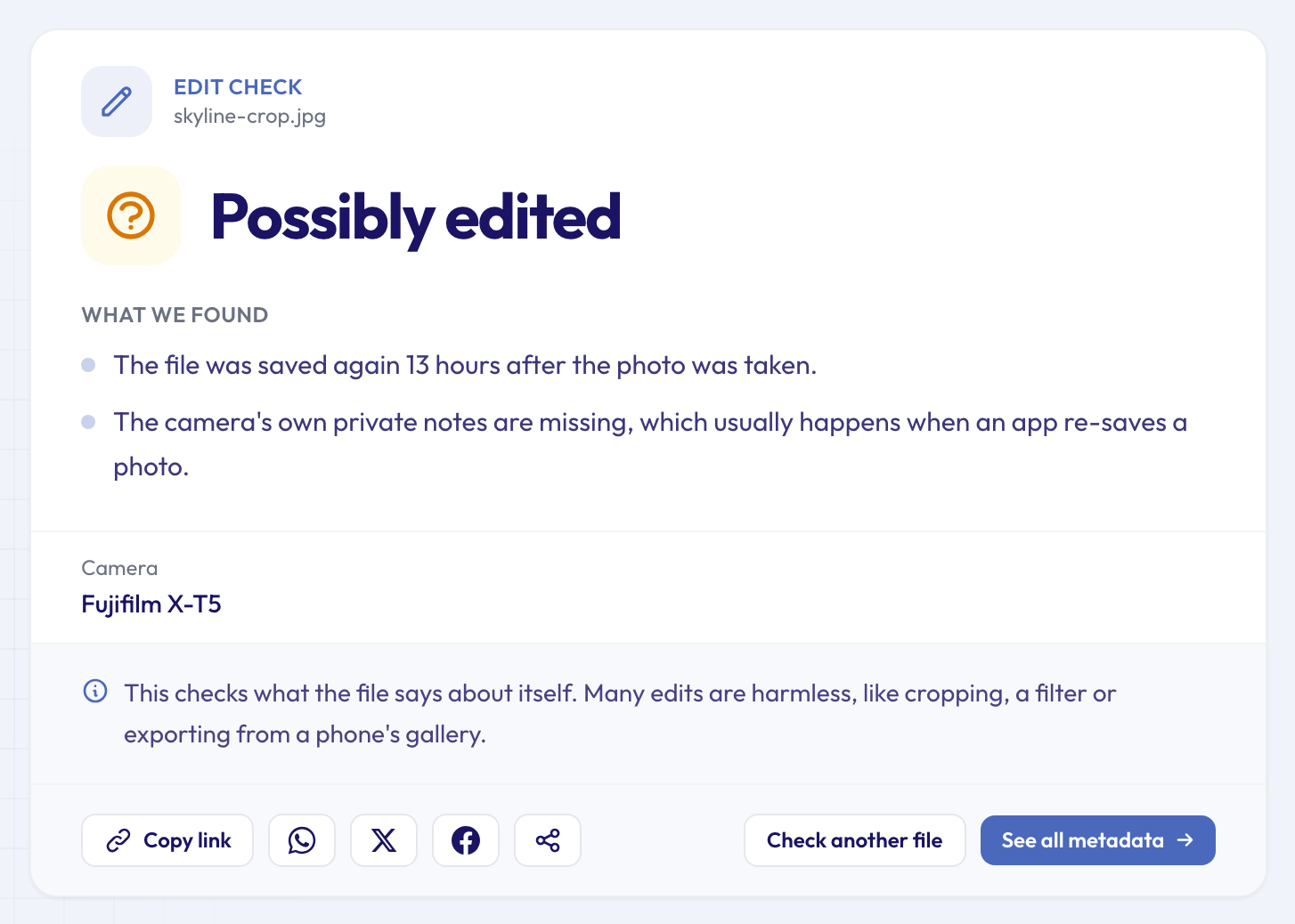 Hints only, so the answer is "Possibly edited".
The thumbnail settles it. The hidden thumbnail viewer finds a preview inside the file with a different shape from the photo itself:
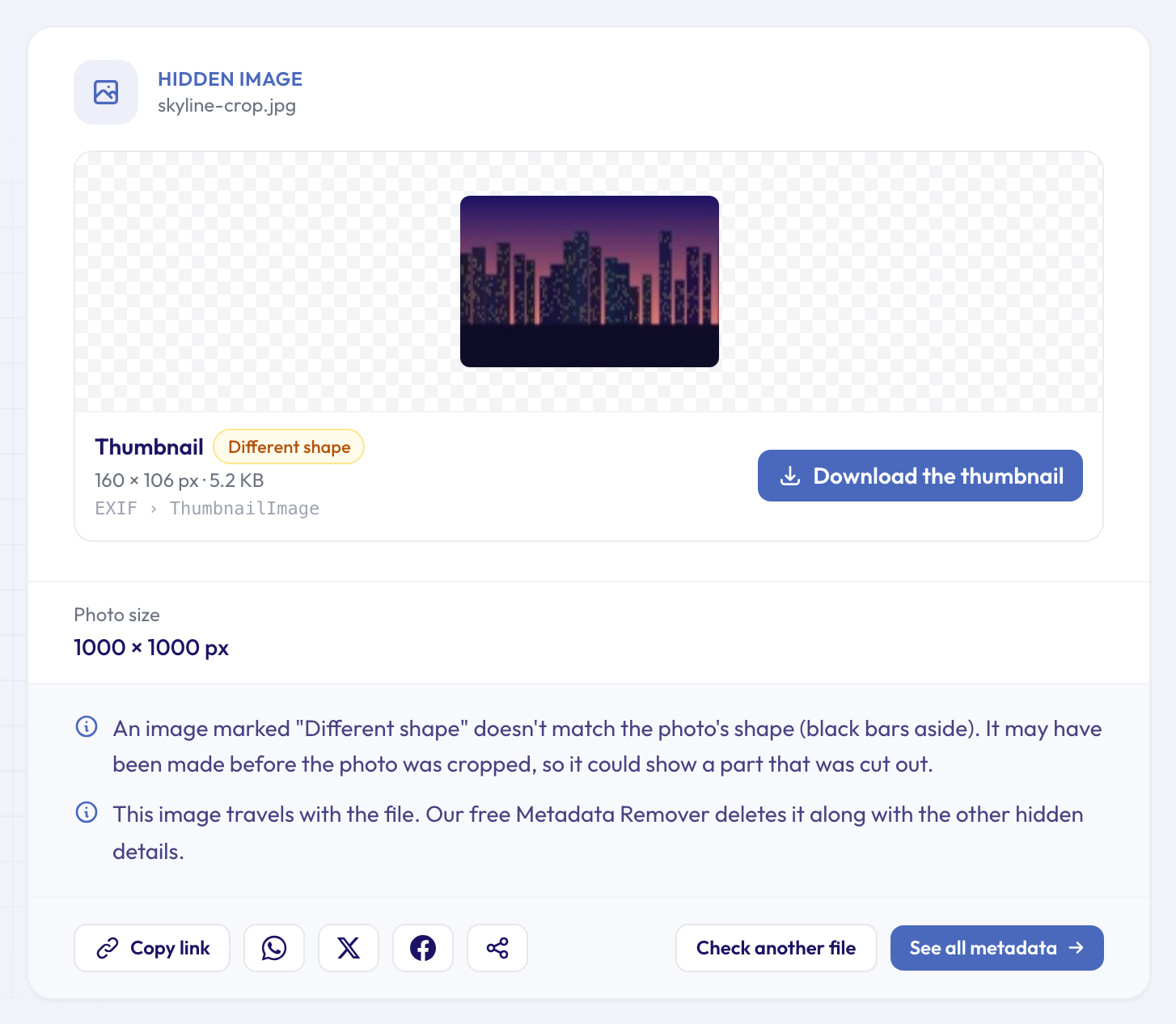 The photo is square; its hidden preview still shows the wider frame from before the crop.
We've written a whole post about the hidden thumbnail in your photos, including why it matters for privacy too.
What the four verdicts mean
- Yes, edited: at least one strong trace, such as an editing app's name or an edit history.
- Possibly edited: only hints, such as a later save date or missing camera notes. Plenty of harmless things cause them, including exporting from a phone's gallery.
- No signs of editing: the file still has the details its camera wrote and no trace of an editing app.
- Can't tell: the file has almost no details left, as happens with screenshots and photos from social networks or messaging apps.
Here's what an untouched camera file looks like:
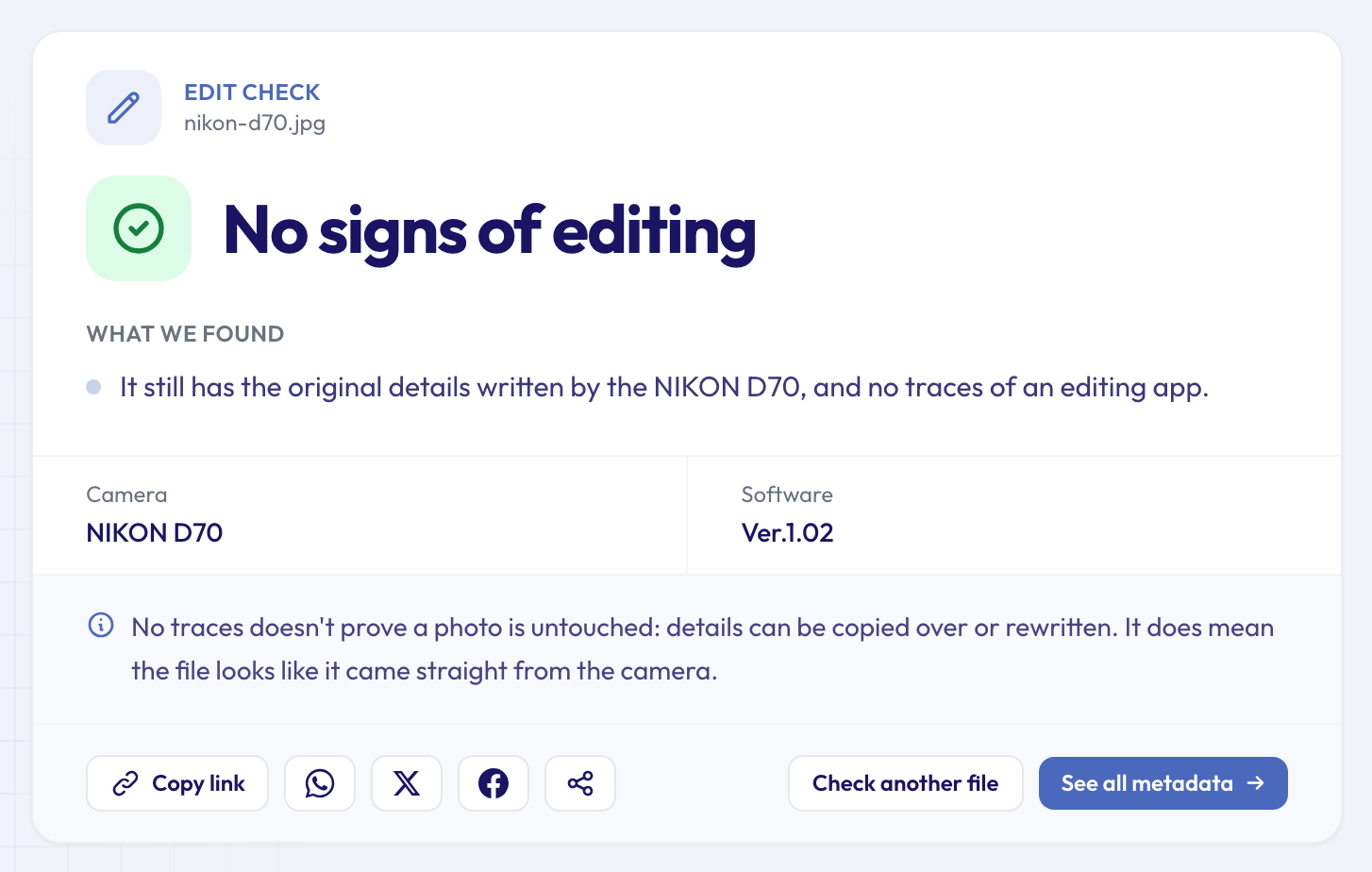 The software line shows the camera's own firmware, "Ver.1.02", not an app.
Keep two things in mind. First, edited doesn't mean fake. Most edits are ordinary: straightening, cropping, colour correction, a filter, an export. The checker tells you the file isn't the camera's original, not what was changed. Second, no traces doesn't mean untouched. Details can be copied from another photo or rewritten with a metadata editor. A clean result means the file looks like it came straight from the camera, which is useful, but not proof.
What metadata can't show you
The checker reads what the file says about itself. It won't see:
- Changes to the pixels when the editing app left no trace, or the traces were cleaned up afterwards. Spotting those takes image forensics, which looks at the picture itself.
- Edits made before the photo was taken, such as a staged scene, or a photo of a screen.
- AI generative edits that weren't recorded. When an app records them in Content Credentials, the Content Credentials checker shows them, and our guide to verifying Content Credentials explains what a signed record proves.
Related checks
- To see which app last saved the photo and its full save history as a timeline, use the photo software finder.
- To compare the capture date with the date someone claims, the photo date checker shows when the camera says the photo was taken. Our guide on finding when a photo was really taken covers the pitfalls.
- If you suspect the image wasn't photographed at all, the AI image checker looks for the labels AI tools leave. Our guide on telling if an image is AI-generated explains what each one is worth.
- To see every field yourself, open the file in the full metadata viewer.
Questions people ask
Does cropping a photo on my phone count as editing?
To the file, yes. A phone's gallery app saves a new version of the photo, which usually changes the "last changed" date and may change other details. The checker will often say "Possibly edited", which is accurate: the file is no longer the camera's original.
Can someone hide that they edited a photo?
Yes. Removing or rewriting the metadata hides the traces, and copying details over from an untouched photo can make an edited file look original. That's why "no signs of editing" is a good sign, not a guarantee.
Why does an old photo show as edited when I never touched it?
Something else may have. Backup tools, photo library apps and some file transfers re-save photos and leave their own mark. The photo software finder shows which app it was.
Should I remove the edit history before sharing my own photos?
It's worth knowing it's there: an edit history lists the apps you use and when you worked on a picture. If you'd rather not share that, the metadata remover clears it along with the other hidden details.
Check a photo now
Want to know whether a photo is the camera's original? Drop the file into the photo edit checker and see every editing trace it still carries, free and in a few seconds.