How to See the Prompt Behind an AI Image
Stable Diffusion, ComfyUI, NovelAI and other generators often save the full recipe of an image inside the file: prompt, negative prompt, model, seed and settings. Here's how to read it, what each setting means and why some images have no prompt at all.
You can often see the prompt behind an AI image by reading the text its generator saved inside the file. Stable Diffusion web interfaces, ComfyUI, NovelAI, InvokeAI and Fooocus all write the prompt, the negative prompt, the model, the seed and the settings into the images they make. Drop the original file into a free AI image prompt reader and that recipe appears in a few seconds, no software needed.
It's handy in more situations than you'd think. You found a striking image in a community gallery and want to learn how it was made. You made something months ago and lost the settings. A colleague sent a render and you'd like to reproduce it with a different subject. Or you're about to post your own work and want to know what it gives away.
Where AI generators hide the prompt
Most of the time it's a block of text tucked inside the image file, invisible when you look at the picture:
- Stable Diffusion web interfaces (AUTOMATIC1111, Forge and similar) write a text field called "parameters" into the PNG. It holds the prompt, a line starting "Negative prompt:" and a line of settings. In their own interface it's known as "PNG Info".
- ComfyUI saves two blocks: the workflow as it was laid out in the editor, and the graph it actually ran. The prompt sits inside the text-encoding nodes of those graphs.
- NovelAI, InvokeAI and Fooocus save their own structured versions of the same information.
- JPEG and WebP copies sometimes carry the same text in a comment field instead, depending on the tool and how the file was saved.
None of this changes how the picture looks. That's also why it disappears so easily: anything that rebuilds the file from its pixels, like a screenshot or a social network's re-compression, throws it away.
How to read the prompt
- Find the original file. The one the generator saved, or a direct download from a gallery that keeps files intact. A copy from a chat app or a screenshot won't have it.
- Open the prompt reader and drop the file in. PNG, JPEG, WebP and AVIF work.
- Read the prompt and negative prompt. Each has a Copy button, and "View raw value" shows the text exactly as it was stored.
- Check the settings below. Model, LoRAs, sampler, steps, seed and size are listed one per box.
Here's a Stable Diffusion image read this way:
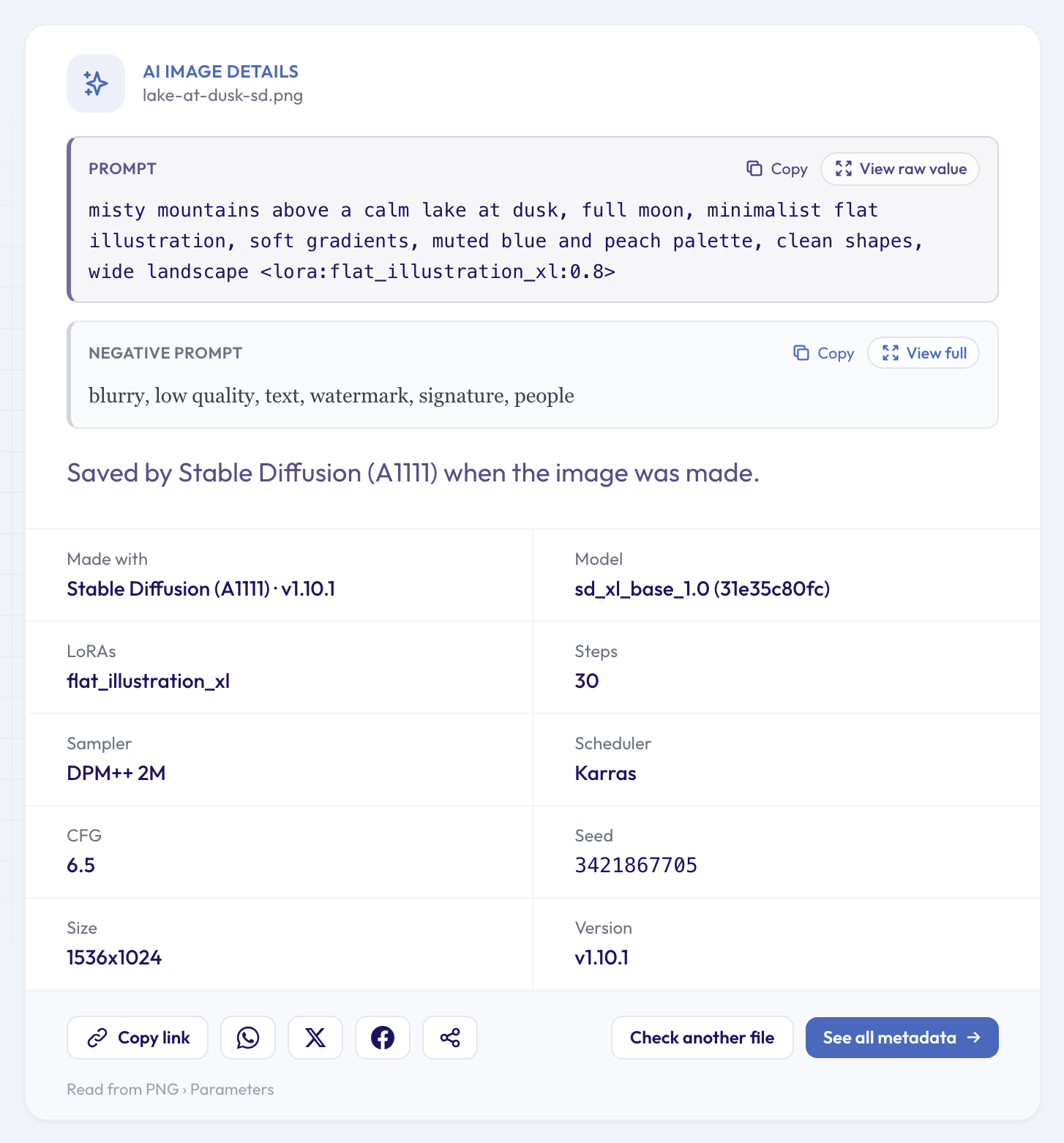 Everything needed to understand, and roughly reproduce, the image.
If a prompt contains words that are flagged as sensitive, the reader hides it behind a "Show prompt" button rather than printing it straight away, so nothing unexpected lands on your screen.
What the settings mean
The settings line looks cryptic at first. Here's what the usual entries mean:
- Model: the checkpoint that generated the image, such as an SDXL base model. The short code in brackets is the model's hash, which identifies the exact file.
- LoRAs: small add-on models that push a style or subject. In Stable Diffusion prompts they appear as
<lora:name:0.8>, where the number is the strength. - Steps: how many denoising passes the generator ran. More steps take longer; past a point, they change little.
- Sampler and scheduler: the method used to go from noise to image, for example "DPM++ 2M" with a "Karras" schedule.
- CFG: how strictly the generator followed the prompt. Low values give it more freedom, high values follow the words more literally.
- Seed: the starting noise. With the same model, prompt, seed and settings, you get the same or a very similar image back.
- Size and version: the image dimensions, and the version of the software that made it.
Brackets and numbers inside the prompt, like (sharp focus:1.2), are weights: they tell the generator to pay more or less attention to those words.
Reading a ComfyUI image
ComfyUI images work the same way, but the prompt has to be found inside a graph of connected nodes. The reader follows the connections to the text-encoding node and pulls the prompt out, along with the model and sampler settings:
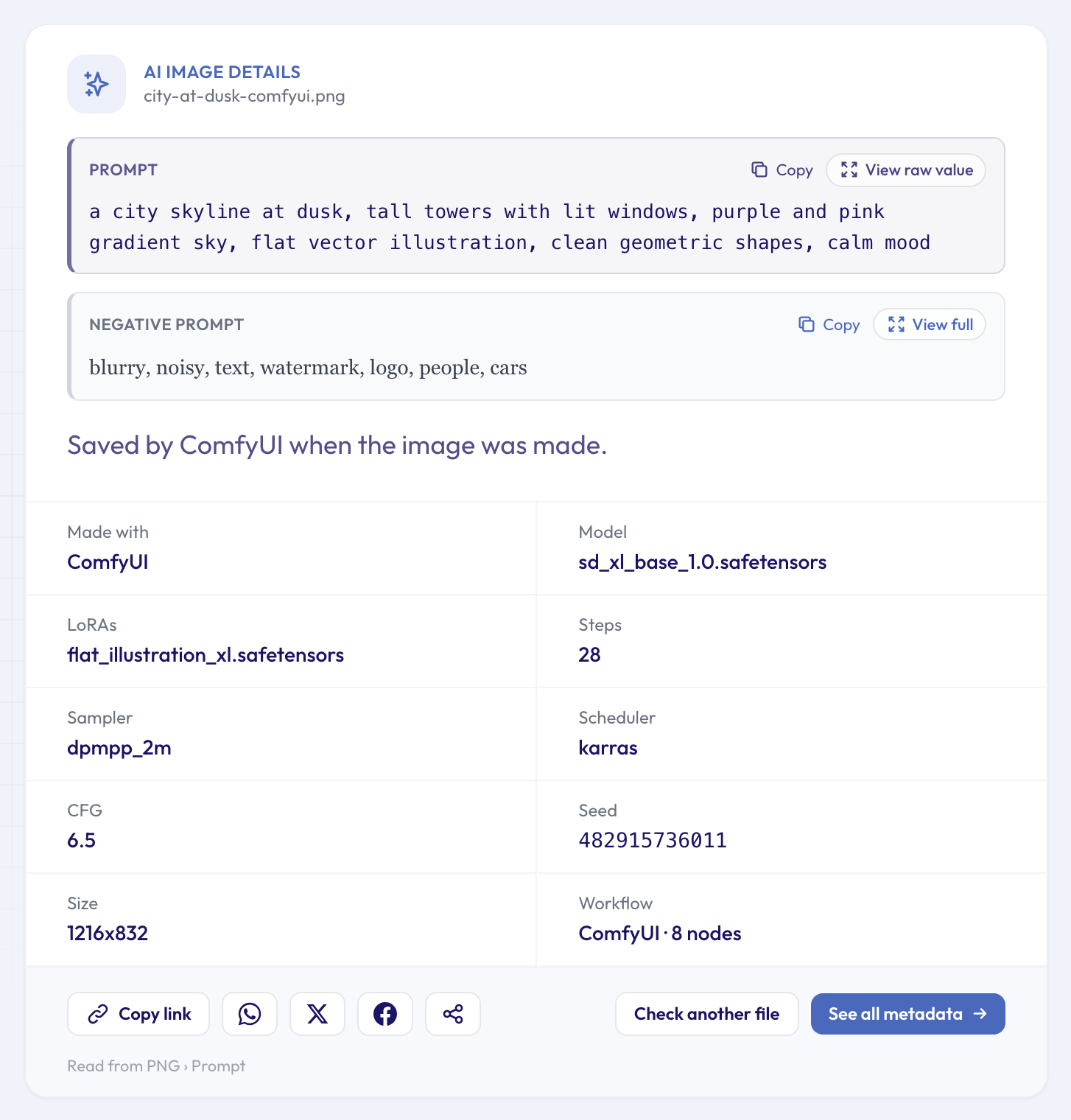 The "Workflow" box counts the nodes in the saved graph.
If you want the whole graph rather than just the prompt, for example to load it back into ComfyUI, the ComfyUI workflow extractor gives you the workflow as a file you can open.
When no prompt is found
There are three different "no" answers, and they mean different things.
Marked as AI-made, but no prompt. Some generators label their images without saving the prompt. ChatGPT, DALL·E and Adobe Firefly, for example, attach Content Credentials that say the image is AI-generated, and that's all:
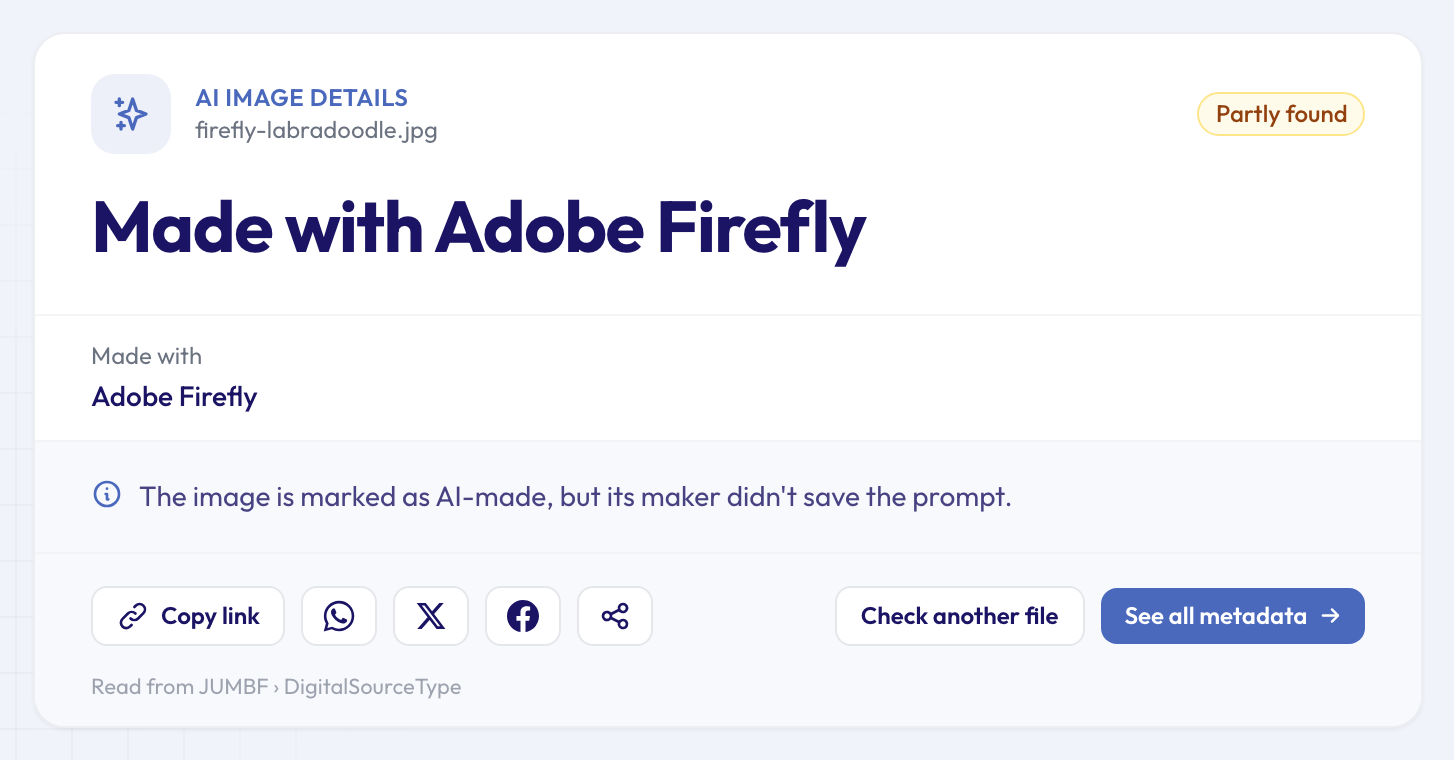 "Partly found": the image says it's AI-made, but there's no prompt to read.
For those images, the Content Credentials checker shows the signed record in full, and our guide to verifying Content Credentials explains what it proves.
Text that looks like a prompt. Sometimes a file holds a comma-separated list of keywords that reads like a prompt but doesn't name the tool that wrote it. The reader shows it with a note saying so. It's a good hint, not a certainty.
Nothing at all. Either the image never had a prompt, or it lost it on the way. Screenshots, edits, format conversions and uploads to social networks or messaging apps all remove it. The original file is your best chance. And a missing prompt doesn't mean an image isn't AI: the AI image checker looks for every other label, and we've written about what those labels can and can't prove.
If you share your own AI images
The same text that helps others learn from your work also gives your work away: your prompt, your negative prompt, your models and your seed travel with every original file you post. If you'd rather keep them to yourself, remove them before sharing with the metadata remover. If you publish lots of images, our guide to stripping metadata from AI images automatically shows how to do it in bulk with the API.
To see every field an image carries, not just the prompt, open it in the full metadata viewer.
Questions people ask
Can I see the prompt of a Midjourney or ChatGPT image?
Usually not. ChatGPT and DALL·E don't keep the prompt in the file, and Midjourney downloads generally don't either. When an image does carry one in its description field, as some Midjourney files do, the reader recognises it and shows it.
Will I get the exact same image if I reuse the settings?
Often a very close one, if you use the same model, LoRAs, seed and settings. Different hardware, software versions or missing add-ons can shift the result slightly, so treat the recipe as a very good starting point rather than a guarantee.
Does reading the prompt change my image?
No. The reader only reads the file. Uploads are sent over an encrypted connection and deleted from our servers automatically after about 24 hours.
Why does the prompt contain words I don't see in the picture?
Prompts are instructions, not descriptions. Generators ignore or blend some words, and the negative prompt lists things the image was told to avoid. The prompt tells you what was asked for, not what was delivered.
Read a prompt now
Have an AI image you'd like to understand? Drop the original file into the AI image prompt reader to see its prompt, model and settings in seconds, for free.