How to Find Out What Camera Took a Photo
Most original photos name the camera or phone that took them, along with the lens and settings. Here's how to read it in seconds, what the result really tells you, and why it's sometimes missing.
Most photos say which camera took them. Every digital camera and phone writes its make and model into the file at the moment of the shot, usually with the lens and the settings it used. To read it, drop the original file into a camera finder and the model name appears in a few seconds. If the photo is a screenshot, or it was posted on social media or sent through a messaging app, those details are usually gone, and no tool can bring them back.
Knowing the camera is useful more often than you'd think. You might want to know what gear made a photo you admire, or check that a second-hand listing's sample photos really came from the camera on sale. Sometimes a picture that's supposed to be "straight off my DSLR" turns out to say iPhone. And if you're sorting a family archive, it tells you whose camera each photo came from.
How to check which camera took a photo
- Get the original file. Copy it from the memory card, or from the phone by cable, AirDrop, email attachment or a cloud link to the original. A copy saved from a chat or a social feed is usually a stripped re-save.
- Open the Camera Finder to check what camera took a photo and drop the file onto the page, or tap to choose it. JPEG, HEIC and the common RAW formats (NEF, CR2, CR3, ARW, RAF, DNG and others) all work, on a phone too. You can also paste a link to an image file.
- Read the answer. The camera name comes first. Below it you'll find the lens, the settings line (aperture, shutter speed, ISO and focal length), the software and the date the photo was taken.
- Want every field? The "See all metadata" button opens the same file in the full metadata viewer, which lists every tag the file contains.
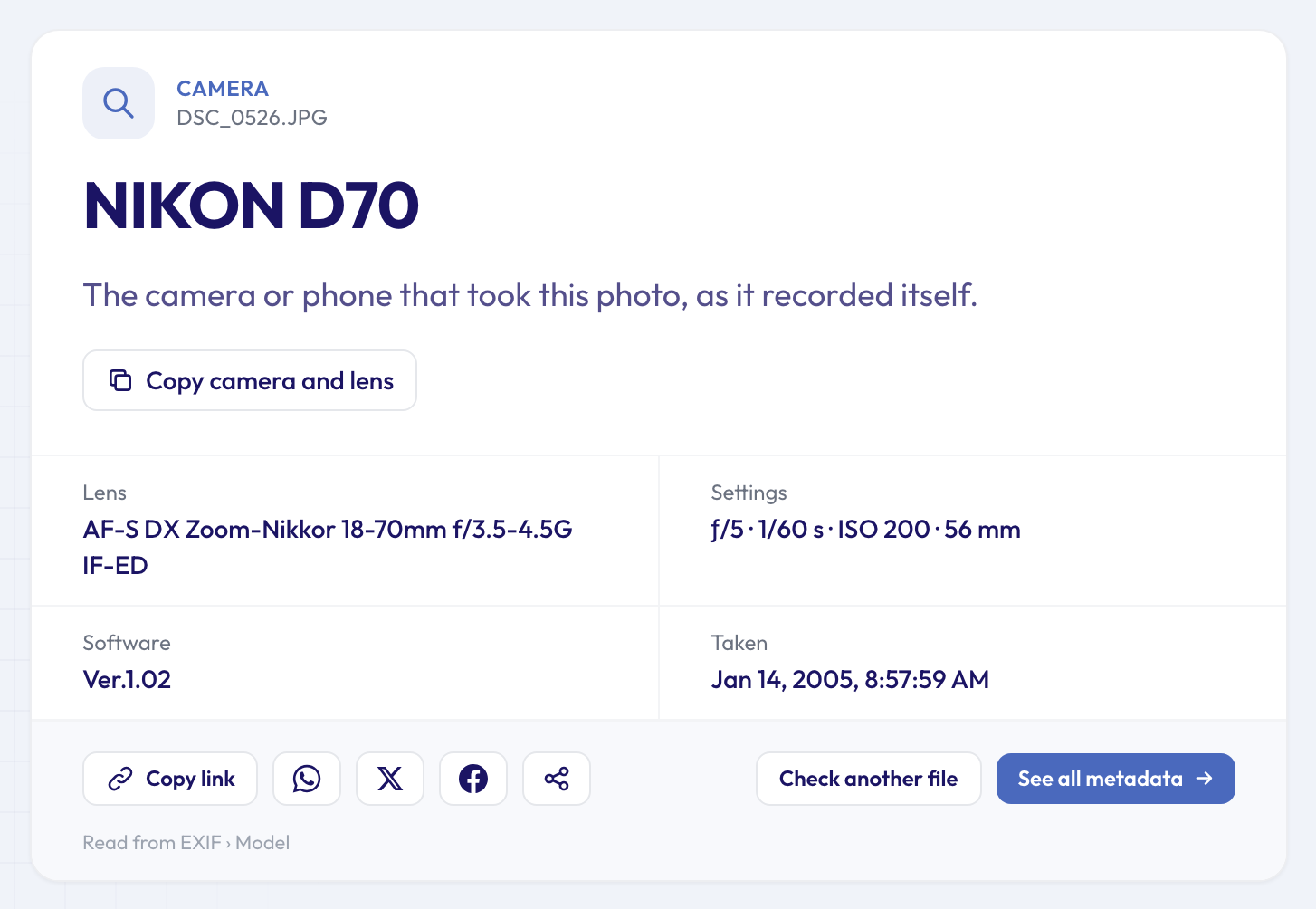 A photo from a Nikon D70: the camera, its kit zoom, the settings of the shot, the camera's firmware and the date.
It's free and you don't need an account. The file travels over an encrypted connection, is read on our servers and is deleted automatically after about 24 hours. The answer stays on a page with its own link, so you can share it.
What each line of the result means
Camera. Two standard EXIF fields, Make and Model, joined together. The camera's firmware writes them, so the spelling is the manufacturer's: Nikon writes "NIKON D70" in capitals, Canon writes "Canon EOS-1D Mark III".
Lens. Many recent cameras store the lens name in a standard field. Older bodies, and some brands even today, store a lens code in their maker notes, a brand-specific section of the file, and that code is turned into a name. The Lens Finder goes further, with the focal length and aperture used and the lens's zoom range.
Settings. The four numbers photographers quote: aperture, shutter speed, ISO and focal length. For mode, metering, flash and white balance as well, use the Camera Settings Viewer.
Software. On a photo straight from a camera, this is usually the firmware version ("Ver.1.02" above is the D70's firmware). If a program like Lightroom or Photoshop saved the file later, its name appears instead, and the tool adds a note: the camera details you see are still the original ones, but the photo has been through an editor since.
Taken. The capture date the camera recorded. It's only as accurate as the camera's clock, which isn't always set correctly. The Photo Date Checker goes into the date in more detail.
It isn't limited to traditional cameras. Phones, action cameras and many compacts write the same fields:
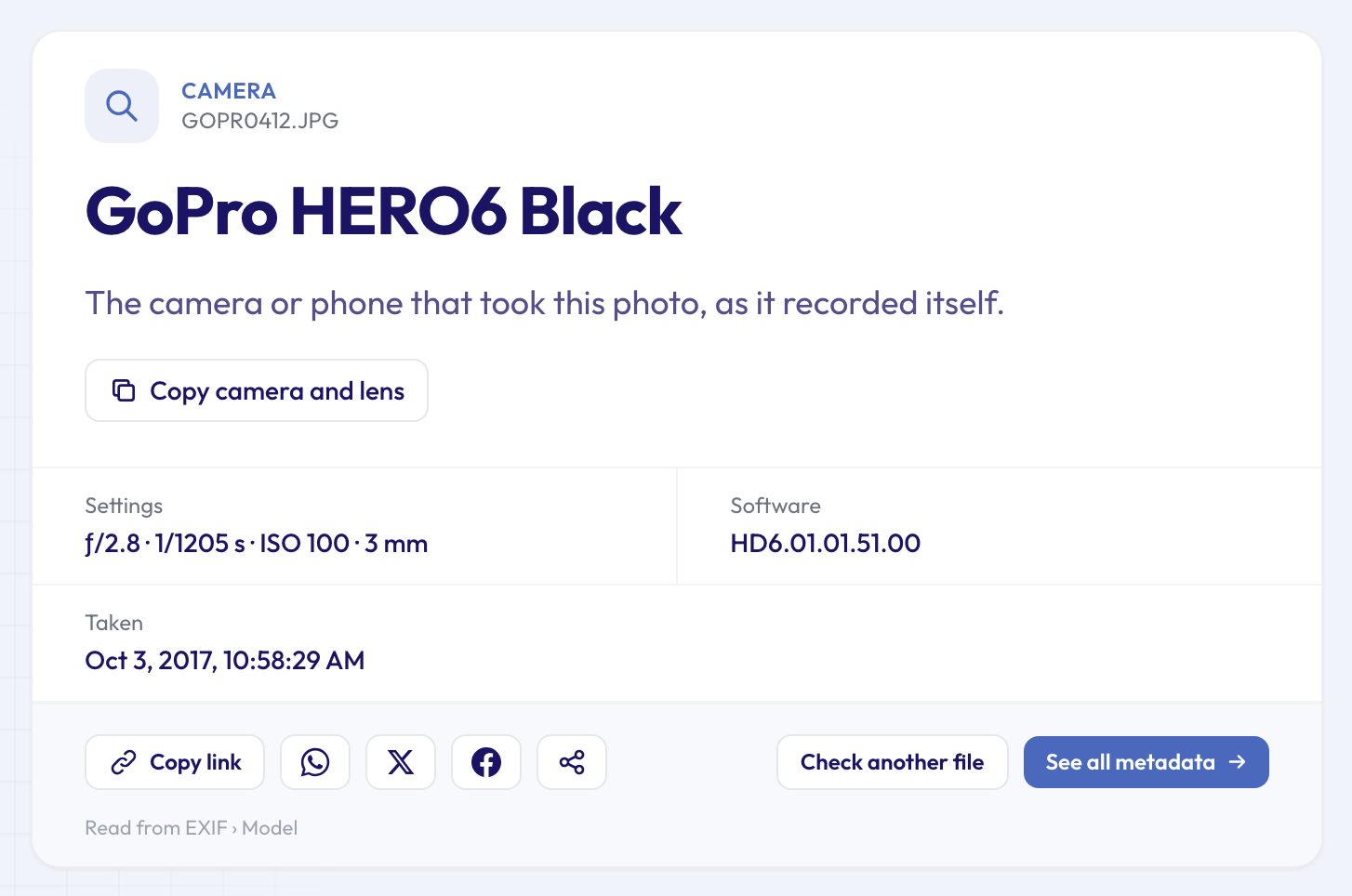 An action-camera photo. The GoPro's lens is built in and isn't named, so the result goes straight to the settings.
Camera names that look strange
A few results surprise people. None of them mean the tool got it wrong.
- Regional names. Canon sold some bodies under different names around the world, and the file records the name of the version you own. The camera known as the EOS 350D in Europe was the Digital Rebel XT in North America and the Kiss Digital N in Japan.
- Model codes. Some makers record a code rather than the product name. Samsung phones write codes such as SM-S918B, and some drones record the code of their built-in camera rather than the drone's name.
- Company names in the make. The raw data often says "NIKON CORPORATION" or "PENTAX Corporation". The Camera Finder trims these to a readable name.
- A scanner instead of a camera. A scanned print often names the scanner that digitised it, not the camera that took the original photo.
When no camera is found
If the result says the photo doesn't name its camera, one of these is usually why:
- It's a screenshot. Screenshots never carry camera details.
- It went through social media or a messaging app. Facebook, Instagram, WhatsApp and most chat apps remove the details when they re-save your photo.
- It was exported or edited by an app that drops metadata, or with an export setting that keeps only the copyright.
- It was made by an app or an AI generator. There was no camera. If that's your real question, our post on how to tell if an image is AI-generated goes through the signs.
There's nothing to recover in these cases: the information isn't hidden, it's gone. The fix is to get the original file, for example by asking the sender to email it as an attachment or send it "as a document" rather than as a photo.
How far can you trust it?
Treat the camera name as a strong hint, not proof. Anyone with free software can change Make and Model in a few seconds, and a missing name proves nothing either. Look at whether the details agree with each other: a lens that fits the camera's mount, settings that make sense for the scene, a date that matches the story. The Photo Edit Checker looks for the traces editing apps leave behind, which is a good next step when something feels off.
For a stronger guarantee of where an image came from, some cameras and apps now sign their photos with Content Credentials. Our guide to verifying Content Credentials explains how those signatures work.
What to check next
The camera is often the first question, not the last.
- Was it a phone? The Phone Finder translates model codes into names and tells you which of the phone's cameras took the shot: main, ultra-wide, telephoto or selfie.
- Buying the camera second-hand? Ask the seller for an unedited photo and check the camera's shutter count to see how much it has been used. Our guide on how to check a shutter count from one photo explains what the number means.
- Need the serial number? Many interchangeable-lens cameras also save their serial number in every photo. The Camera Serial Number Finder reads it, which helps with insurance and registration.
The full metadata viewer shows all of this at once, and it tells you when a file contains something personal:
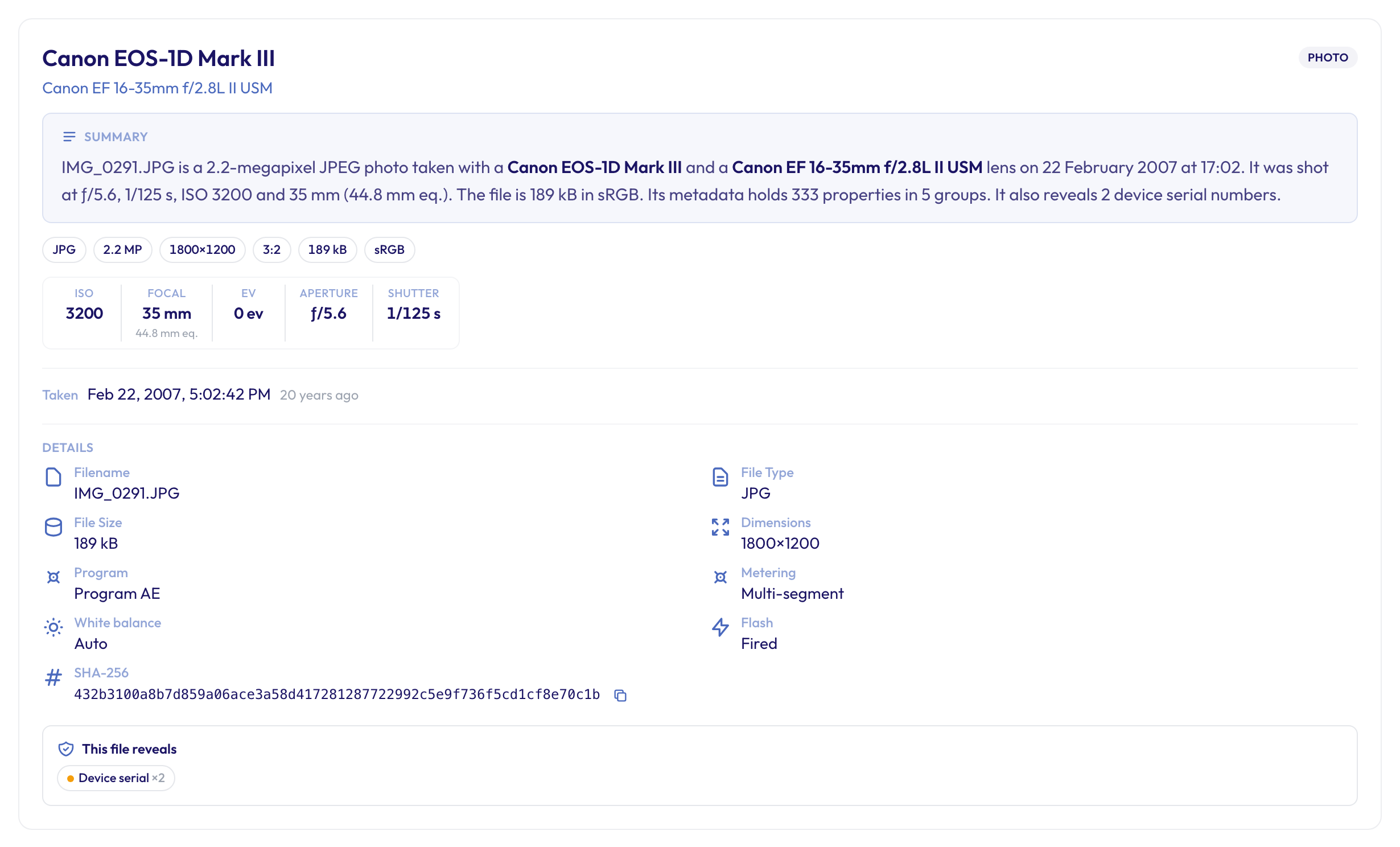 The full viewer's summary for a Canon EOS-1D Mark III photo. Note the warning at the bottom: the file carries two device serial numbers.
If you share original files publicly, that serial number links every photo back to the same camera. The Metadata Remover gives you a clean copy without it, and our guide to removing EXIF data before sharing walks through when that's worth doing.
FAQ
Can I tell whether two photos came from the same camera?
The same model, yes: compare the camera names. The same physical camera is harder. Two photos only point to one unit if both carry the same serial number, and that only works for cameras that record one. Phones don't.
Does the camera name survive editing?
It depends on the app and its export settings. Lightroom, for example, keeps camera details when you export with all metadata and drops them with options such as "Copyright Only". Many quick-edit and social apps strip them completely. When an editor keeps them, its name usually appears under Software.
Do RAW files show the camera as well?
Yes. RAW files carry the same camera details as JPEGs, often with more maker notes, and the Camera Finder reads NEF, CR2, CR3, ARW, RAF, DNG and other formats.
Can I find the camera of a photo on a website?
Sometimes. Paste the image's link or save the file and drop it in. Most websites re-compress images and remove their details, but some photo-sharing and portfolio sites keep them. If nothing is found, the website's copy doesn't have them. That says nothing about the original.
Find out what camera took your photo
Got a photo and a question about where it came from? Find out what camera took your photo in a few seconds, with the lens and settings alongside. It's free and needs no sign-up. For the other quick checks, such as dates, location, editing and AI, browse all the free tools.