How to Tell if a PDF Was Edited After It Was Created
Editing a PDF usually leaves traces inside it: an editor's name, a later "last changed" date, sometimes a history of saves. Here's how to read them, what each verdict means, and what they can't prove.
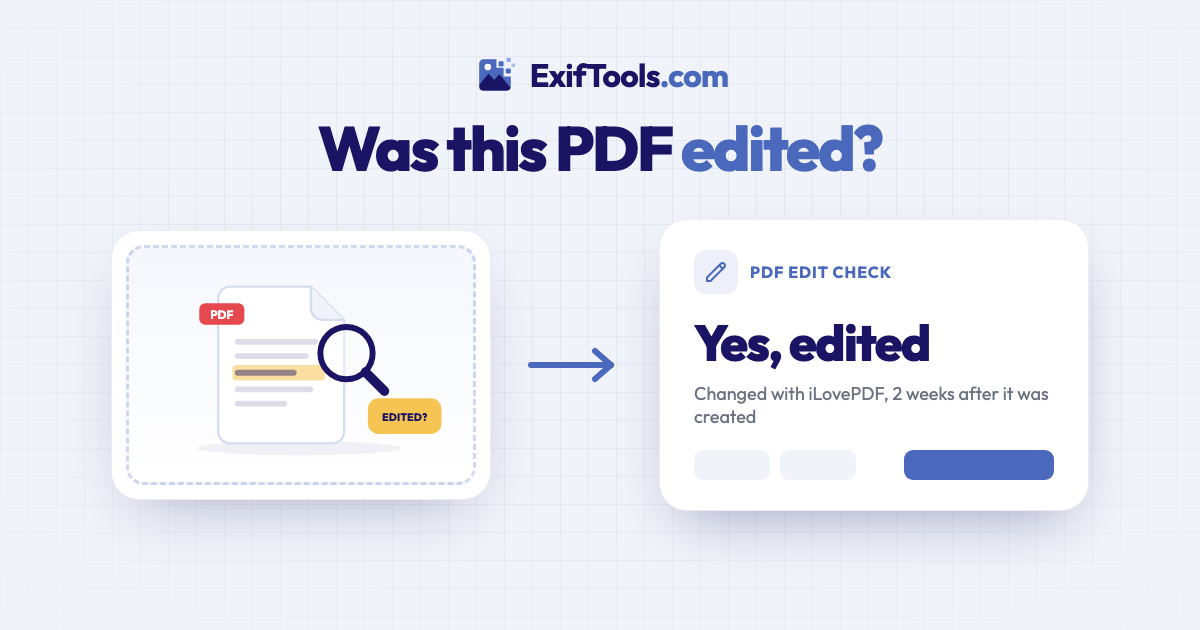
A PDF that was edited after it was made usually says so in its own details. Editing apps tend to write their name into the file and update its "last changed" date, and some keep a history of every save. Drop the PDF into an edit checker and those traces are listed in plain words, with a verdict: edited, possibly edited, or no signs of editing. None of it is proof on its own, but it's a fast, useful first check.
That matters most for documents people rely on: an invoice with new bank details, a payslip or bank statement sent with a rental application, a certificate, a signed contract that comes back slightly different. It's also handy in calmer situations, such as working out which of two copies of a report is the later one.
How to check a PDF for edits
- Use the PDF exactly as you received it. Save the attachment or download it. Don't open and re-save it, print it to PDF or compress it first: that writes new traces of its own.
- Open the PDF Edit Checker to see if a PDF was edited and drop the file in. It works in any browser, phones included, with no sign-up.
- Read the verdict and the reasons under "What we found". Strong reasons (an editing app, an edit history) are marked with a solid dot; a date gap on its own is a softer hint.
- Look at the facts below it: when the PDF was created and last changed, the app it was created with and the software that wrote the PDF.
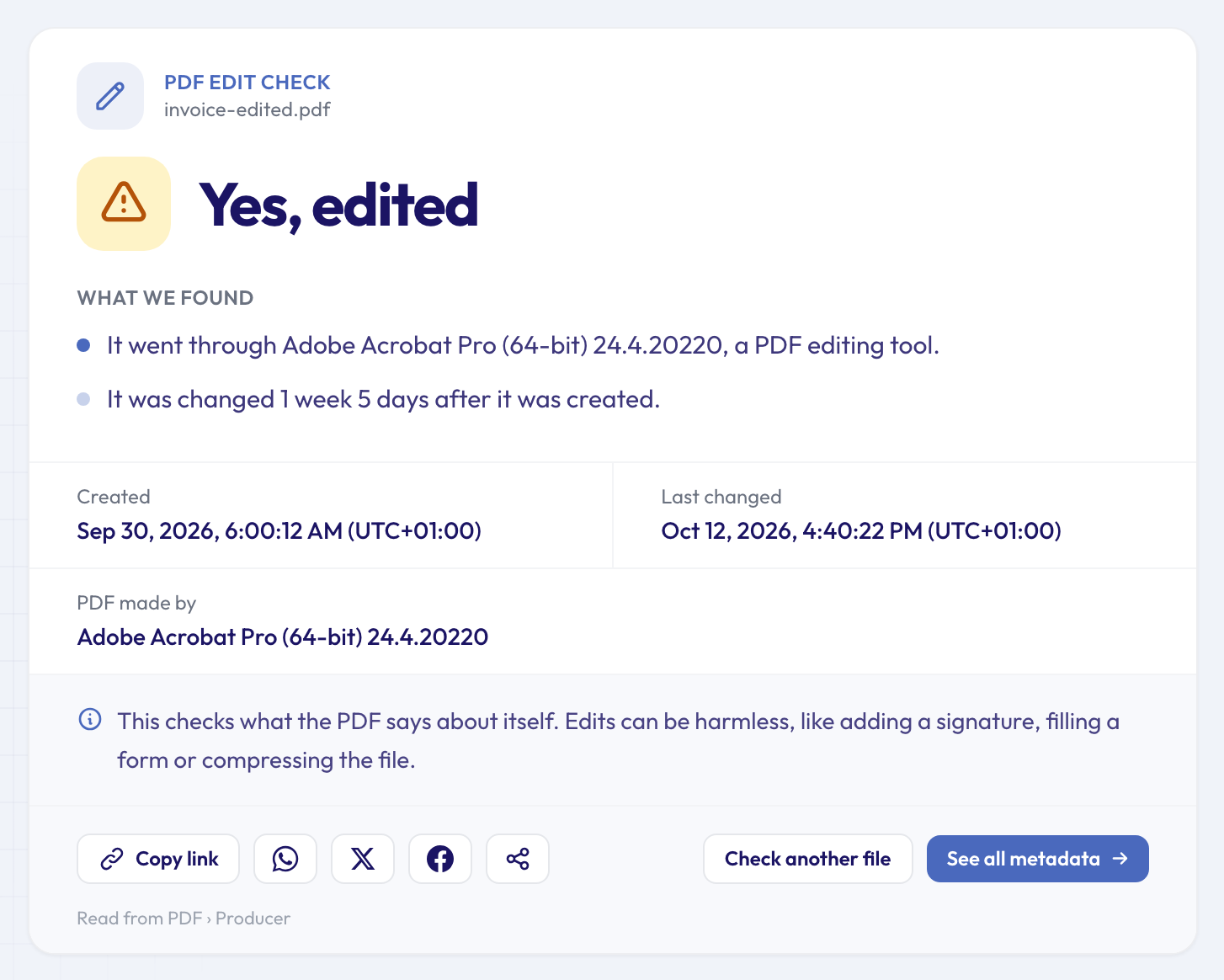 An invoice generated by a billing system on 30 September, then changed in Acrobat Pro on 12 October.
Files go over an encrypted connection, are read on our servers and are deleted automatically after about 24 hours. The result stays on a page with its own link, which is handy if you need to show someone what you found.
The three traces an edit leaves
1. An editing app in the file's details
Every PDF records two pieces of software: the app the document was written in (the Creator) and the software that wrote the PDF itself (the Producer). When you edit a PDF and save it, the editor often puts its own name in the Producer field. So a statement that should come straight from a bank's system but names Acrobat Pro, Foxit, iLovePDF, Smallpdf or a similar editor has been opened and saved again in an editor. The checker knows the common desktop and online PDF editors and treats one of them as a strong sign.
That's what happened to the invoice above. The original came out of a billing system, which named its PDF library as the Producer. After the edit, the Producer reads "Adobe Acrobat Pro".
2. An edit history
Some apps, Adobe's in particular, keep a log of saves in the PDF's XMP metadata: which program saved the file, and when. If that history records more than one save, or more than one app, the checker lists it as a strong reason.
3. A "last changed" date well after the creation date
PDFs store a creation date and a last-changed date. Most apps set both at the moment of export, so an untouched PDF has two matching dates. When the second date is later (the checker allows a couple of minutes for slow exports), something saved the file again after it was made. On its own that's only a hint, because many perfectly ordinary actions do it.
What each verdict means
Yes, edited. At least one strong trace: an editing app or an edit history. The PDF was opened and saved in an editor after it was made. That's a fact about the file, not about anyone's intentions: adding a page number, a highlight or a signature in Acrobat leaves exactly the same trace as changing an amount.
Possibly edited. Only the dates disagree. Here's a common harmless case, a venue agreement written in Word and signed two weeks later in Preview on a Mac:
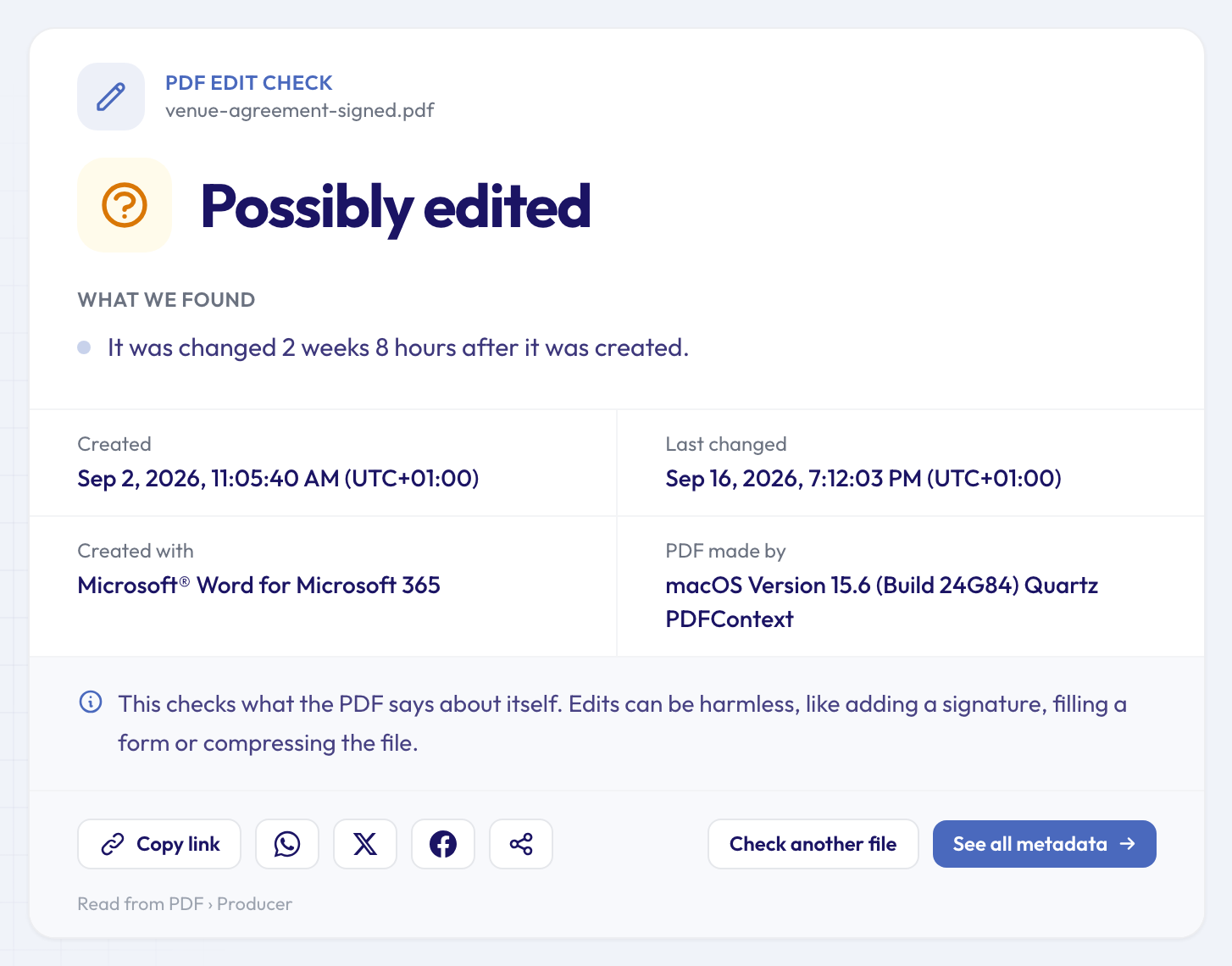 Created in Word on 2 September, saved again on a Mac on 16 September: the signature added a later date and a new "PDF made by".
Filling in a form, signing, rotating a page or running the file through a compressor all produce this result. Treat it as a prompt to look closer, especially at the parts of the document that matter to you.
No signs of editing. The two dates match and no editing app is named. Here's the same invoice as it left the billing system, before anyone touched it:
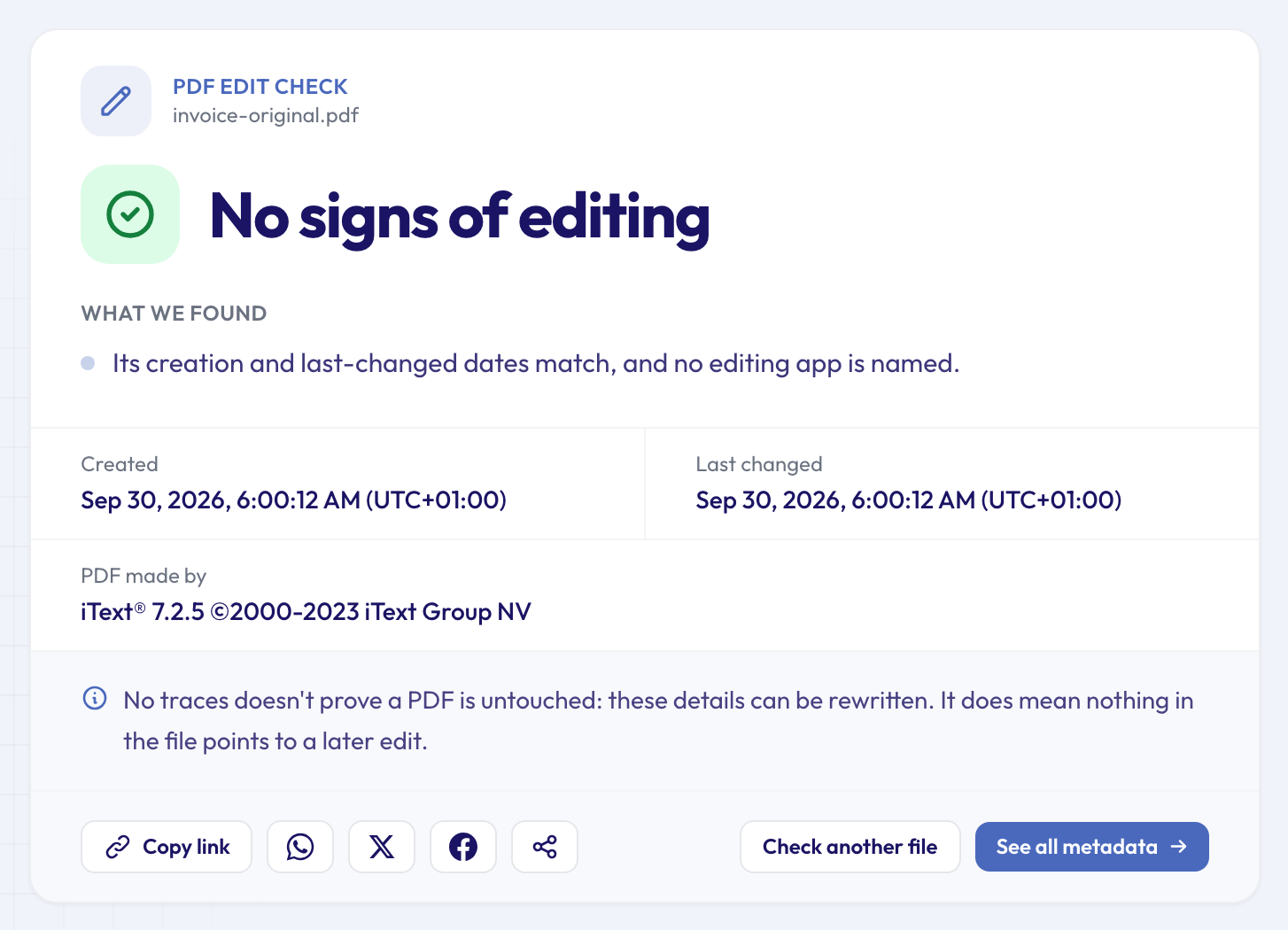 The original invoice: one date for both, and the billing system's PDF library as the only software.
That's reassuring, but it isn't a guarantee. These details can be rewritten by anyone who knows how, and a document that was edited and then "printed" to a fresh PDF starts over with clean, matching dates. If a payslip that should be months old turns out to have been created yesterday, the PDF Date Checker showing when a PDF was created will make that obvious.
Can't tell. The PDF has no dates or app names left, usually because a cleaner or converter removed them. There's nothing to compare, either way.
Reading the result in context
The traces make most sense when you know what the document should look like:
- Statements, payslips, tickets and invoices are usually generated by a company's system. The Producer is typically a PDF library or reporting tool, and both dates match. A desktop or online editor in those fields is a red flag.
- Letters, reports and contracts are usually written in Word or Google Docs, then exported. A later change date is normal if they were signed, filled in or updated.
- Scans come from a scanner or a scanning app. An editor after the scanner means the scan was worked on afterwards, sometimes just to rotate or combine pages.
The PDF Software Finder explains what software made a PDF in plain words, which helps when the Producer is something cryptic like "Skia/PDF" or "Quartz PDFContext". And the PDF Author Finder shows who created the PDF; our guide on finding out who created a PDF explains where that name comes from and why it's only a lead. For the other checks on documents, photos and videos, our round-up of 50 free tools that each answer one question lists them in one place.
What a metadata check can't see
Be clear about the limits. The edit checker reads what the PDF says about itself. It doesn't compare the text with an original, it doesn't spot a pasted-in number that was made to look right, and it doesn't read the file's internal save structure. A careful forger can reset the dates and the Producer to whatever they like.
So if a document really matters (money, a tenancy, a job offer), confirm it with whoever issued it, using contact details you found yourself rather than the ones printed on the PDF. Some PDFs also carry a digital signature, which your PDF reader's signature panel can check: a valid signature shows whether the document changed after it was signed. If a PDF carries Content Credentials instead, the Content Credentials Checker verifies the signature, and our explainer on verifying Content Credentials covers what that proves.
One more thing worth knowing: many PDF apps save changes by adding them to the end of the file rather than rewriting it, so an earlier version can still be sitting inside. That's why, if you're sending a PDF of your own and want its old details gone, the metadata remover rewrites the whole file instead of just blanking the fields.
Questions people ask
If I sign a PDF, will it look edited?
Usually it will show as "possibly edited" or "edited", depending on the app you sign with, because signing saves the file again. That's expected; the result lists what it found so you can judge it.
Can a PDF be edited without changing the modification date?
Yes. Some tools don't update it, and anyone can set it back by hand. That's why "no signs of editing" means nothing in the file points to an edit, not that none happened.
Does the checker show what was changed?
No. It shows that the file was saved again and with what, not which words or numbers changed. To see the difference you need the original to compare against.
Why does a PDF I made myself say "possibly edited"?
If you exported it, then reopened it to add a signature, fill in a field or reorder pages, the second save moved the "last changed" date on. Exporting once from Word or a browser normally gives matching dates.
Check a PDF now
Before you rely on an invoice, statement or contract, take ten seconds to check whether the PDF was edited. If the answer surprises you, ask the sender before you act on it.