Photo Privacy Checklist: 7 Things to Check Before You Post
A photo can carry your location, the time you were there, your camera's serial number, your name and even a preview of the part you cropped out. Here are seven quick checks to run before you post or send one, and how to share a clean copy.
Before you post or send a photo, check seven things: whether it carries a GPS position, a place name, the date and time, your device and its serial number, your name, a hidden thumbnail, and what the picture itself gives away. The first six are hidden inside the file, and each takes a few seconds to check with a free tool. Start with the one that matters most: drop the photo into our location privacy check.
To show what this looks like, we ran one example photo through every check: a beach picture, cropped, with the details a typical camera and a careful photographer would leave in it. It failed almost all of them.
1. Does it carry a GPS position?
This is the big one. When location is on for your camera, every photo stores where it was taken, often within a few metres. A photo taken at home can point to your front door.
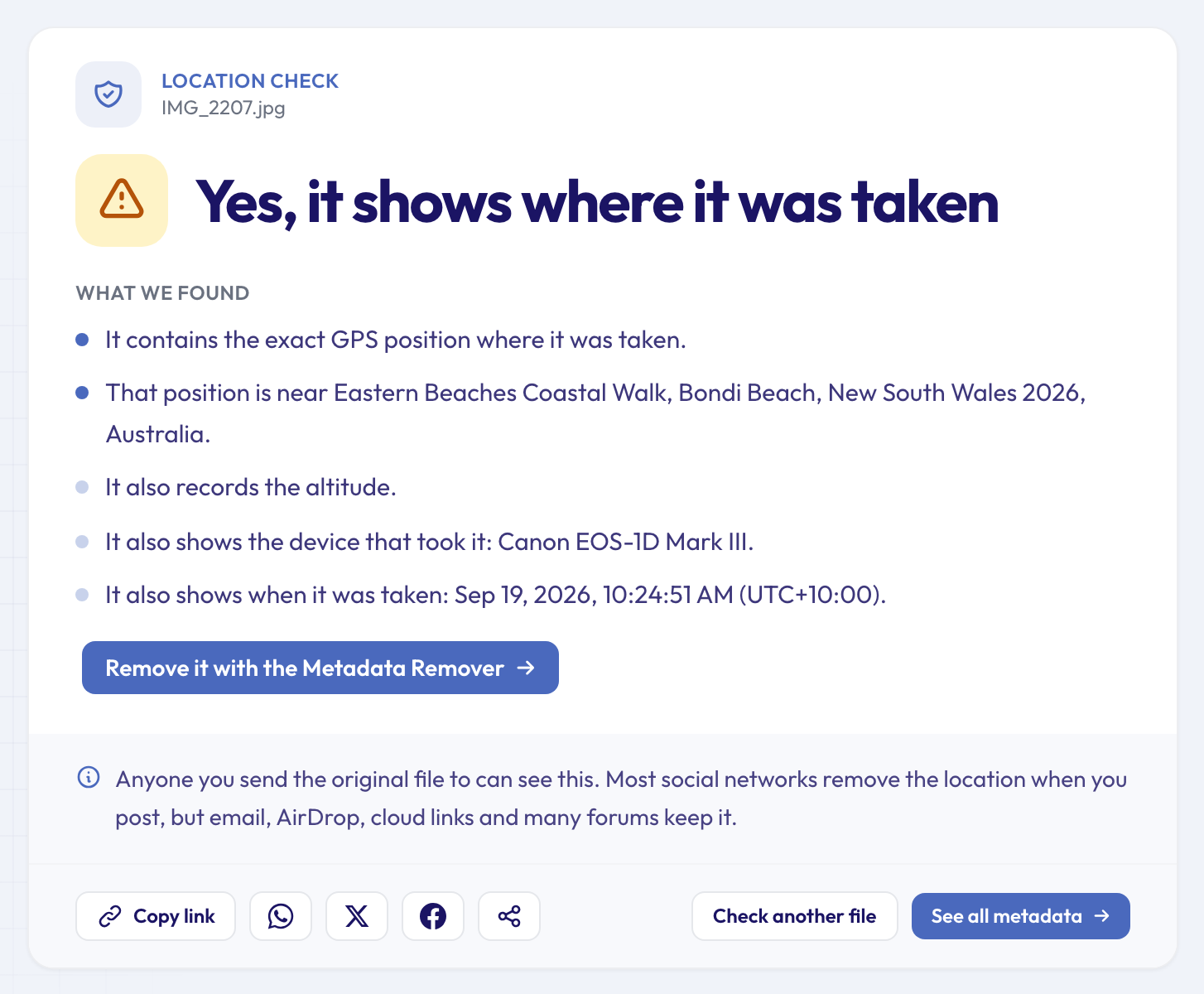 Check 1 on our example: an exact position near Bondi Beach, plus the altitude, the camera and the time it was taken.
The location privacy check gives a plain yes or no and lists what the file reveals. To see the spot on a map, the Photo Location Finder shows exactly what a stranger would see. We look at this risk in more detail in our guide to how a photo can give away your address.
2. Does it name a place?
Some photos have no GPS but still say where they were taken, because someone typed a town, a region or a country into the photo's details, or a photo app added it. Captions and keywords can do the same: "Jamie's 7th birthday, Elm Street" in a description field travels with the file just as well as coordinates. The location check reports written place names too, and the full metadata viewer shows every caption and keyword field.
3. Does it say when it was taken?
Every original photo records the date and time it was taken, often to the second and with the time zone. On its own that's harmless. Together with the location it shows where you were and when, and a run of photos can reveal a routine. Photos posted during a trip also tell people you're away. The Photo Date Checker shows the date the camera saved, and our guide on how to find when a photo was taken explains the different dates a file can hold.
4. Does it identify your device, or your camera?
An original phone photo names the phone that took it, and usually the software version and which of its cameras was used; the phone finder shows it all, and our guide to telling which phone took a photo explains each detail. Many cameras go further and save their own serial number in every picture:
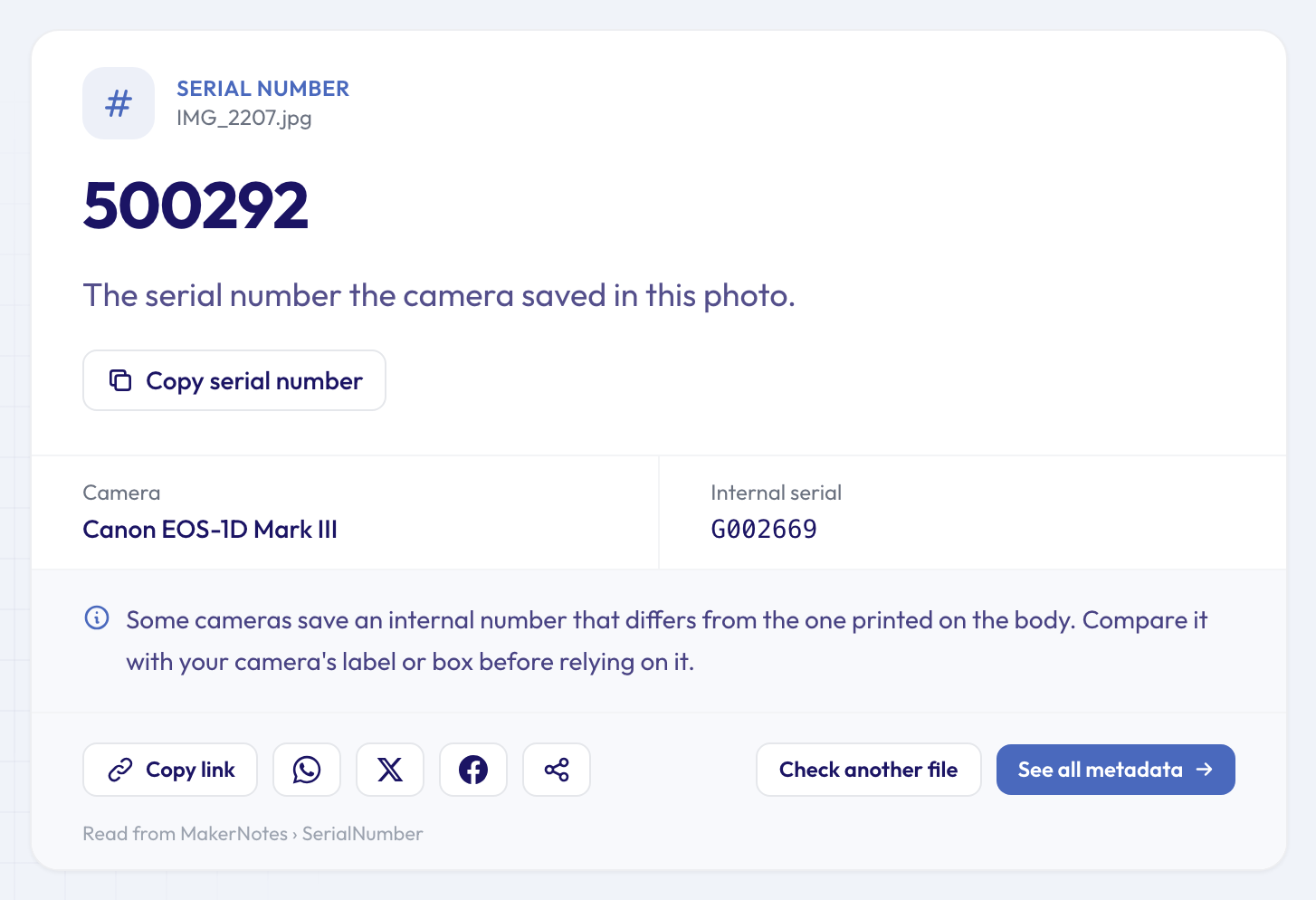 Check 4: the camera's serial number, saved in every photo it takes.
A serial number is useful when it's your own camera, for example to register it or prove it's yours. But it also ties together every photo that camera has taken, so pictures you post under different names can be linked to the same camera. The Camera Serial Number Finder shows whether your photos carry one.
5. Does it carry your name?
Many cameras let you set an owner or copyright name that is written into every photo, and editing apps often add a copyright notice when you export. Photographers usually want this:
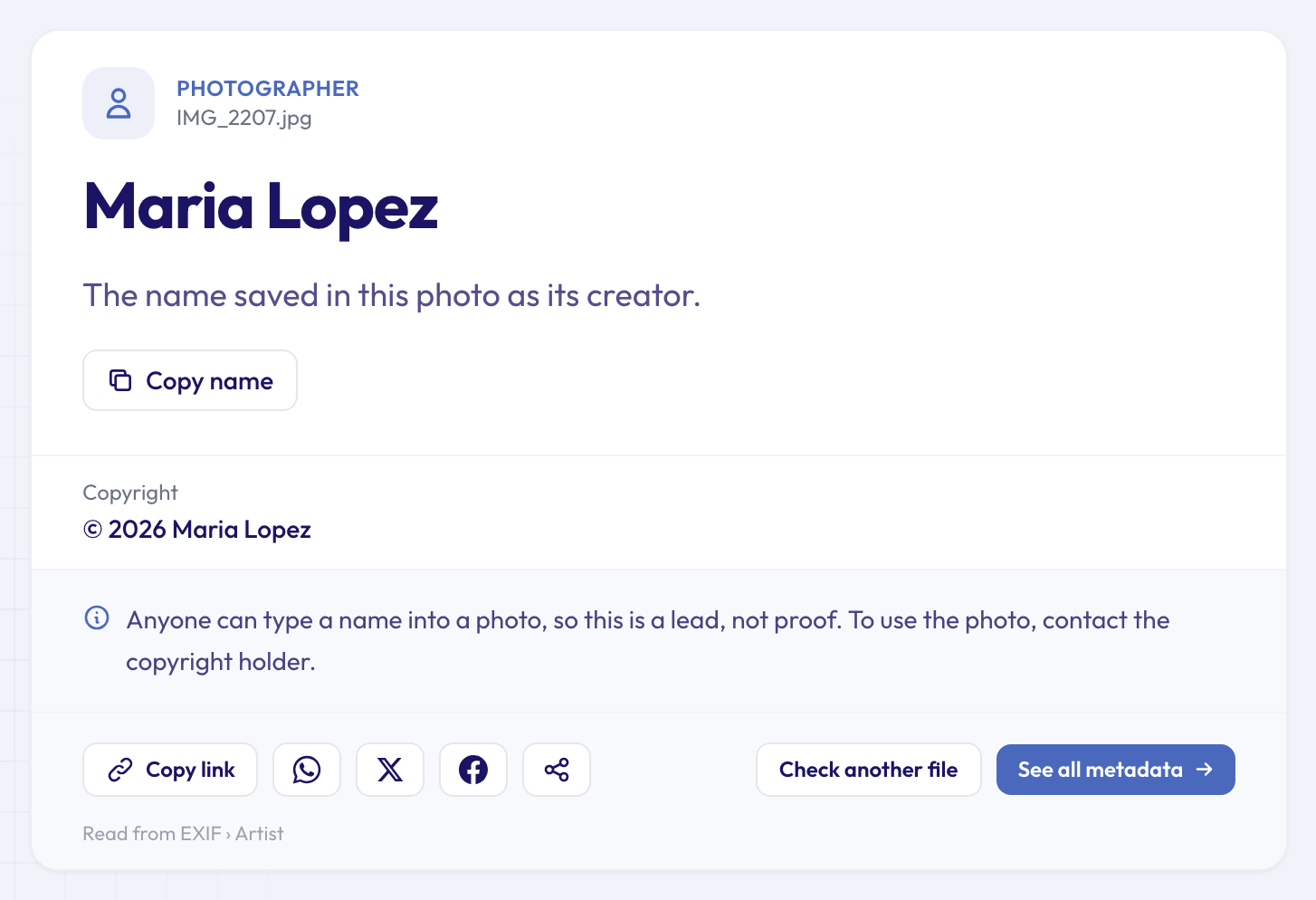 Check 5: the photographer's name and copyright notice, saved inside the file.
If you post under a nickname, or share photos for a group or an organisation, a name inside the file can undo that. The Photographer Finder shows the name, copyright notice and credit line a photo carries.
6. Is there a hidden thumbnail?
Many photos carry a small preview of themselves inside the file. If an app cropped or retouched the photo but kept the old preview, the part you cut out can still be there. Our example photo was cropped from a tall picture to a wider one, but its thumbnail wasn't updated:
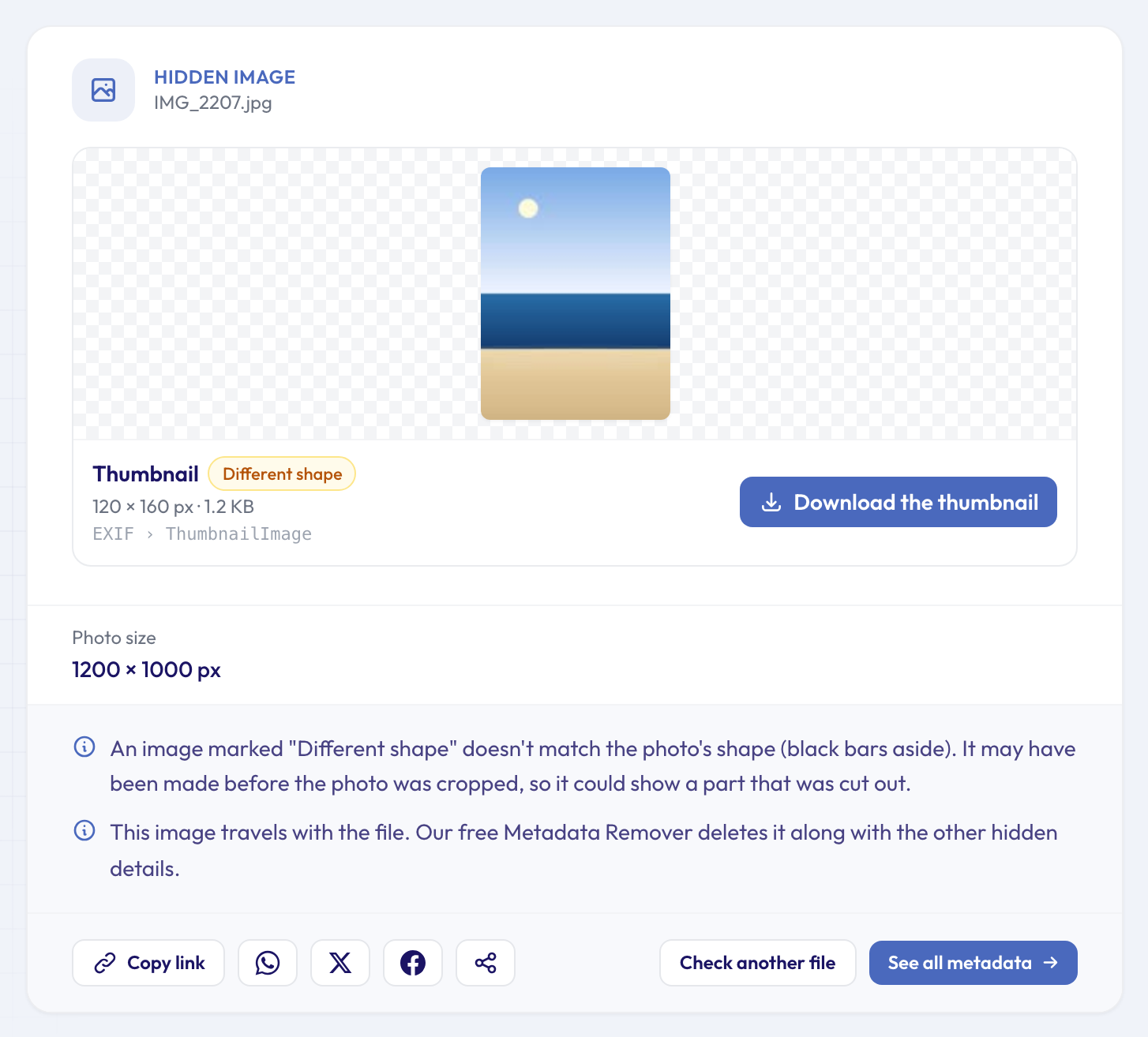 Check 6: the preview has a different shape from the photo, because it was made before the crop. It still shows the whole scene.
The Hidden Thumbnail Viewer shows every preview a photo carries and flags the ones whose shape doesn't match. Our guide to the hidden thumbnail in your photos explains why cropping isn't always enough.
7. What does the picture itself show?
No tool can do this one for you. Look at the photo as a stranger would and check for:
- house numbers, street signs, car number plates and the view from a window;
- school uniforms, name badges, lanyards and logos;
- letters, parcels, tickets, screens and documents in the background;
- reflections in windows, mirrors and sunglasses.
Removing hidden data doesn't touch any of these. Cropping or blurring does, as long as you then check point 6.
How you share it changes what gets through
Whether these details reach anyone depends on how the photo travels, and services change their behaviour over time, so take this as a rough guide:
- Email attachments, cloud storage links and phone-to-phone transfers usually pass on the original file with everything in it.
- Many big social networks remove the location and most camera details from the copy they publish. They still receive your original, though, and a location you add as a tag is shown on purpose.
- Messaging apps vary. Some re-save photos without these details; sending a photo "as a file" or "as a document" usually keeps the original.
- Marketplaces, forums and websites differ widely. Some publish the file as you uploaded it.
Since it's hard to know which case you're in, the safest habit is to clean the photo before it leaves your phone.
Fix it in one step
You don't have to deal with each item separately. The free Metadata Remover takes the hidden details out of a photo in one go, including the location, the dates, the device, the serial number, names and embedded thumbnails, and gives you a clean copy to share. The picture itself stays the same. Our guide on how to remove EXIF data from photos covers the options in more detail.
Then run the clean copy through the location check once more. It takes a few seconds, and you'll know the file you're about to post is the one you meant to share.
FAQ
Do I need to check photos I post on social media?
It's still worth it. Many big networks remove hidden details from what they publish, but not every site does, the rules can change, and points 6 and 7 aren't covered by any platform. A quick check costs nothing.
Will cleaning a photo reduce its quality?
No. Removing metadata takes out the hidden fields and leaves the picture as it was, at the same quality and resolution.
I'm a photographer. Can I keep my name but drop the location?
Yes, by stopping the location at the source: turn off location for your phone's camera, or the GPS or location sharing on your camera, and leave your copyright setting on. Your name then goes into every photo, and the position doesn't.
Are the photos I upload to check them kept?
Files are sent over an encrypted connection, read on our servers and deleted automatically after about 24 hours. The results page with the extracted details stays reachable by its link, so keep that link to yourself if the photo is private.
Start with the location
Of the seven checks, the location is the one that can hurt most. Before your next post, check whether your photo shows your location, run through the rest of the list, and share a clean copy made with the Metadata Remover.